Copy protection for website, blog & shop – protect content from copying – here's how + WordPress plugin
Should texts and images no longer be simply copied from the website, blog or online shop? With these plugins and solutions, 90-95% of normal copying processes can be prevented. There is no 100% copy protection, as any content that is displayed can simply be photographed or copied with a screenshot. BUT there are many hurdles that can be built in to protect content. How this works and what solutions are available, we describe in this article + useful WordPress plugin for copy protection of image + text.
Copy protection for website, blog & shop – protecting content from copying – how it works + WordPress plugin
To protect your content on your website, blog or online shop from being copied, there are various measures you can take. It is important to note that no method is absolutely secure, as content that is visible online can theoretically be copied.
The following list is very technical and further down we have linked two very good solutions that work independently of the system on all websites, blogs or shops!
Nevertheless, these methods can raise the bar for copying your content:
Copyright notice: Add a clear copyright notice to your website. While this is not a technical protective measure, it can have a deterrent effect and is legally important.
Watermarks: For images, watermarks can help to identify them as yours. Even if the image is copied, the origin is recognizable.
Disabling the right-click function: You can disable the right-click function on your page using JavaScript to make it more difficult to copy text and images. However, keep in mind that this can impair the user experience and can be easily circumvented.
CSS tricks: Certain CSS techniques can make text harder to copy, for example, by displaying text as part of an image. However, this has the disadvantage that it can impair the accessibility of your website.
Content Management Systems (CMS) with permissions: Some CMS offer the option to make content visible only to certain user groups or to restrict copying and printing functions for specific content.
Encryption and tokenization: For very sensitive content, encryption and tokenization methods can be used to control access and restrict dissemination.
Robots.txt and meta tags: Use the robots.txt file to prevent search engines from indexing certain content. However, this does not prevent direct copying by visitors.
Legal Steps: Register your content with the relevant copyright offices and be prepared to take legal action if your content is illegally copied. This can act as a deterrent and provides you with legal recourse.
Education and Awareness: Inform your users why protecting your content is important. Sometimes, awareness of the significance and value of intellectual property can deter potential copyright infringers.
Technical Monitoring: Monitoring tools can help scan the internet for copies of your content. If copies are found, you can react accordingly.
The simpler and usually better solution: Copy protection plugins & scripts for easy integration
Please note that many of these measures can be circumvented and may not be popular with all users, as they can impair the user experience. It is therefore important to find a balance between protecting your content and providing a user-friendly website.
Copy protection plugins can be a practical addition to the methods already mentioned, especially for website operators who do not want or cannot program themselves. These plugins are often available for popular content management systems (CMS) such as WordPress, Joomla, or Drupal. They offer various functions to protect content from copying and can usually be easily installed and configured. Here are some typical functions offered by such plugins:
Disabling the right-click function: Many copy protection plugins offer the option to disable the right-click function on the entire website or on selected pages to make it more difficult to copy text and images.
Preventing text copying: Some plugins can prevent text copying via keyboard shortcuts such as Ctrl+C (or Cmd+C on Macs).
Disabling keyboard shortcuts: In addition to disabling Ctrl+C, plugins can also block other keyboard shortcuts that could be used for copying, cutting, or saving website content.
Protection against Drag & Drop: To prevent visitors from copying images or text by dragging them with the mouse, some plugins also offer protection mechanisms against Drag & Drop.
Watermarks for images: Automatic addition of watermarks to images on your website to identify their origin.
Preventing screenshot applications: Some advanced plugins attempt to prevent the creation of screenshots of the website, although this is technically more difficult to implement and easier to circumvent.
Mobile protection features: As more and more users access websites from mobile devices, some plugins also offer protection mechanisms specifically for mobile browsers.
In a free strategy consultation for data-driven online marketing, we uncover your untapped potential, review any existing ad accounts if necessary, examine your SEO ranking and visibility, and determine which strategy is appropriate for your budget and which active measures will lead to more inquiries or sales.
✅ More visibility & perception through targeted placement
✅ More visitors > prospects > customers > revenue
✅ Reach target groups scalably with SEA
✅ Act and grow sustainably with SEO
🫵 Maximum success with our hybrid strategy
💪 More than 15 years of experience across industries in over 1,000+ projects demonstrable!
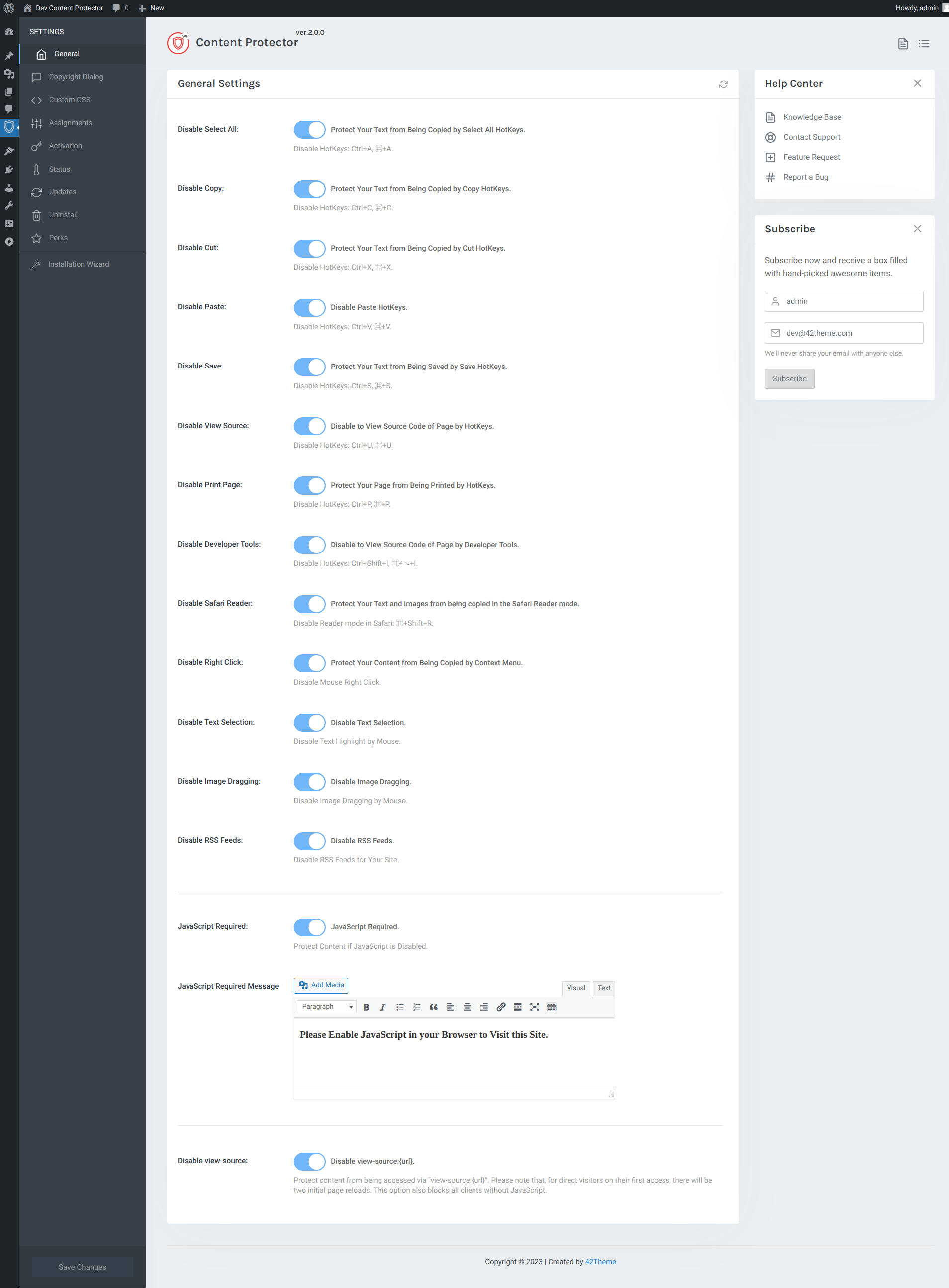
All common browsers are supported: Chrome, Firefox, Safari, Edge, Opera, etc. It doesn’t matter which browser users view your website with. Content Protector works perfectly in all browsers and with all types of devices such as smartphones, tablets, and desktop computers.
✅ By default, every option for copying content is disabled. However, depending on your needs, you can enable or disable some of the options.
Disable right-click: Mouse right-click Protect your content from being copied via the context menu.
Disable select all: Ctrl+A (Windows and Linux), ⌘+A (macOS) Protect text from being highlighted & copied.
Disable copy: Ctrl+C (Windows and Linux), ⌘+C (macOS) Protect your text from being copied by Copy HotKeys.
Disable Cut: Ctrl+X (Windows and Linux), ⌘+X (macOS) Protect text from being copied
Disable Paste: Ctrl+V (Windows and Linux), ⌘+V (macOS) Disable Paste
Disable Save: Ctrl+S (Windows and Linux), ⌘+S (macOS) Protect your text from being saved by hotkeys.
Disable View Source: Ctrl+U (Windows and Linux), ⌘+U (macOS) Disable viewing the page source code via hotkeys.
Disable Print Page: Disable Hotkeys: Ctrl+P (Windows and Linux), ⌘+P (macOS) Protect your page from being printed via hotkeys.
VERY IMPORTANT: Disable Developer Tools: Disable Hotkeys: Ctrl+Shift+I (Windows and Linux), ⌘+⌥+I (macOS) Disable viewing the page source code from Developer Tools.
Disable Safari Reader Mode: Disable Reader Mode in Safari: ⌘+Shift+R (macOS) Protect your text and images from being copied in Safari Reader Mode.
Disable Text Selection: Disable Text Highlighting (Text Selection) with the mouse.
Is there no 100% copy protection for texts and images?
Unfortunately, there is no 100% protection against copying content on the internet. As soon as content is available online, there is always a possibility that it can be copied in one way or another. Technically savvy users often find ways to circumvent even the most sophisticated protection mechanisms. This is because for content to be displayed in the browser, it ultimately has to be downloaded in some form – be it as text, image, or video. Once the content is on the user’s device, it can, in principle, be copied.
The available protective measures, including copy protection plugins and technical tricks, only raise the barrier to copying. They can act as a deterrent and make the process more complicated, but they do not offer absolute protection. Here are a few reasons why 100% protection is difficult:
Screenshots and Screen Recording: Users can simply take screenshots or record the screen to copy visual content.
Bypassing JavaScript-based Protection Measures: JavaScript-based restrictions (such as disabling right-click) can be bypassed by disabling JavaScript in the browser or by using special browser extensions.
Manual Transcription: Text content can always be manually transcribed if all technical protection measures fail.
Reading the Source Code: The source code of a website is accessible to users, and with it all content contained therein, including texts and references to images or videos.
Nevertheless, it is advisable to take basic protective measures to protect your content as best as possible. This includes legal steps such as publishing a clear copyright notice, using watermarks, and regularly monitoring the internet for unauthorized copies of your content. If you discover that your content is being used without permission, you can take legal action to demand the removal of the content or claim damages.
Ultimately, a good strategy is to focus on creating unique and high-quality content that is difficult to replicate. This way, you can stand out from others and build a loyal user base that appreciates and supports your work.
has found his calling through passion. Fundamentally honest and direct, he advises everyone from sole proprietors to founders and startups, as well as business and management levels of SMEs. As a consultant, he understands how to reduce complex relationships to their essence and develop a direct message for customers and employees with a sustainable strategy and optimization.


















 DE
DE