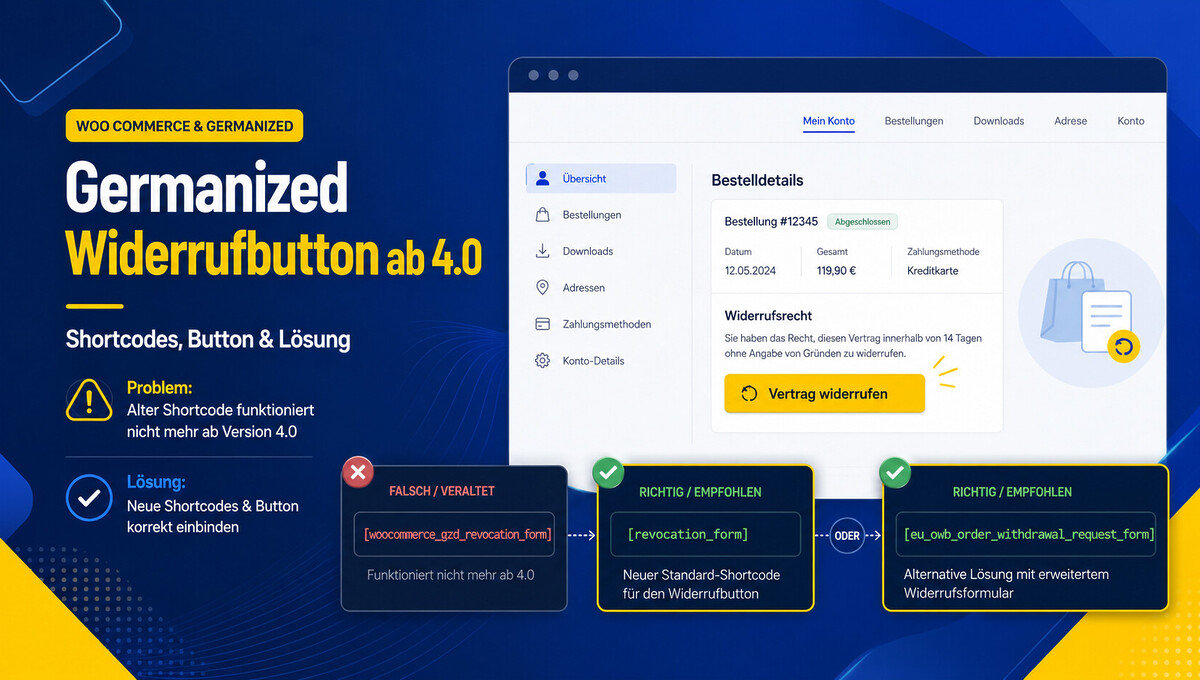
Since WooCommerce Germanized 4.0, many shop operators are looking for the correct shortcode for the revocation button. It is important to distinguish: [revocation_form] displays the classic revocation form, while [eu_owb_order_withdrawal_request_form] outputs the new form for „Revoke contract“. The often-tested shortcode [woocommerce_gzd_revocation_form] does not work for this purpose. If you only want to insert the button outside the Block Editor, you can create your own shortcode via a PHP snippet.
WooCommerce Germanized Revocation Button since v4.0+: Shortcodes, Instructions + Solution
With WooCommerce Germanized from version 4.0+, a lot has changed regarding revocation. Many shop operators are looking for the familiar revocation form or want to integrate the new „Revoke contract“ button outside the Block Editor. This often leads to confusion because not every Germanized button automatically exists as its own shortcode.
Current video on this:
Germanized Revocation Button not working? Instructions for Shortcodes, Block Editor and WooCommerce from Version 4.0+
In these instructions, I will show you which shortcodes actually work, how to correctly integrate the new revocation form, and how to create your own shortcode for the „Revoke contract“ button if needed.
The Problem: The old or incorrect shortcode does not output a form
The following shortcode is often tried:
[woocommerce_gzd_revocation_form]However, this shortcode is not the correct shortcode for the Germanized revocation form. If you insert it into a page and nothing appears, it is not necessarily due to your theme or a plugin conflict, but simply because this shortcode is not registered as a form shortcode in this way.
The correct shortcode for the classic Germanized revocation form
For the classic Germanized revocation form, the correct shortcode is:
[revocation_form]You can insert this shortcode on a regular WordPress page. It outputs the classic revocation form including a submit button.
Become more visible on Google & Social Media?
In a free strategy consultation for data-driven online marketing, we uncover your untapped potential, review any existing ad accounts if necessary, examine your SEO ranking and visibility, and determine which strategy is appropriate for your budget and which active measures will lead to more inquiries or sales.

✅ More visibility & perception through targeted placement
✅ More visitors > prospects > customers > revenue
✅ Reach target groups scalably with SEA
✅ Act and grow sustainably with SEO
🫵 Maximum success with our hybrid strategy
💪 More than 15 years of experience across industries in over 1,000+ projects demonstrable!







Example
[revocation_form]The submit button within this form has, among others, the following ID in Germanized:
#submit_revocationThis allows you to style it specifically using CSS.

The new „Revoke Contract“ button in Germanized from version 4.0
Since version 4.0, Germanized has included a new function related to the EU-compliant „Revoke Contract“ button or the order revocation form. This new form is not identical to the classic [revocation_form].
The shortcode for the new form is:
[eu_owb_order_withdrawal_request_form]This shortcode outputs the new form for revoking an order. Depending on the status, login state, and order, it displays, among other things, the order number, email address, customer data, or an order selection.
Tip for always correct and up-to-date legal texts for the shop: IT-Recht-Kanzlei*
Recommendation for the new revocation page
Create a page, for example:
/cancel-contract/Insert this shortcode there:
[eu_owb_order_withdrawal_request_form]This page should then be correctly stored in the Germanized settings or in the area for the revocation button.
Is there a separate shortcode for the „Cancel Contract“ button?
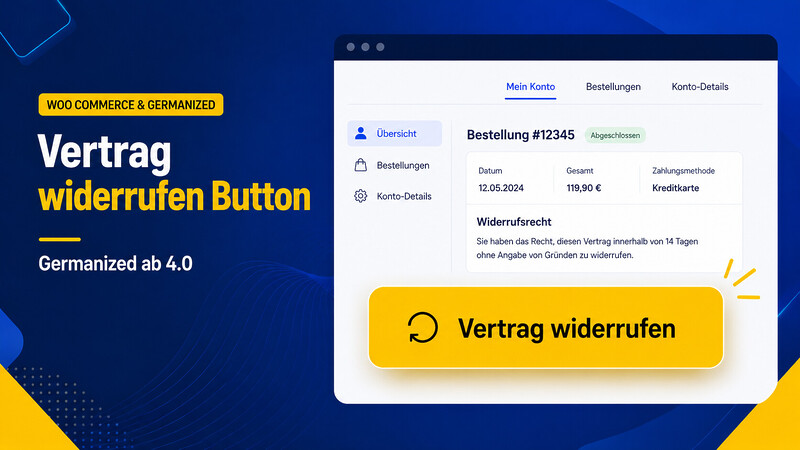
The visible „Cancel Contract“ button from the Block Editor is not registered as a single button shortcode in Germanized itself. The button is output internally via a template and links to the stored revocation page.
However, if you want to insert the button flexibly via shortcode in Elementor, WPBakery, Gutenberg, widgets or other places, you can simply create your own shortcode.

The better plugin solution for the WooCommerce revocation button with Germanized or German Market independently:
Custom Shortcode for the „Revoke Contract“ Button
Insert the following code via the „Code Snippets“ plugin or into your child theme’s functions.php:
add_shortcode( 'gzd_vertrag_widerrufen_button', function() {

    if (
        ! function_exists( 'eu_owb_get_withdrawal_page_permalink' ) ||
        ! function_exists( 'eu_owb_get_withdrawal_button_text' )
    ) {
        return '';
    }

    $url  = eu_owb_get_withdrawal_page_permalink();
    $text = eu_owb_get_withdrawal_button_text();

    if ( empty( $url ) ) {
        return '';
    }

    return sprintf(
        '<p class="eu-owb-order-withdraw-from-contract-button align-center has-text-align-center"><a class="button gzd-vertrag-widerrufen-button" href="%s">%s</a></p>',
        esc_url( $url ),
        esc_html( $text )
    );
} );
Afterwards, you can insert the button anywhere via shortcode:
[gzd_vertrag_widerrufen_button]Alternative: Insert button manually as HTML
If you do not want to use a dynamic Germanized function, you can also manually set a simple button:
<a class="button gzd-vertrag-widerrufen-button" href="/en/vertrag-widerrufen/">
  Withdraw from contract
</a>
This variant is simple but less flexible. If the URL of your revocation page changes, you will have to adjust the link manually.
CSS: Style the revocation button visually like other WooCommerce buttons
The classic Germanized revocation button can be styled via #submit_revocation. The new button or the custom shortcode can be addressed via .gzd-vertrag-widerrufen-button.
#submit_revocation,
.gzd-vertrag-widerrufen-button,
.woocommerce-form-return_request__submit {
    display: inline-block;
    padding: 12px 24px;
    border: 0;
    border-radius: 4px;
    background-color: #222;
    color: #fff;
    font-weight: 600;
    text-decoration: none;
    cursor: pointer;
    line-height: 1.3;
    transition: all 0.2s ease;
}

#submit_revocation:hover,
.gzd-vertrag-widerrufen-button:hover,
.woocommerce-form-return_request__submit:hover {
    background-color: #000;
    color: #fff;
    text-decoration: none;
}
CSS for Woodmart or Themes with WooCommerce Button Variables
If your theme uses its own CSS variables, for example Woodmart, you can align the button more closely with the theme’s style:
#submit_revocation,
.gzd-vertrag-widerrufen-button,
.woocommerce-form-return_request__submit {
    display: inline-flex;
    align-items: center;
    justify-content: center;
    min-height: 42px;
    padding: 5px 20px;
    border: 0;
    border-radius: var(--wd-brd-radius, 4px);
    background-color: var(--wd-primary-color, #222);
    color: #fff;
    font-weight: 600;
    text-transform: uppercase;
    text-decoration: none;
    cursor: pointer;
}

#submit_revocation:hover,
.gzd-vertrag-widerrufen-button:hover,
.woocommerce-form-return_request__submit:hover {
    opacity: 0.9;
    color: #fff;
}
Step-by-step instructions
1. Determine which form you wish to use
For the classic Germanized revocation form, use:
[revocation_form]For the new order revocation form or the EU Order Withdrawal Button, use:
[eu_owb_order_withdrawal_request_form]2. Create a dedicated revocation page
Create a new page, for example „Revoke Contract“. Add the new shortcode there:
[eu_owb_order_withdrawal_request_form]3. Store the page in Germanized
Check in the Germanized settings whether the correct revocation page or the page for the Order Withdrawal Button is stored. Without a correctly assigned page, the button may lead nowhere or not appear as expected.
4. Optional: Add your own button shortcode
If you want to use the button flexibly, add the PHP code mentioned above as a snippet. Afterwards, you can use this shortcode anywhere:
[gzd_vertrag_widerrufen_button]5. Adapt the button to your theme via CSS
Add the CSS in the Customizer under „Additional CSS“, in your child theme, or in your own CSS plugin.
6. Test the process
Test the revocation as a logged-in customer and as a guest customer. Also, check if the emails are sent correctly and if the revocation is visible or processable in the backend.
Common Errors and Solutions
The shortcode [woocommerce_gzd_revocation_form] shows nothing
This shortcode is not the correct form shortcode. Instead, use:
[revocation_form]The new button appears in the Block Editor, but I can’t find a shortcode
The button itself is not registered as a single shortcode. Either use the Germanized block or create your own button shortcode with the PHP snippet mentioned above.
The new form appears, but no orders are selectable
This may be because there are no revocable orders, the order does not belong to the customer account, the deadline has expired, or the Germanized settings do not allow revocation for this order.
The button looks different from the other shop buttons
Style the button using CSS. For the classic form, #submit_revocation is particularly relevant. For the new form, .woocommerce-form-return_request__submit is relevant, among others.
Recommended implementation
For most WooCommerce shops, the following combination is useful:
- New revocation page with
[eu_owb_order_withdrawal_request_form] - Own button shortcode
[gzd_vertrag_widerrufen_button]for flexible integration - CSS adjustment for
#submit_revocation,.gzd-vertrag-widerrufen-buttonand.woocommerce-form-return_request__submit - Test as guest customer and logged-in customer
Conclusion on the Germanized Revocation Button
Since Germanized version 4.0, there are two important variants for revocation: the classic revocation form and the new order revocation form with „Revoke contract“ function. The classic shortcode is [revocation_form]. The shortcode for the new form is [eu_owb_order_withdrawal_request_form].
There is no single official shortcode just for the visible „Revoke Contract“ button. However, this gap can be neatly closed with a small custom shortcode, allowing the button to be used flexibly outside the Block Editor.
Important: After setup, the entire process should be tested – including the button, form, guest order, customer account, email notification, and backend processing.
Summary:
Classic revocation form:
[revocation_form]
New Germanized contract revocation form:
[eu_owb_order_withdrawal_request_form]
Custom button shortcode according to snippet:
[gzd_vertrag_widerrufen_button]
Important CSS selectors:
#submit_revocation
.gzd-vertrag-widerrufen-button
.woocommerce-form-return_request__submit





 DE
DE