Nothing is worse than when the cache still shows old data despite the page being updated, old CSS files are loaded, and even display errors occur. These are unfortunately the pitfalls of WordPress caching plugins like W3 Total Cache, WP Super Cache, Cachify, and many others.
After we also had problems with a complex client website and outdated CSS files repeatedly caused incorrect displays on mobile devices, a solution was needed. So, as a WordPress agency, we decided to find a flexible, automatic, and effective solution.
The solution for automatically clearing the W3 Total Cache
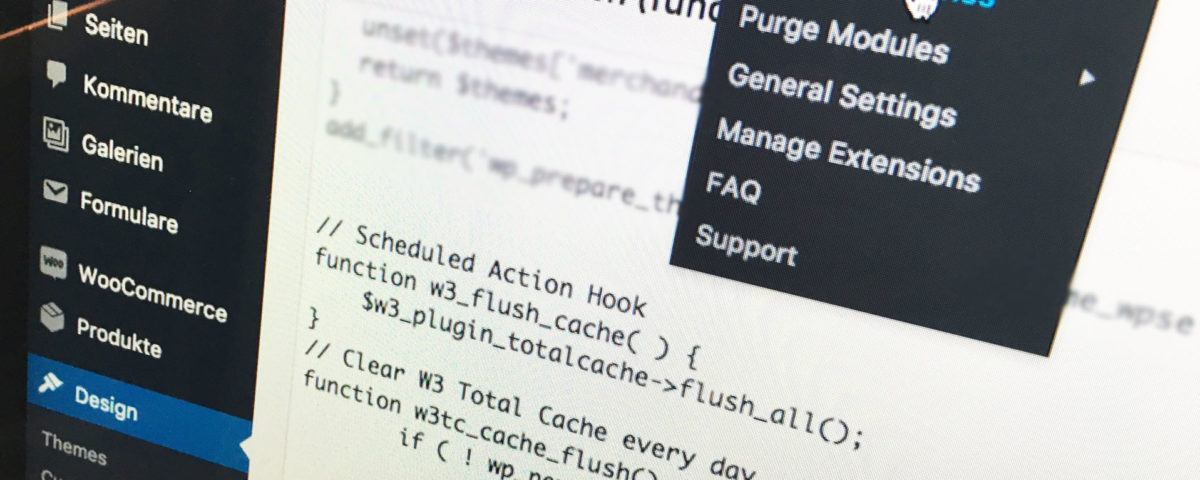
To edit the functions.php, you need FTP access or, alternatively, direct access via the backend (administration interface). Connect via the FTP server or call up the following URL: YOUR-DOMAIN.de/wp-admin/theme-editor.php?file=functions.php. Please copy the following code to the end of the functions.php in the (child) template folder.
 // Automatically clear W3 Total Cache
 function w3_flush_cache( ) {
 $w3_plugin_totalcache->flush_all();
 }
 // Function when W3 Total Cache should be cleared
 function w3tc_cache_flush() {
 if ( ! wp_next_scheduled( 'w3_flush_cache' ) ) {
 wp_schedule_event( current_time( 'timestamp' ), 'daily', 'w3_flush_cache' );
 }
 }
 add_action( 'wp', 'w3tc_cache_flush' );
You can replace the red-highlighted parameter with the following values:
- hourly
- twicedaily
- daily
Further information on the timestamp parameters can be found here. You can learn how to clear the cache manually here.

Für Fragen rund um WordPress und entsprechender WordPress-Hilfe:
E-Mail: fi@vastcob.com
Florian Ibe





 DE
DE