With the right plugin, auctions are easy for WooCommerce. This article is about two fully-featured auction plugins for creating and managing online auctions and sales in a WooCommerce shop.
Sales & Auctions for WooCommerce with Plugins
In this post, we present 2 very good solutions for a WooCommerce shop using a plugin. This is about a complete and most affordable auction & sales solution for WordPress and WooCommerce. With the WooCommerce Simple Auctions plugin, you can create a professional auction website or an eBay clone with regular, proxy, sealed (silent), and reverse auctions alongside your normal products. WordPress auctions have never been easier to set up! Watch a video explaining how easy it is to set up auctions with Simple Auctions and the „WooCommerce Auctions Made Easy Plugin*„.

WooCommerce Simple Auctions* is easy to use, yet professional auction software that allows owners to set up a WordPress auction website that is easy to set up, run, and customize. With our auction plugin, you can set up the WordPress auction website and start bidding in less than 30 minutes (assuming you have the payment processor ready) and for about $30! If you are a theme developer looking to create a WordPress auction theme for Envato, just buy an extended license and you’re good to go.
We recommend reading the documentation and checking out our auction demo website (the demo runs on the latest versions of WordPress, WooCommerce, and Simple Auctions).
With the auction plugin, the owner can charge fees for user-submitted auctions via a custom code added to your functions.php file. Read FAQ article No. 5 https://wpgenie.org/woocommerce-simple-auctions/documentation/#faq for more information.
Overview and Features of WooCommerce Simple Auctions for Shop Auctions
- Works with the latest versions of WordPressandWooCommerce (and earlier versions)
- Seamless integration into WooCommerce via its hooks – you get a new type of WooCommerce product – Auction
- Ability to verify credit card / payment details before the user can do so (by modification)
- Anti-snipping function (extension of the auction end time if someone bids 30 seconds before the auction ends, configurable)
- Works with any payment gateway supported by WooCommerce
- Normal, reverse and sealed (silent) auctions, proxy / auto-bidding
- Define starting price, price increment, minimum price, buy now
- Set start and end time for the auction
- Easily control how you want to display auctions – together with products or separately
- Widgets with ending soon, future, current, featured, recently viewed, my auctions, and random auctions
- Email notifications (with editable email templates) for outbid notice, auction won, payment reminder, auction failed, reserve failed, auction buy now, auction end, admin bid notification (no bid), customer bid notification, auction list admin notification, auction list user notice, auction ending soon email notification
- The auction product has an auction icon (label) on the thumbnail
- If the user is logged in and wins an auction, the item has a winning badge on the thumbnail
- The single product page has the new „Auction History“ tab.
- Many shortcodes – please check the documentation for all available shortcodes
- User’s „My Auctions“ page with listed auctions on which the user has placed a bid (for both active and won auctions)
- Auction filtering and sorting in the product list (wp-admin)
- Frontend auction sorting by current bid, date, buy now price, activity, end date (ending soonest), start date (recently started)
- The auction product has an icon describing the different auction statuses: active, ended, ended and paid, failed (wp-admin)
- Auction activity (shortcode), auction monitoring function (shortcode and widget)
- Auction history in wp-admin – CSV and Excel export for a single auction history with sortable columns
- Ajax Live update for current bid and auction history
- Create an auction for virtual or downloadable products
- Manually delete bid
- Manual or automatic re-auction if no bid was placed or not paid in time
- WPML-compatible PO file for translations available in lang / dir
- Role-based bidding and payment method check (via extension) – Enable bidding for a specific user role (e.g. "Customers" role)
- If users can create and submit their auctions, you as the website owner can charge a fee (via the Multivendor Plugin ).
- Cron jobs required – If your host does not support 1-minute cron jobs, you can use a third-party cron service such as easycron
Screenshots of Simple Auctions:
Become more visible on Google & Social Media?
In a free strategy consultation for data-driven online marketing, we uncover your untapped potential, review any existing ad accounts if necessary, examine your SEO ranking and visibility, and determine which strategy is appropriate for your budget and which active measures will lead to more inquiries or sales.

✅ More visibility & perception through targeted placement
✅ More visitors > prospects > customers > revenue
✅ Reach target groups scalably with SEA
✅ Act and grow sustainably with SEO
🫵 Maximum success with our hybrid strategy
💪 More than 15 years of experience across industries in over 1,000+ projects demonstrable!







The official alternative from woocommerce.com: Auctions Made Easy for WooCommerce
Advantages of Auctions Made Easy for WooCommerce
1. Easily set up and run auctions.
2. The administrator can require customers to register before participating in the auction. Optionally, a one-time registration fee and a one-time bidding fee can be charged.
3. Separate dashboard for the administrator and customers to manage their auctions.
4. Customers can contact you directly from the auction product page.
5. The administrator can start/end any auction from their dashboard.
6. Payments can be made via the payment gateways available in the shop. Optionally, restrictions can be set on which payment gateways should be available.
How do I create and run an online auction using Auctions Made Easy for WooCommerce?
Auctions Made Easy supports five types of auctions: Normal, Reverse, Sealed, Proxy, and Unique. In this example, we will explain the workflow of a normal auction (the highest bidder is considered the winner).
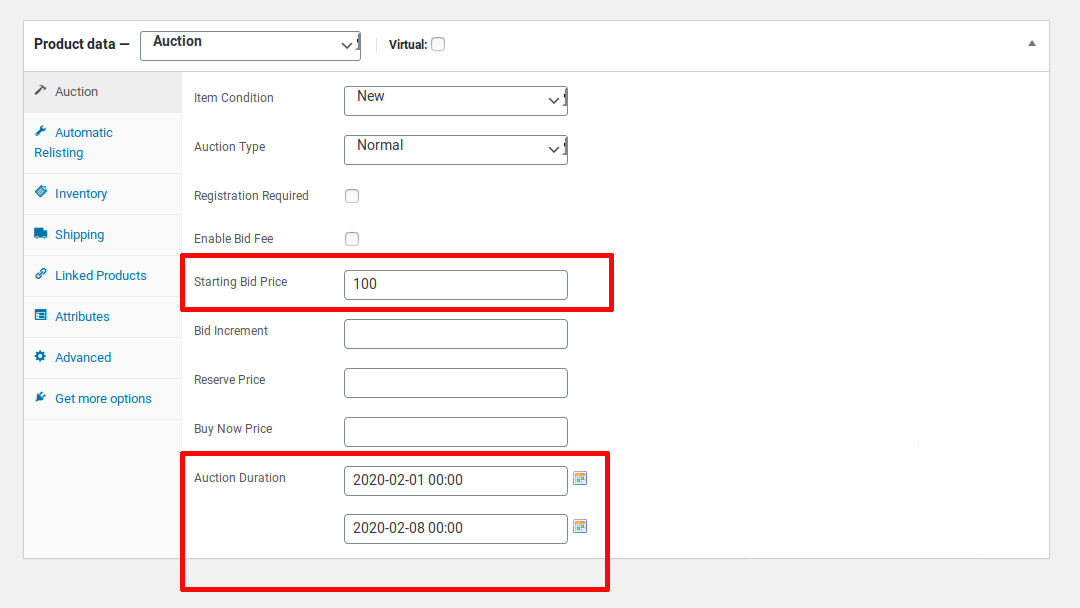
– Configure the product by setting up the mandatory fields (starting bid price and auction duration).
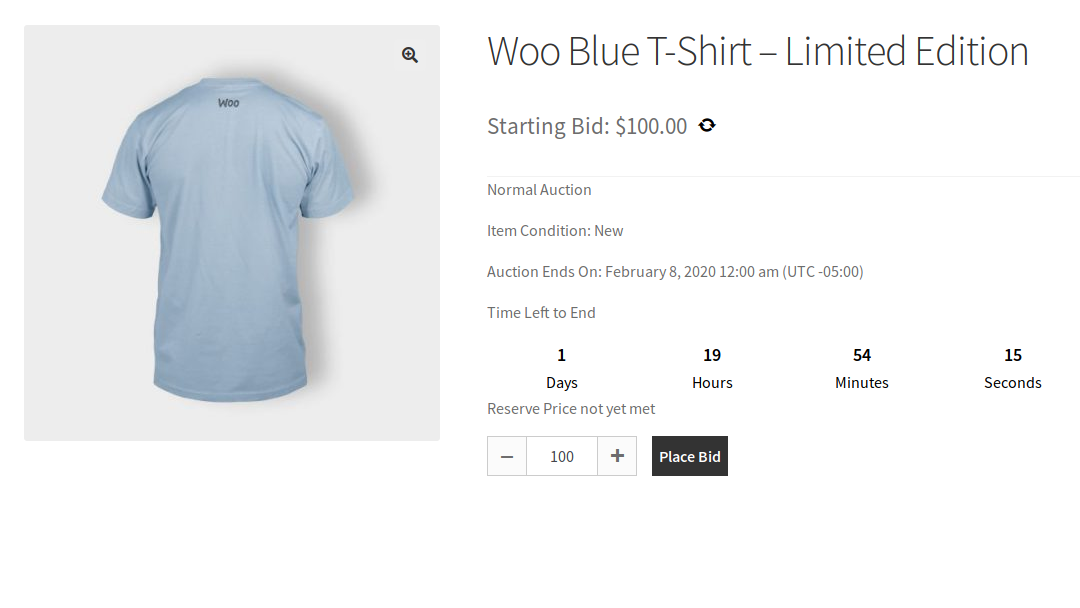
– After configuration, the product is available for bidding.
– Any logged-in customer can participate in the auction by placing their bid.
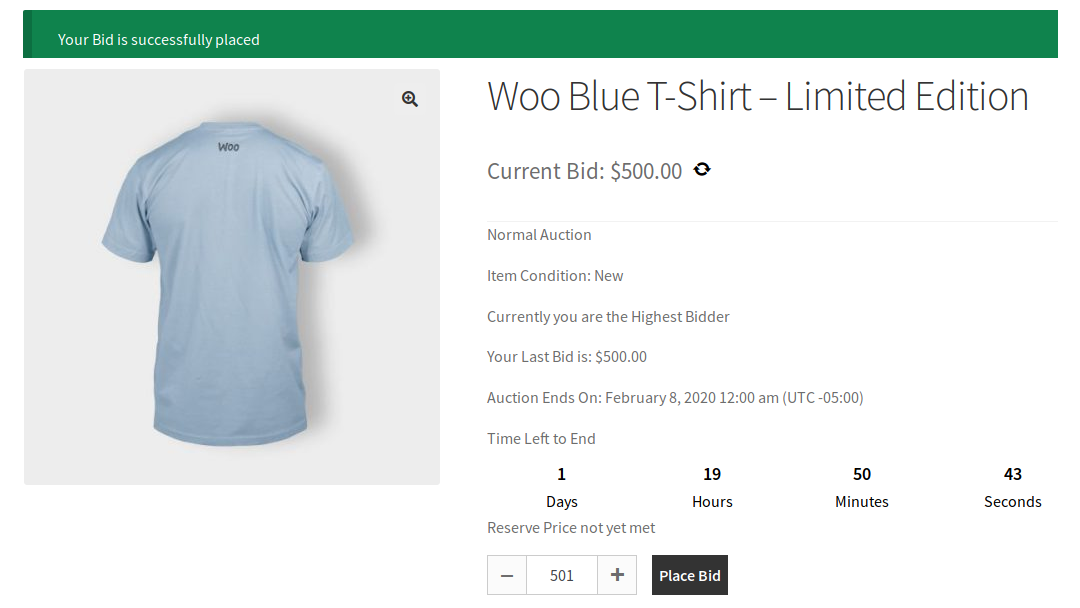
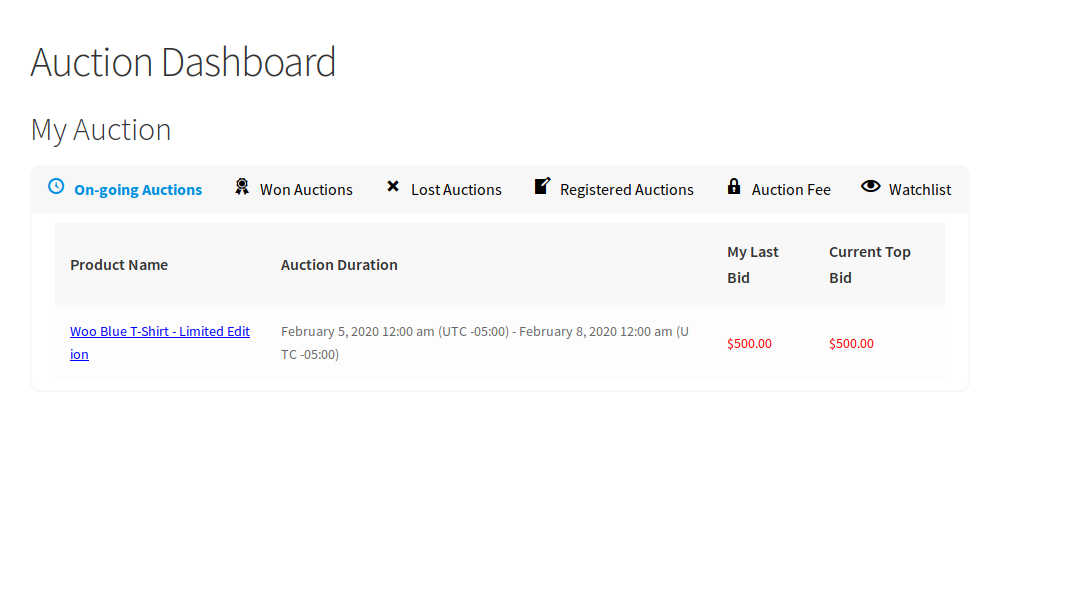
– After placing the bid, your customer can monitor the auction through their auction dashboard.
– Your customers will be notified by email if their bid has been outbid.
– Once the auction ends, the highest bidder will be considered the winner.
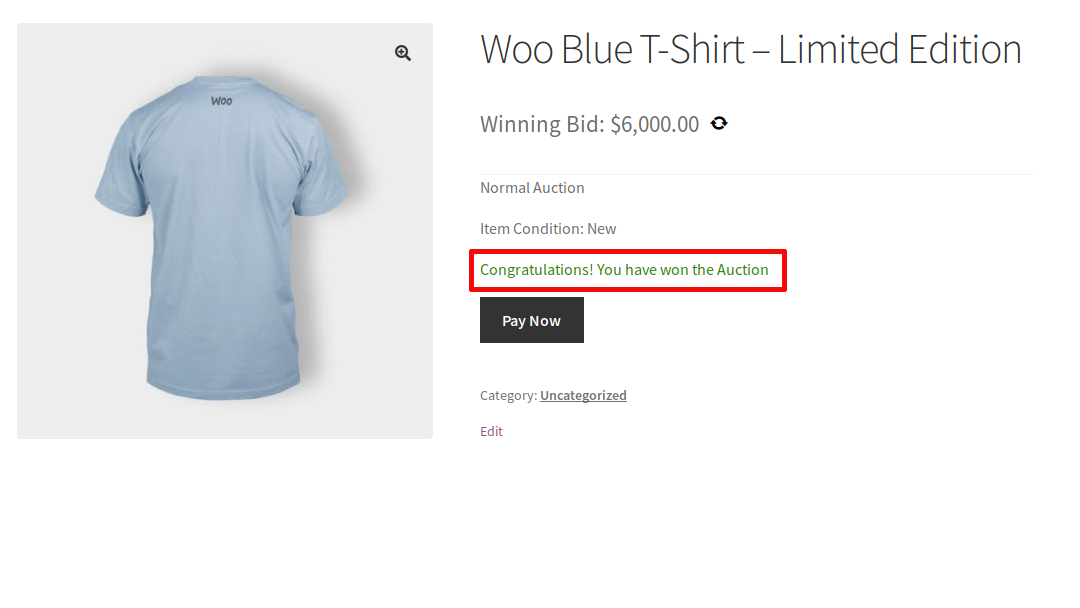
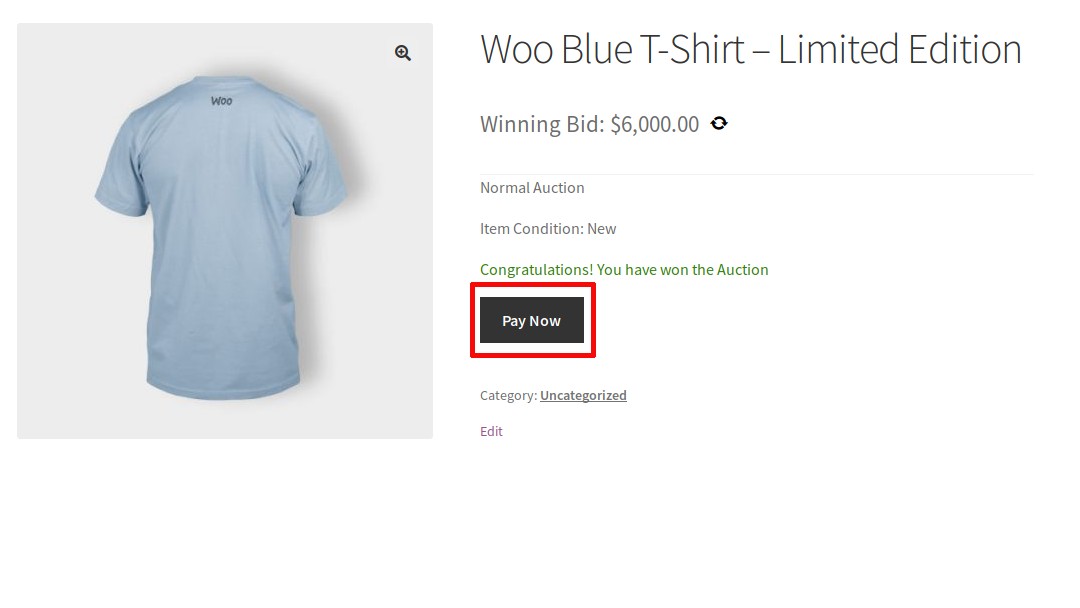
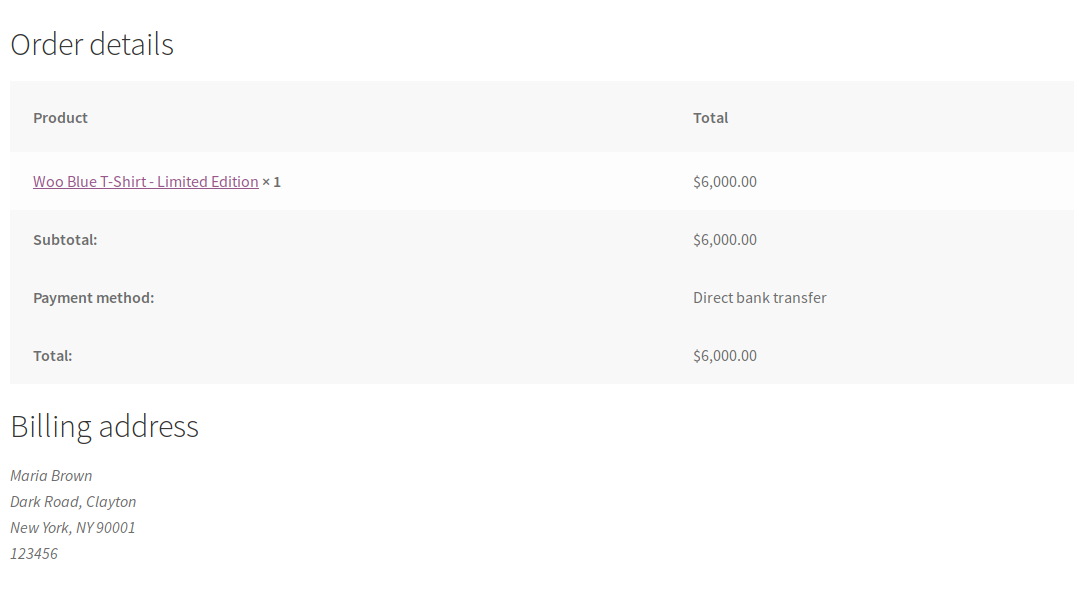
– The winner can pay for the auction directly via the product page / auction dashboard.
a. Winner payment button on a single product page
b. Winner payment button in the customer dashboard
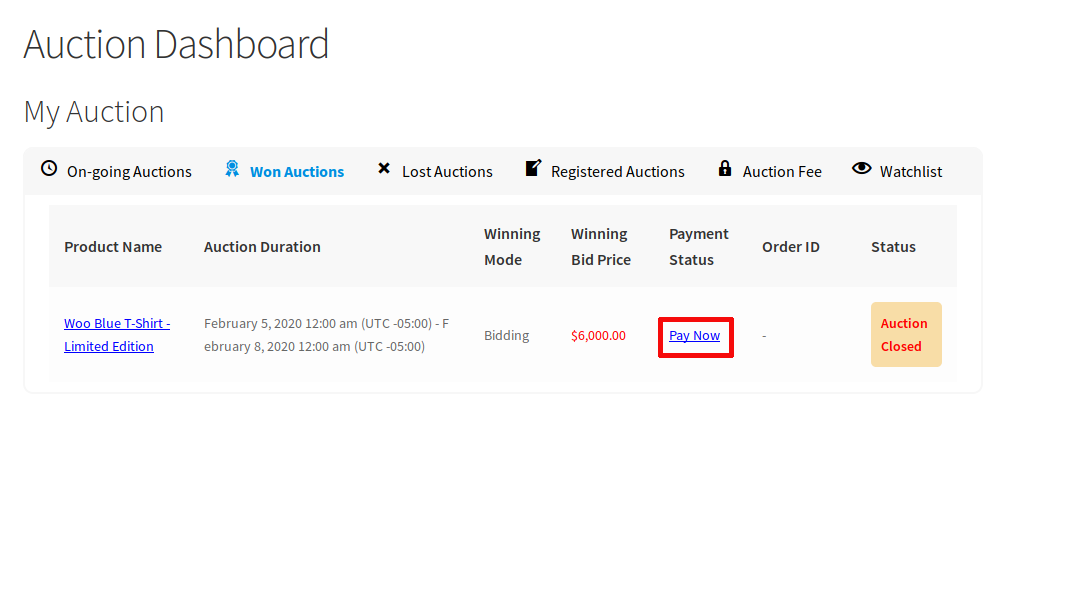
– Once the user clicks the "Make Payment" button, they will be redirected to the checkout to complete the payment.
Explanation of Supported Auction Types
Normal Auctions
- In this type of auction, the auction starts with a low price and bidders must bid a higher price than the last bid.
- At the end of the auction, the bidder with the highest price is considered the winner.
Reverse Auctions
- In this type of auction, the auction starts with a higher price and bidders must bid a lower price than the last bid.
- At the end of the auction, the bidder with the lowest price is considered the winner.
Sealed Auctions
- In this type of auction, bidders can only know the bids placed by other bidders after the auction has ended. After the auction ends, the winner is announced, and all bidders can view the bids placed by others.
- Sealed auctions can be configured as either regular auctions or reverse auctions.
Proxy Auctions
- In this type of auction, the price bid by bidders is not directly visible to other users. Instead, only a portion of the original bid amount is visible to other users. Each time a user places a bid that is lower than the current highest bid, the system automatically places a bid for the highest bidder. This process continues until the highest bidder has been outbid.
- Both regular and reverse auctions can be configured as proxy auctions. After the auction ends, the winner only has to pay the second-highest/lowest bid amount (based on the regular/reverse auction).
Unique Auctions
- The unique auction is a type of sealed auction, meaning bidders cannot see bids placed by other bidders until the auction ends. After the auction ends, the winner is announced, and all bidders can view the bids placed by other bidders.
- Unique auctions can be configured as either a regular auction or a reverse auction.
- To win a sealed auction, a user must place a bid that no other user has placed.

Fragen zum WooCommerce Plugin oder Hilfe?
E-Mail: fi@vastcob.com
Florian Ibe




 DE
DE