
The world of typefaces (fonts & typefaces) is fascinating and complex. It offers a rich palette of possibilities with which brands and designers can communicate their messages visually. Typefaces contribute significantly to the aesthetics and readability of content and influence how information is perceived and processed. In this article, we delve deeper into the topic to understand how to identify typefaces and use them effectively, and how to consider legal aspects such as data protection. From selecting the perfect typeface for your design to the technical detection of typefaces in various media – we cover all important aspects.
Find out typeface (fonts / recognize typeface) on website, web shop, image, logo or PDF
Finding typefaces on websites, web shops, images, logos or PDFs is more accessible today thanks to various tools and techniques. With browser extensions like WhatFont or WhatTheFont, you can recognize typefaces directly on the web, while tools like Identifont or „Find my Font“ enable you to identify typefaces from images and PDFs. These methods are indispensable for designers and brands seeking consistent and appealing visual communication.
In this current blog article, all options are summarized with links to helpful tools or explanations.
A tip in advance for everyone who wants to build a brand right now: Use Brandy* as a central tool for corporate design and brand content
Online tools for typeface recognition to reliably determine the typeface
Typeface recognition is easier than ever today thanks to a variety of tools and techniques. Browser extensions like WhatFont allow you to identify typefaces on websites with a simple click. For more complex requirements, such as recognizing typefaces from images, there are services like WhatTheFont that use advanced image analysis to determine typefaces precisely. Some of these tools even offer the ability to search for typefaces based on similar visual characteristics, which is helpful when you cannot find a specific typeface directly. These tools are essential for designers and anyone working with the design of digital content.
Here is a list of the best tools to find out the typeface with short descriptions:
- WhatFontIs – A powerful tool that identifies fonts from images and offers both free and commercial alternatives.
- WhatTheFont – An online tool by MyFonts that identifies fonts from uploaded images and suggests similar fonts. WhatTheFont
- Identifont – Offers detailed font search based on specific font characteristics or similar fonts. Identifont
- FontSquirrel Matcherator – Another tool that recognizes fonts in images and suggests free alternatives. FontSquirrel Matcherator
Recognize fonts online: These tools cover a broad spectrum of use cases and are useful for designers and anyone working with digital media.
The mobile app: „Find my Font“ is particularly practical
The mobile app „Find my Font“ is a useful tool that makes it possible to identify fonts from images. Users can take a photo or upload an existing image, and the app analyzes the font and provides matching suggestions. It is particularly practical for designers and typography enthusiasts who are on the go and want to quickly identify fonts. With a user-friendly interface and an extensive database of fonts, „Find my Font“ offers an efficient solution for mobile font recognition.
Find my font in the Google Play Store
Alternative: WhatTheFont App
Become more visible on Google & Social Media?
In a free strategy consultation for data-driven online marketing, we uncover your untapped potential, review any existing ad accounts if necessary, examine your SEO ranking and visibility, and determine which strategy is appropriate for your budget and which active measures will lead to more inquiries or sales.

✅ More visibility & perception through targeted placement
✅ More visitors > prospects > customers > revenue
✅ Reach target groups scalably with SEA
✅ Act and grow sustainably with SEO
🫵 Maximum success with our hybrid strategy
💪 More than 15 years of experience across industries in over 1,000+ projects demonstrable!







Browser Extensions for Font Recognition
Browser extensions for font recognition are particularly practical as they offer a quick and straightforward way to identify fonts directly while browsing the internet. They are ideal for designers, developers, and font enthusiasts who often seek inspiration or want to analyze specific fonts on websites. With just a few clicks, these extensions provide valuable information about the fonts used without requiring manual searching or additional software.
- WhatFont – Enables easy identification of fonts on websites with a single click. Available for Chrome and Firefox.
WhatFont for Chrome
WhatFont for Firefox - Fontface Ninja – A browser plugin that provides detailed information about fonts on websites, including the ability to test and purchase fonts.
Fontface Ninja for Chrome
Fontface Ninja for Firefox
These extensions offer a quick and user-friendly way to recognize and analyze fonts directly in the browser.
Font Recognition Without Tools on Websites & Web Shops
Font recognition without special tools offers significant advantages. It enables you to identify fonts directly in the web browser using built-in features, which is particularly practical when you need information quickly or don’t have a special tool available. This method, which often involves inspecting web page elements through the browser’s developer tools, provides insights into CSS properties and enables a deep understanding of web typography. It is a cost-effective and educational method that promotes a fundamental understanding of web design and development.
Step-by-Step Guide to Font Recognition Without Tools:
- Open the Website: Visit the website whose font you want to identify.
- Right-Click on the Text: Click on the text whose font you want to find out and select „Inspect“ (Chrome) or „Inspect Element“ (Firefox).
- Open Developer Tools: The browser’s developer tools open, with the corresponding HTML code of the text highlighted.
- Search for CSS Properties: In the Developer Tools section, you will see the CSS styles applied to this text. Search here for entries such as
font-family,font-size,font-weightetc. - Note the Font: The
font-familyproperty shows the font used. Often multiple fonts are listed, with the first being the primary font.
This method provides a direct and simple way to identify fonts without needing to install additional software.
Recognizing Fonts from Images, Logos, or PDFs
Recognizing fonts from images, logos, or PDFs is a useful skill, particularly in areas such as graphic design and brand development. Modern tools use advanced image recognition technologies to analyze text in images and identify the corresponding font. These tools are particularly helpful when no direct information about the font used is available, as is often the case with logos or scanned documents.
Here are the 5 best tools for font recognition from images and PDFs:
- WhatTheFont – Recognizes fonts from images and offers similar alternatives. WhatTheFont
- FontSquirrel Matcherator – Identifiziert Schriftarten in Bildern und empfiehlt kostenlose Alternativen. FontSquirrel Matcherator
- WhatFontIs – A powerful tool that identifies fonts from images and offers both free and commercial alternatives. WhatFontIs
- Adobe Capture – A mobile app that recognizes fonts from images and converts them into Adobe fonts. Adobe Capture
- Identifont – Allows font search based on visual characteristics and by answering questions. Identifont
Recognize fonts in PDF with Adobe Acrobat
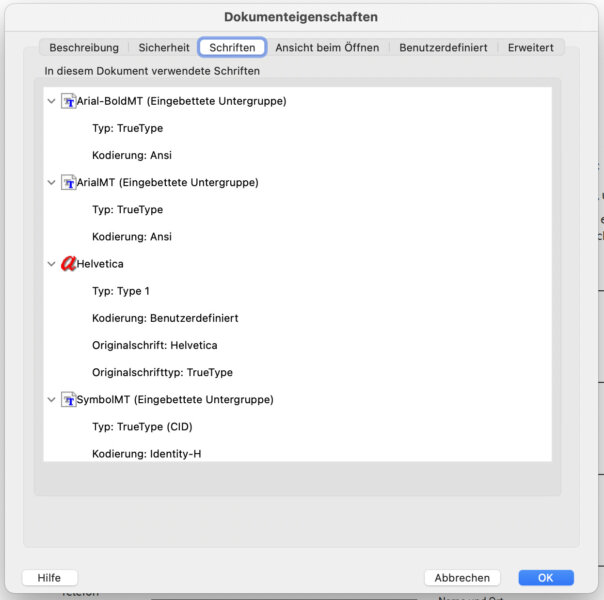
In Adobe Acrobat, you can easily identify the fonts in a PDF document. Follow this step-by-step guide:
- Open PDF: Open the PDF document in Adobe Acrobat.
- Display Properties: Press Ctrl + D (Windows) or Cmd + D (Mac) to open the Properties window.
- Select Fonts Tab: In the Properties window, select the „Fonts“ tab. There you will find a list of all fonts used in the document.
This function is particularly useful for checking the consistency of fonts in your documents and ensuring that all fonts are correctly embedded.
Summary of tools to identify the font regardless of whether it is on a website, an online shop, logo, image/graphic or in a PDF file:
- WhatTheFont: Recognizes fonts in images, ideal for identifying unknown fonts in graphics and logos.
- FontSquirrel Matcherator: Identifies fonts and offers free alternatives, suitable for designers looking for accessible options.
- WhatFontIs: Offers a comprehensive database for font recognition from images, including commercial and free alternatives.
- Adobe Capture: Mobile app that recognizes fonts from the real world and converts them into Adobe fonts, ideal for integration into Adobe products.
- Identifont: Enables font search through visual features and questions, useful when no image material is available.
Feature comparison table:
| Tool | Image Recognition | Free Alternatives | Commercial Alternatives | Integration into Adobe Products | Special Features |
|---|---|---|---|---|---|
| WhatTheFont | Yes | No | Yes | No | |
| FontSquirrel Matcherator | Yes | Yes | No | No | |
| WhatFontIs | Yes | Yes | Yes | No | |
| Adobe Capture | Yes | No | Yes | Yes | Mobile App |
| Identifont | No | No | No | No | Question-Based Search |
Tips for Selecting and Using Fonts
When selecting and using fonts, there are several key aspects to consider in order to optimize the visual impact and readability of your content. It is not only about choosing an aesthetically appealing font, but also about taking into account context, target audience, and functionality.
10 important points for font selection:
- Readability: Ensure that the font is easy to read, especially for longer texts.
- Target audience: Choose fonts that are appropriate for your target audience.
- Brand consistency: The font should match the overall image of your brand.
- Context: Consider the deployment context – web, print, etc.
- Font size and spacing: Pay attention to well-balanced size and line spacing.
- Color contrast: Ensure sufficient contrast between text and background.
- Font combinations: Experiment with combining fonts, but don’t overdo it.
- Licensing: Check the license terms of the fonts.
- Accessibility: Ensure that your fonts are accessible.
- Trend Awareness: Stay informed about current font trends without blindly following fashion.
Usage Rights and Licenses of Fonts & Typefaces from Different Sources
Usage rights and licenses of fonts and typefaces vary depending on the source. It is important to understand the specific license terms of each typeface before using it. Some typefaces are available free of charge for personal and commercial purposes, while others are released only for personal use or require a license fee for commercial use. Always respect the copyrights of typeface designers and check whether there are restrictions on use, such as a limited number of installations or special requirements for printing.
When using fonts, especially for commercial purposes, you should pay attention to the following points:
- Check the license: Make sure you have the correct license for your intended use of the font.
- Respect copyrights: Pay attention to the copyrights of font designers.
- Observe restrictions: Inform yourself about any usage restrictions, such as geographic or quantity limitations.
- Purchase licenses: Consider purchasing a license if you want to use a font commercially.
- Keep documentation: Keep all license documentation and purchase receipts.
Conclusion on how to identify fonts and recognize the correct typeface:
Identifying fonts is an essential aspect of the design process that has been made accessible to both professionals and laypeople. With the available tools and techniques, you can effectively identify and select fonts that match the aesthetics of a project and reinforce its message. Whether through browser extensions, online tools, or manual methods – font recognition is now easier and more accessible than ever before. This knowledge enriches design understanding and improves the quality of visual communication.
- Tool variety: Use the wide range of tools and browser extensions to efficiently identify fonts.
- Context awareness: Consider the context and purpose of the font to ensure that it is both aesthetically appealing and functional.
- Legal aspects: Be aware of licensing and privacy aspects to avoid legal issues.




 DE
DE