Buy One Get One Free is probably one of the oldest and most popular marketing techniques, both offline and online. The „Buy one, get one free“ offer entices customers to purchase products that would normally be too expensive or even to buy products they don’t really want. Simply great for online retailers 😉 and ensures significantly more sales!
This article deliberately does not focus on a free plugin, as these usually do not bring real success.
WooCommerce „Buy One Get One Free“ Plugin
With the official WooCommerce „Buy One Get One Free“ plugin*, you can create offers: when the customer adds a certain quantity of a product to the cart, you give away one or more items of the same or a different product.
Some examples of promotions you can create with Buy One Get One Free:
- Offer a laptop bag when buyers purchase one or more items from the Laptops category.
- Allow buyers to choose a free product from the Accessories category when they purchase one or more items from the Hoodies category.
- If the buyer purchases one hoodie, they will receive another hoodie for free in their cart.
» Click here to go directly to the plugin*
Give away one or more free items when purchasing another item in the WooCommerce shop
Encourage your customers to spend more in the webshop
Buy One Get One (or BOGO for short) is one of the best offers you can use to clear and move inventory and generate more money. People have to buy more to get the offer, so you get more money.
The most important features of the WordPress WooCommerce BOGO Plugin:
The WordPress WooCommerce Buy One Get One Free plugin includes functions and features that cover a wide range of use cases.
Allow the customer to choose the free product
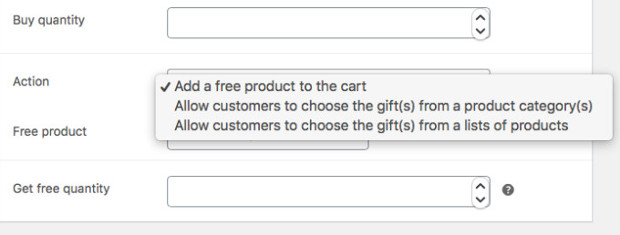
Allow the buyer to select the free product from a category of a product list.
Become more visible on Google & Social Media?
In a free strategy consultation for data-driven online marketing, we uncover your untapped potential, review any existing ad accounts if necessary, examine your SEO ranking and visibility, and determine which strategy is appropriate for your budget and which active measures will lead to more inquiries or sales.

✅ More visibility & perception through targeted placement
✅ More visitors > prospects > customers > revenue
✅ Reach target groups scalably with SEA
✅ Act and grow sustainably with SEO
🫵 Maximum success with our hybrid strategy
💪 More than 15 years of experience across industries in over 1,000+ projects demonstrable!







Restrict offers by user role
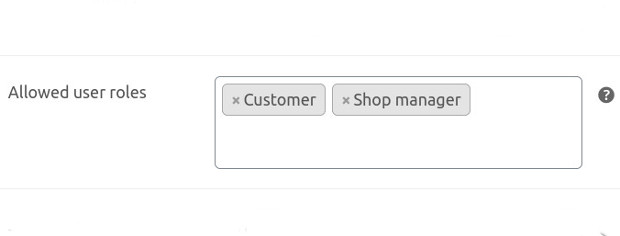
Create BOGO offers for specific user roles.
Start and End Dates
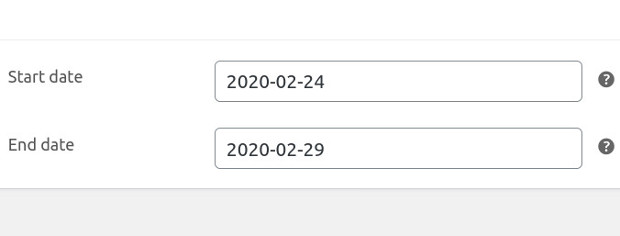
Schedule the start and end dates of the BOGO offers.
Activate the offer with a coupon
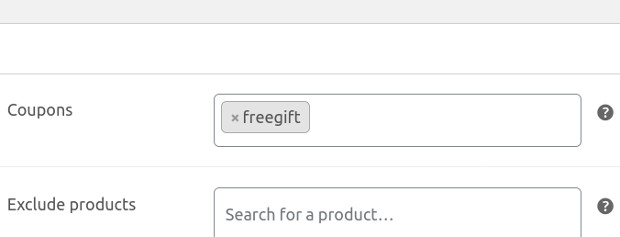
Specify a product when the customer buys a product and also uses a coupon.
Limit the number of uses per user

Set how often the customer can benefit from the offer.
More sales, higher shopping cart values, and more profit with just a few steps!

Fragen zu WooCommerce, dem Plugin oder weiteren Marketingtechniken?
E-Mail: fi@vastcob.com
Florian Ibe
Documentation – initial settings
The BOGO plugin options can be found under WooCommerce > Settings > Products > Buy One Get One Free.
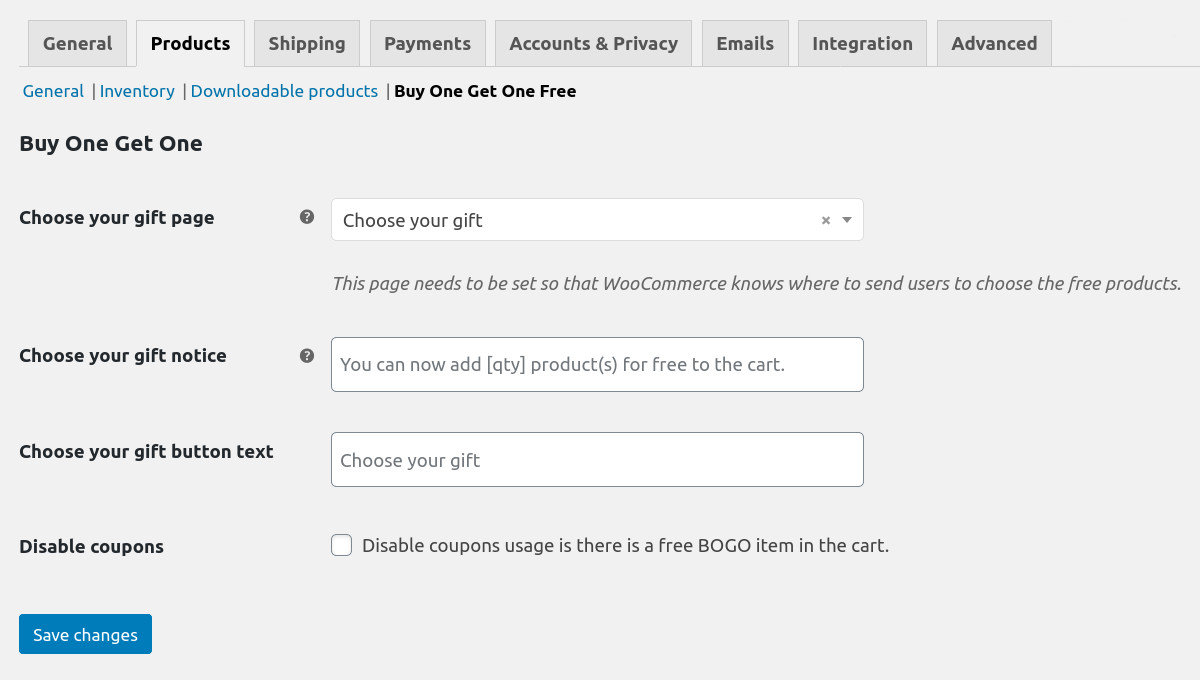
- Choose Your Gift Page – Contains the
[wc_choose_your_gift]shortcode and displays the eligible free products. The Choose Your Gift page is automatically created during plugin installation. - Choose Your Gift Notice – Message to display to the customer when there are eligible free products. You can use the
[qty]placeholder to display the number of free items. - Choose your gift button text – The text of the link to the „Choose your gift page“.
- Disable coupons – Check this box if you want to disable the use of coupons when a free BOGO item is in the cart.
Adding and Managing the BOGO Rule
To add a BOGO rule:
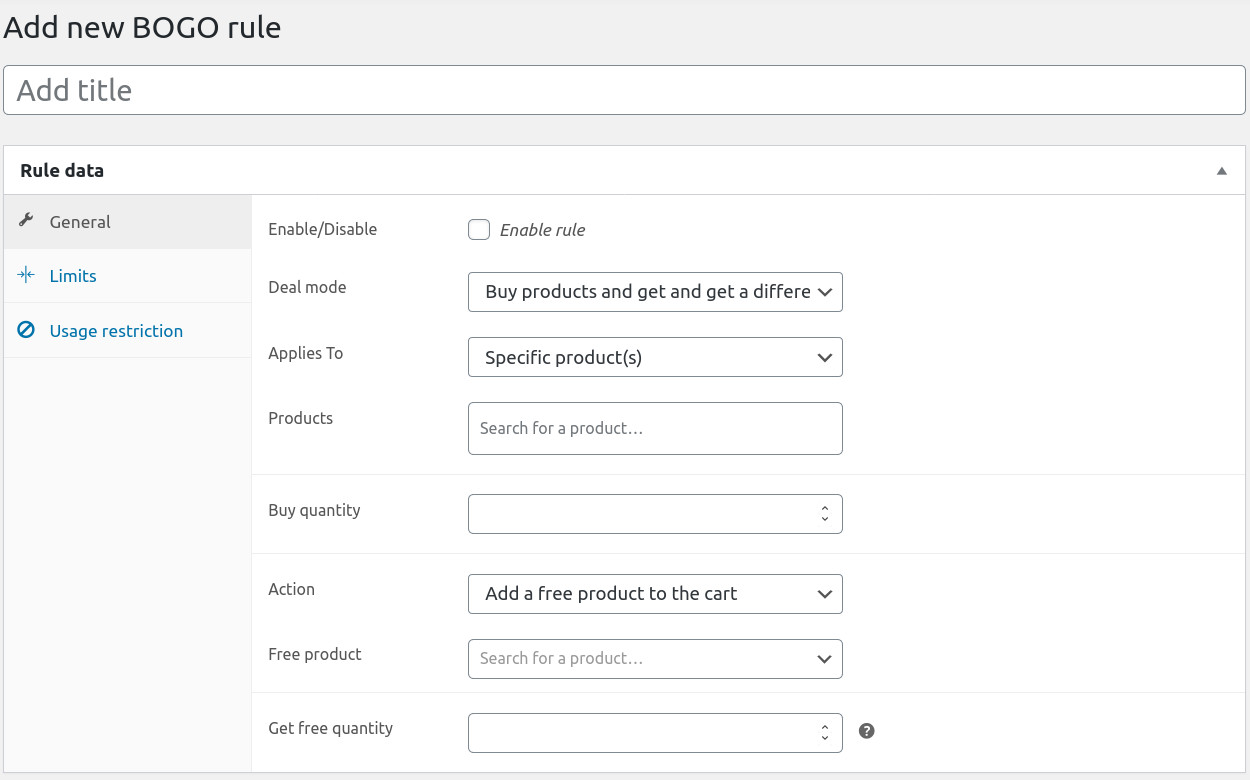
- Go to WooCommerce > Buy One Get One.

- Create a new BOGO rule by selecting Add BOGO Rule. Or hover over an existing one to edit it.

- Enter the name of the BOGO rule. For example, you can use the name of the promotion.

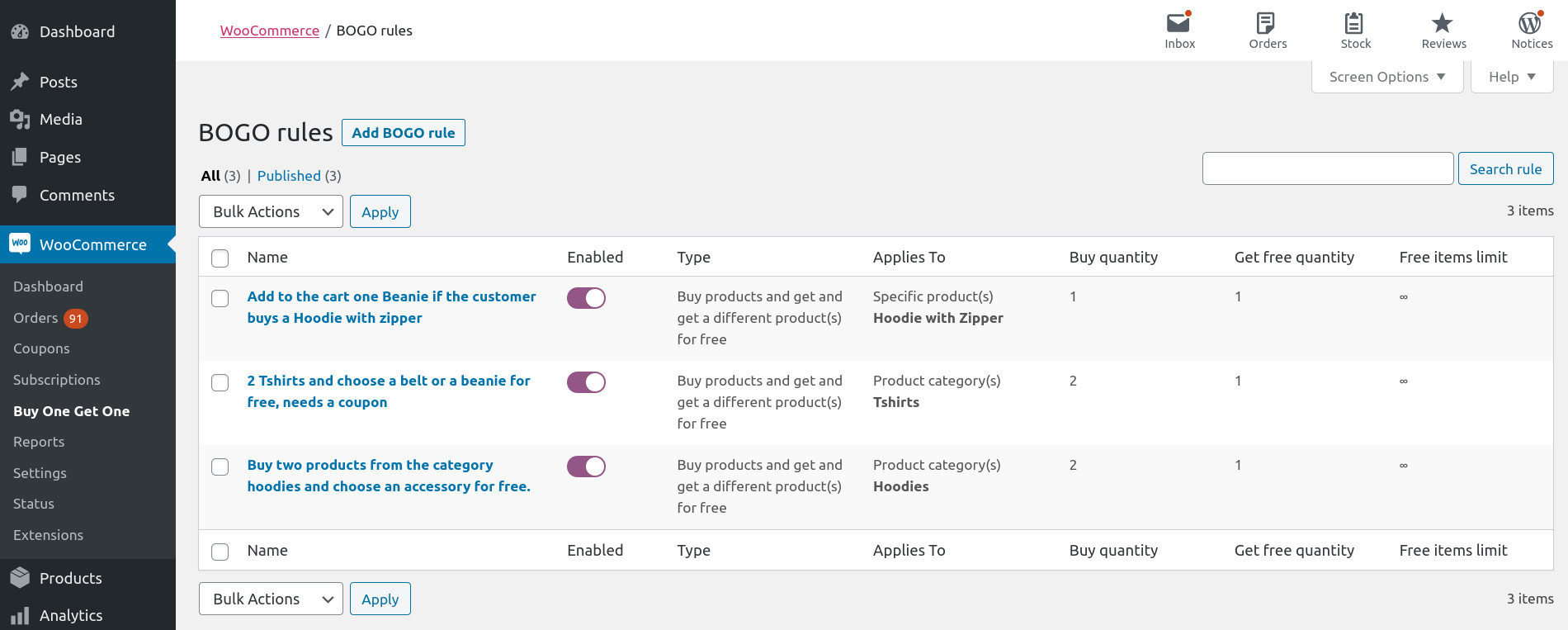
Under Rule Data, there are three sections where you can add the properties of the rule: General,Limits, and Usage Restrictions.
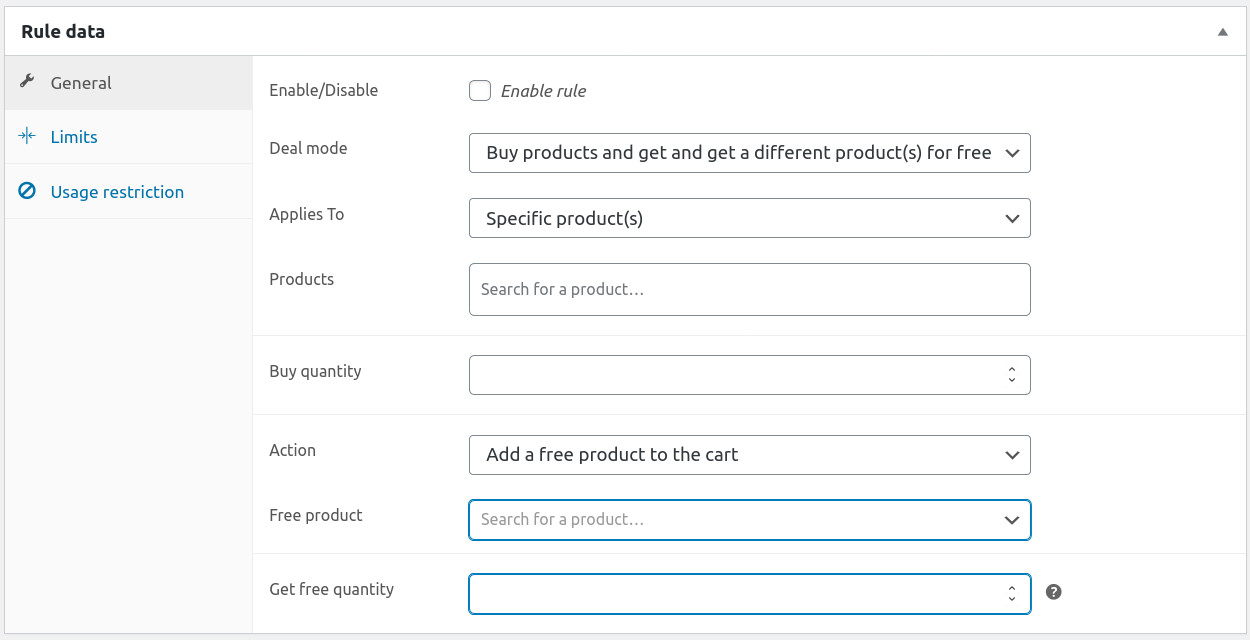
The General section is where most of the important data for your rule is added.
- Enabled / Disabled – Check the box to enable the rule.
- Deal Mode – The type of BOGO deal. You can choose between:
- Buy products and get another product for free.
- Buy a product and get the same product for free.
Add the rule „Buy products and get one or more other products for free“
In „Buy products and get another product for free“ mode, you can create an offer of the type: buy two shirts and get a free accessory, or buy product A and choose a product from category C for free, or if the sum of product quantities A plus B is greater than 2, add a free C product.
From the Deal Mode drop-down list, select „Buy Products and Get Another Product for Free“.
- Applies to – You can choose whether the rule should apply to specific products or product categories.
- Products / Categories – The products or categories to which the rule applies.
- Purchase Quantity – The number of items the user must add to the cart to receive the free product.
- Individual – Available if you select „Applies to“ „Product Category(s)“. Check this box to apply the rule individually to each product in the category, rather than to the total number of products in the category.
- Action – The action that will be activated when the rule is fulfilled.
- Add a free product to the cart. Automatically add a free product to the cart when the rule is fulfilled. Select the free product by following the input field.
- Allow customers to choose gifts from one or more product categories. If you want the customer to be able to choose the free product from a product category. Select the categories by following the input field.
- Allow customers to choose gifts from a product list. If the customer can choose the free product from a product list, enter the products in the following input field.
- Get Free Quantity: The free items the user receives when buying a multiple of „Buy Quantity“.
Add „Buy one get one free“ rule
In „Buy one get one free“ mode, you can create an offer of the type: Buy two shirts and get another shirt for free. The free item is automatically added to the cart.
From the deal mode dropdown, select „Buy one get one free“. This will remove unnecessary fields.
- Applies to – You can choose whether the rule should apply to specific products or product categories.
- Products / Categories – The products or categories to which the rule applies.
- Purchase quantity – The number of items the user must add to the cart to receive the free product.
- Receive free quantity – The free items the user receives when buying a multiple of „buy quantity“.
Define limits
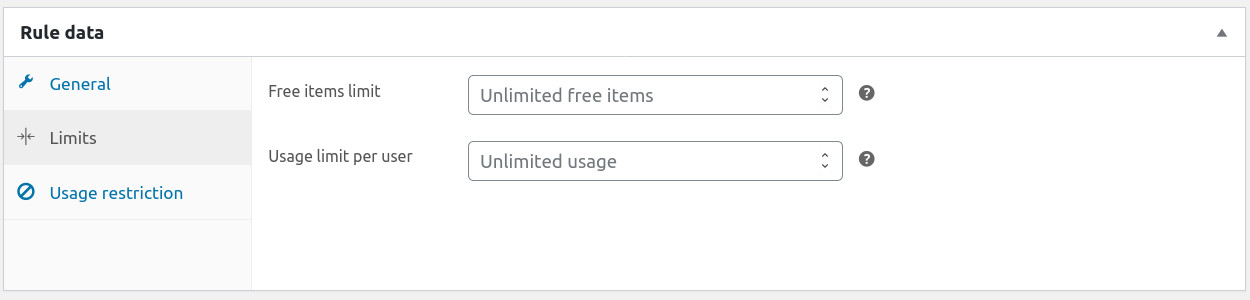
- Limit for free items – The maximum number of free items the user can receive when purchasing a multiple of the „Buy quantity“. Leave blank for unlimited free items.
- Usage limit per user – How many times this rule can be used by a single user. Leave blank for unlimited.
Usage Restriction
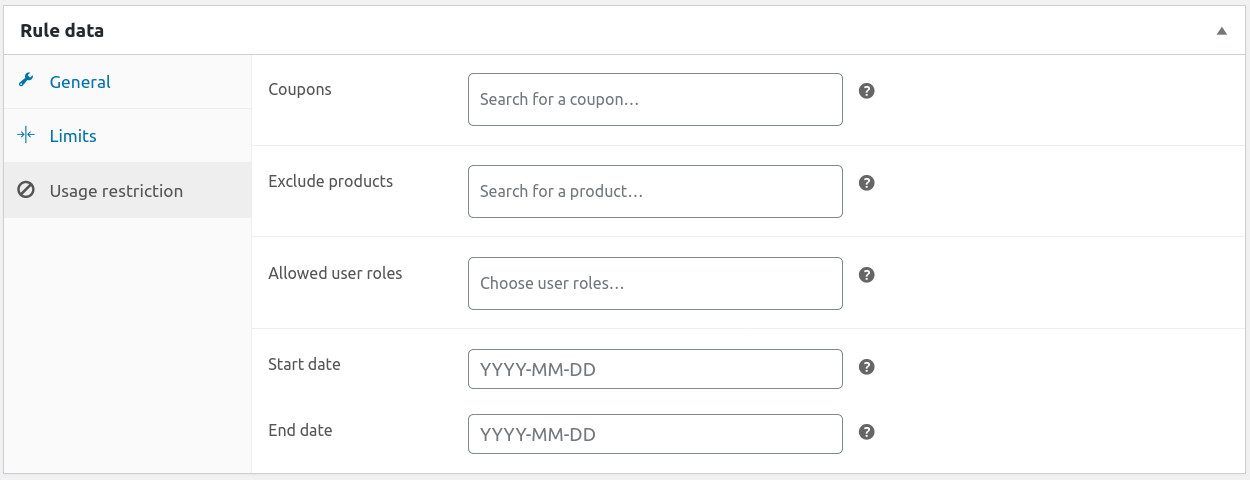
- Coupons – Coupons that activate the rule. The customer will only receive the free item if they add one of the coupons from the list.
- Exclude products – Products to which the rule does not apply.
- Allowed user roles – Restrict the rule to specific user roles. Leave blank to make it available to everyone.
- Start date and end date – You can set the rule to be active between two dates.
Choose your gift shortcode
The [wc_choose_your_gift]This shortcode displays the eligible free items that the customer can add to the cart based on the applicable BOGO rules. The shortcode supports the following attributes:
columns– The number of columns to display. The default value is 4limit– The number of products to display per page. The default value is -1 (display all)
Example:
[wc_choose_your_gift column = "3" limit = "6"]
Usage
When the free product is added to the cart, the customer is informed by a notification.

If the customer has eligible free items, they will be informed by a notification. Clicking „Choose Your Gift“ will redirect the customer to the „Choose Your Gift“ page, where they can add the free product to the cart.
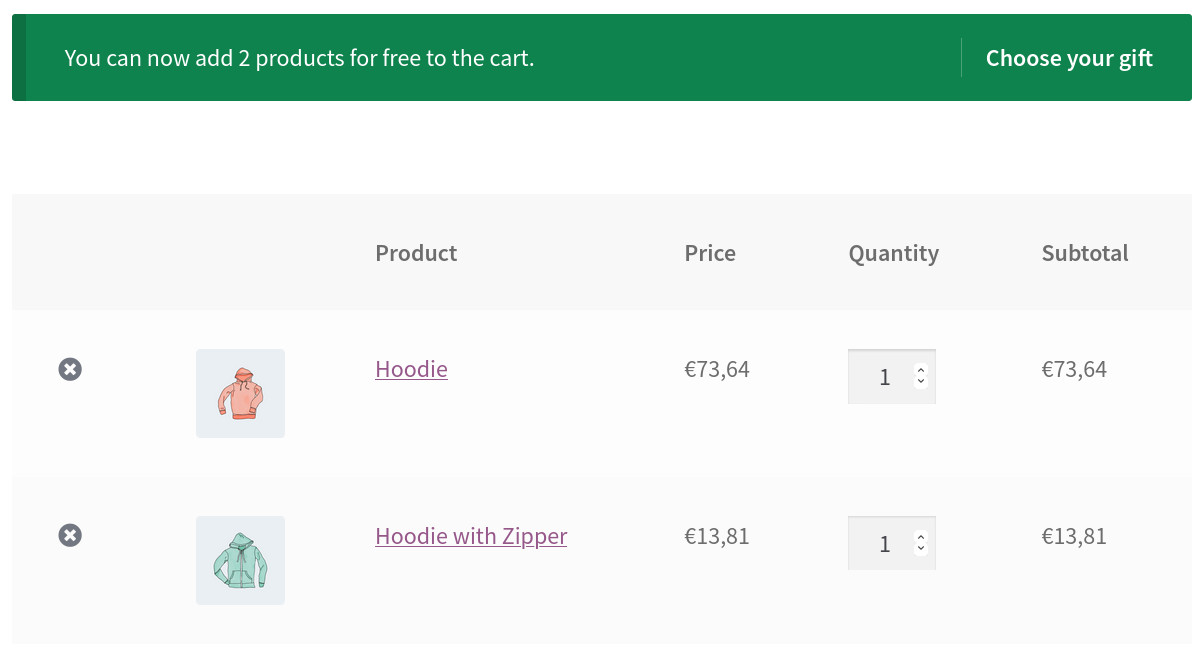
On the „Cart“ and „Checkout“ pages, the customer sees the free product.

Examples of BOGO Products
In the following examples, we use an example of a clothing store.
Example 1 – Buy two products from the Hoodies category and choose one accessory for free.
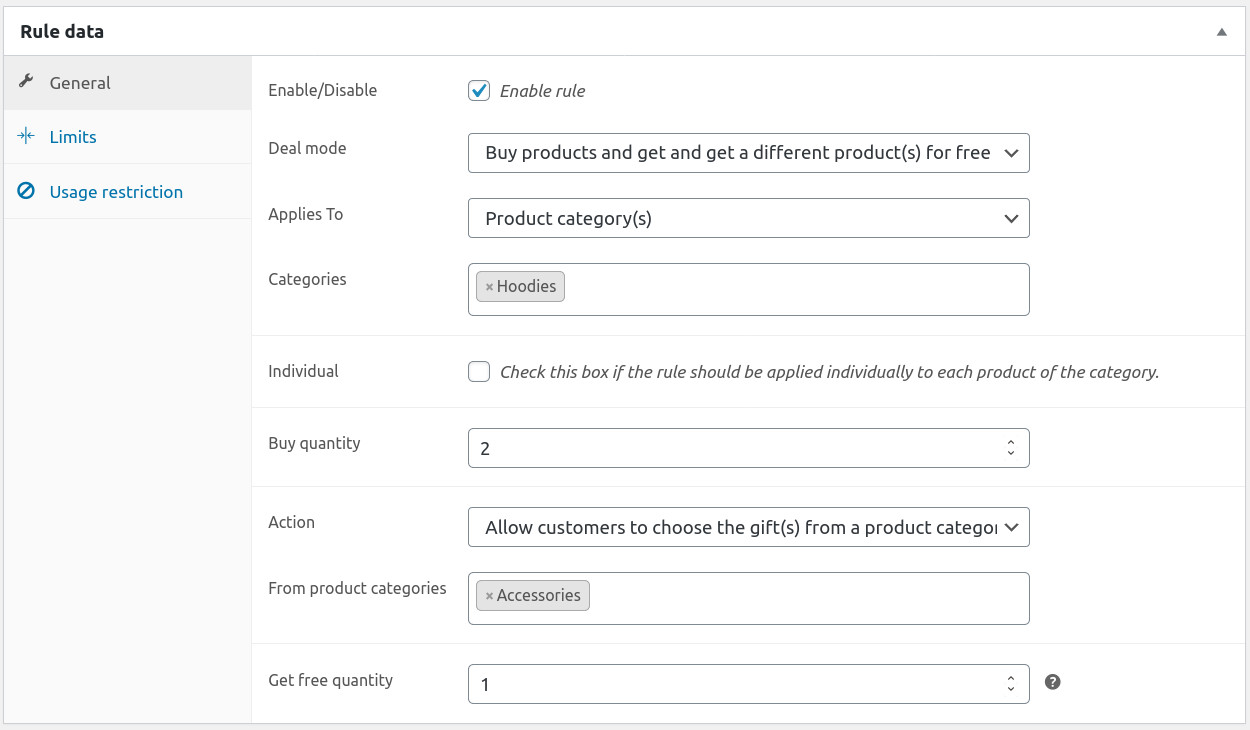
- Deal Mode: Buy products and get another product for free.
- Applies to: Product category(ies).
- Categories: Hoodies
- Purchase quantity: 2
- Action: Allow customers to choose gifts from one or more product categories.
- From product categories: Accessories
- Free quantity received: 1
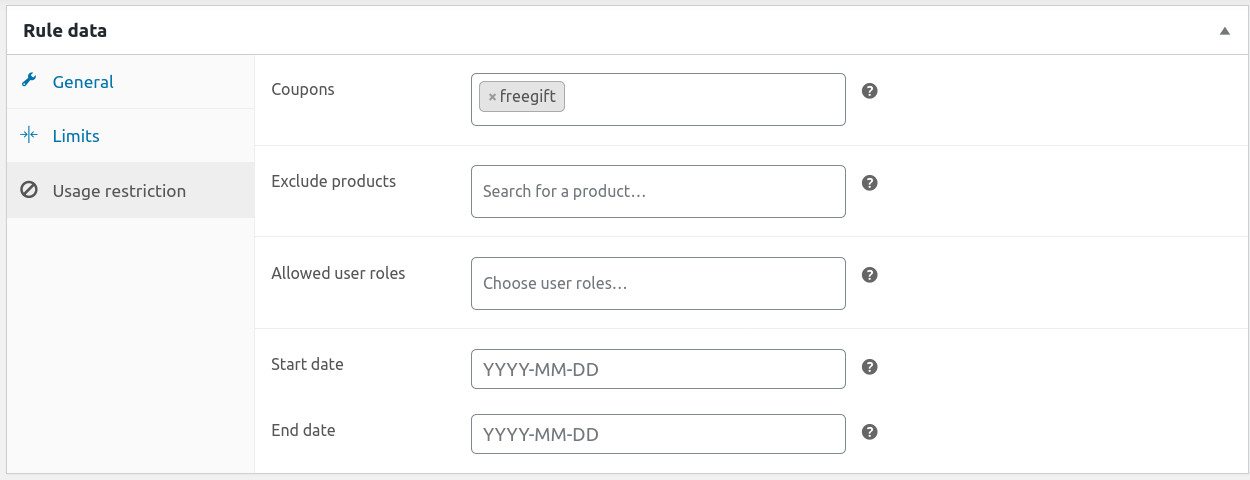
Example 2 – Buy two products from the T-shirts category and choose a belt or a cap for free if the customer redeems a coupon.
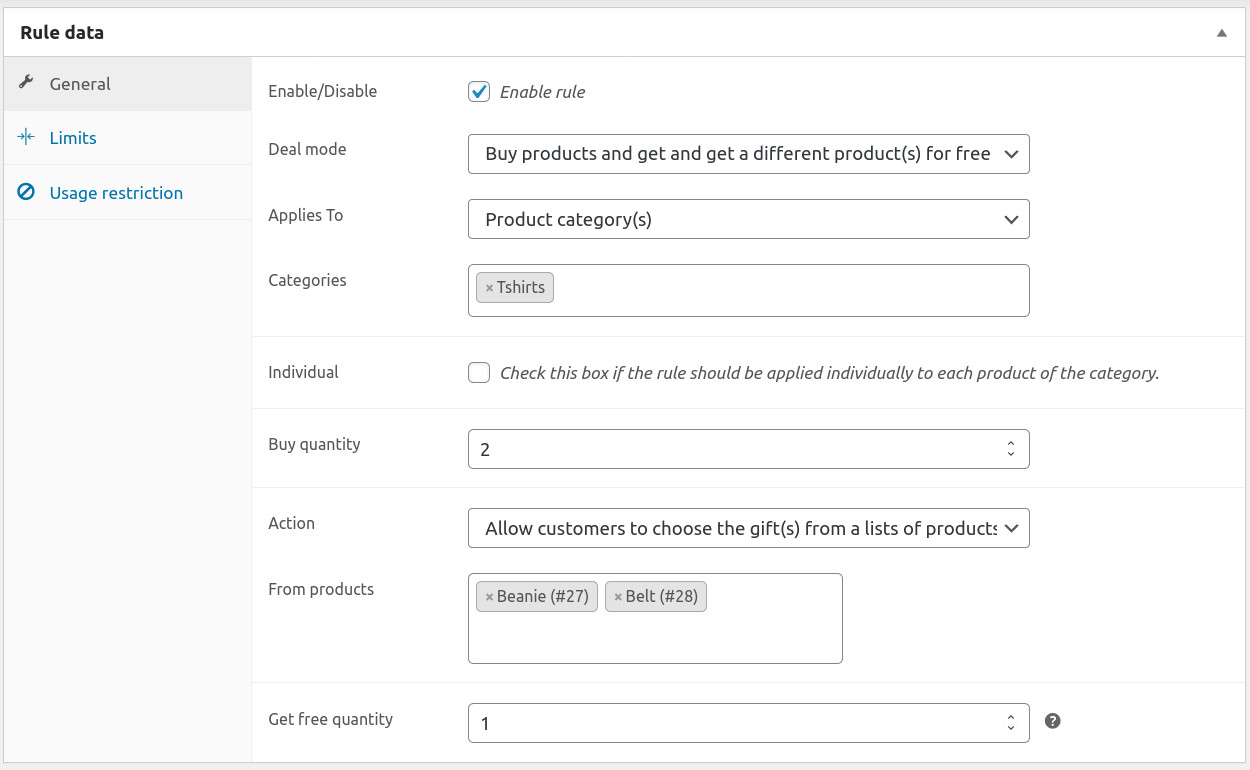
- Deal Mode: Buy products and get another product for free.
- Applies to: Product category(s).
- Categories: T-Shirts
- Purchase quantity: 2
- Action: Allow customers to choose gifts from a product list
- From products: Belt and Cap
- Free quantity received: 1
- Go to the Usage Restrictions section and set the coupon.
Example 3 – Automatically add a cap and a belt to the cart if the customer buys a zip hoodie
Each BOGO rule only allows one free product for the „Add to Cart“ action. Therefore, you need to configure two BOGO rules for the „Zip Hoodie“ product, one to add 1 cap to the cart and one to add 1 belt to the cart.
Rule 1:
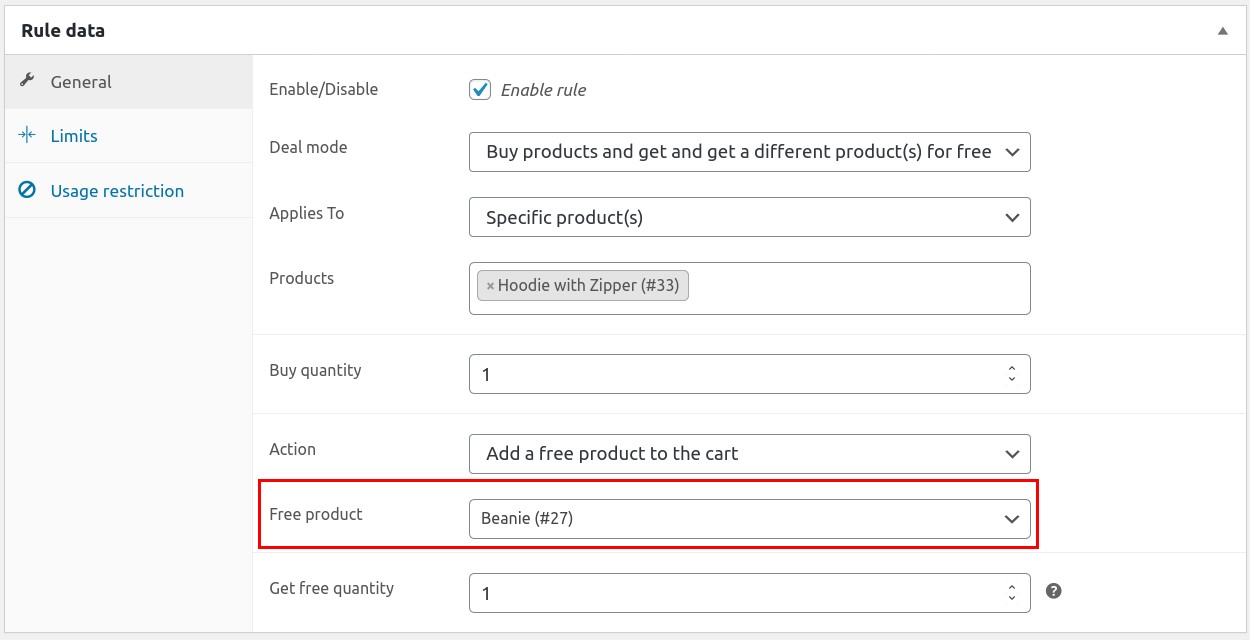
- Deal Mode: Buy products and get another product for free.
- Applies to: Specific products.
- Product: Zip Hoodie
- Purchase Quantity: 1
- Action: Add a free product to the cart
- Free Product: Beanie
- Free Quantity Received: 1
Rule 2, the same properties as Rule 1, but you need to change the free product:
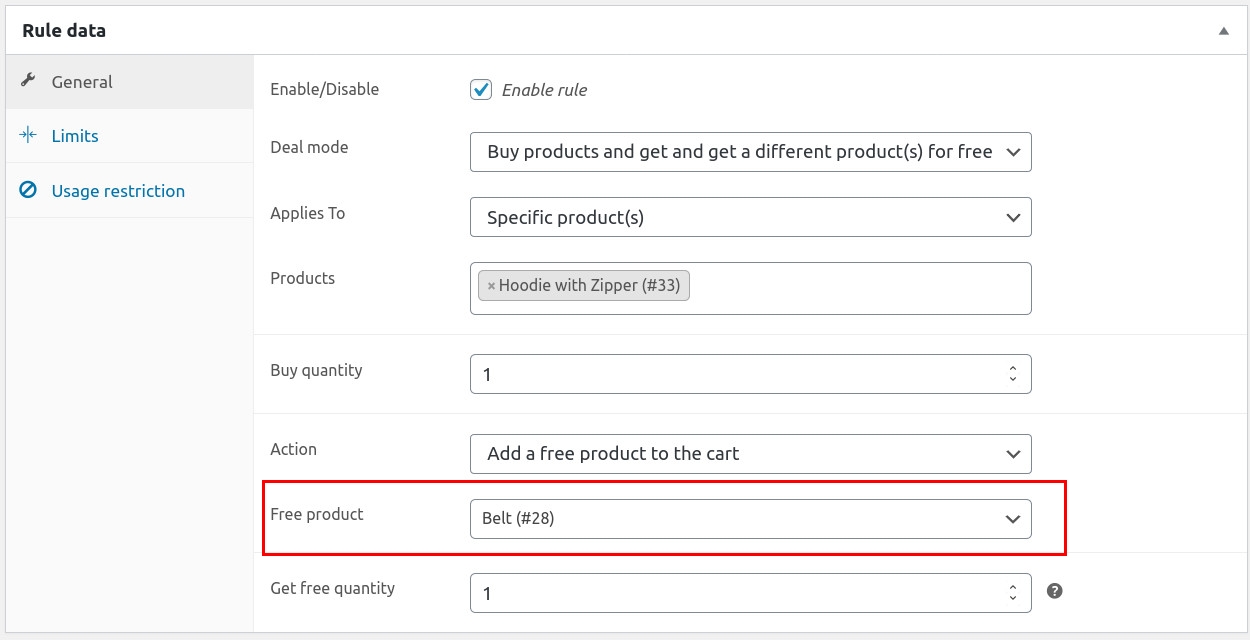
- Action: Add a free product to the cart
- Free Product: Belt
- Free Quantity Received: 1
Example 4 – Buy a variation of a variable product and choose a free variation of the same product
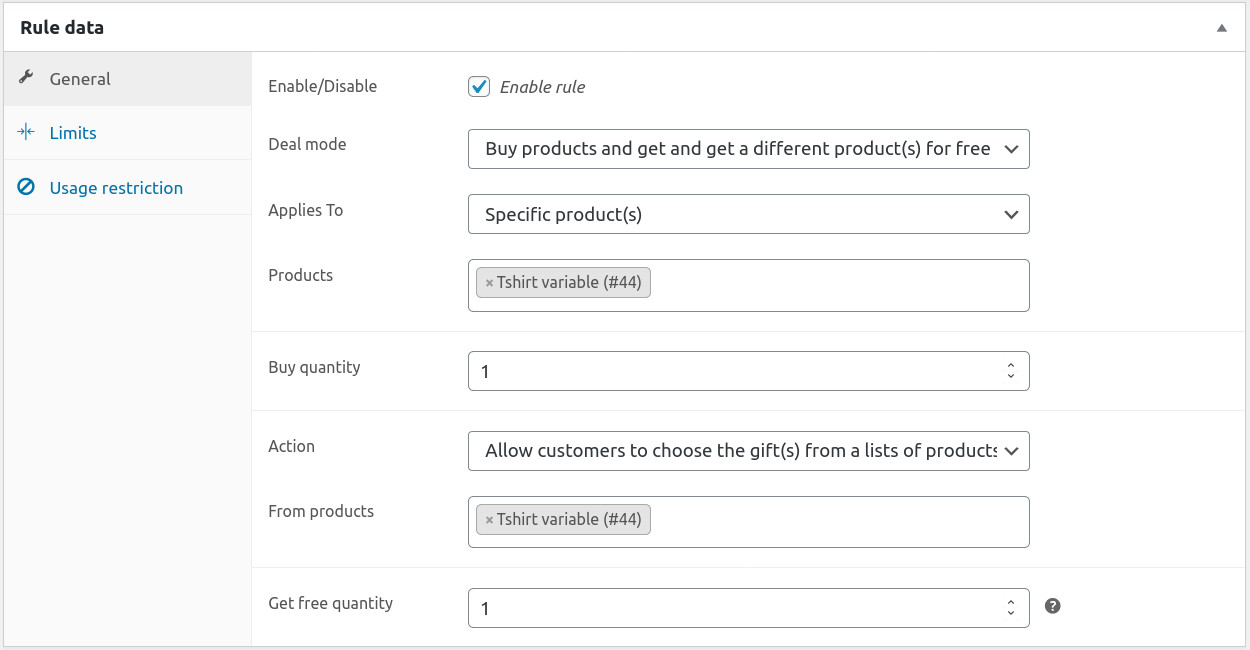
- Deal Mode: Buy products and get another product for free.
- Applies to: Specific products.
- Product: The variable product (the parent product)
- Purchase quantity: 1
- Action: Allow customers to select gifts from a product list
- From products: The variable product (the variable product)
- Free quantity received: 1
Incompatible Product Types & Plugins
The following product types cannot be set as free products:
However, you can include these product types as „buy product“ in your BOGO rules.
FAQs – Questions & Answers
Can I offer a gift when someone buys a certain number of items? For example, buy 3 items and get one free?
Yes, you can configure these types of promotions.
Can I specify the number of items that can be given?
Yes.
Are product variations supported?
Yes.
Is it possible to allow customers to select their desired variation of a free product?
Yes. Please check Example 4.
Is it possible to allow customers to choose the free product from a category or a product list?
Yes. Please check Example 1.




 DE
DE