Do you want to export and possibly import WooCommerce orders, customers, and/or coupons? This is very easy with the official plugins from WooCommerce.com by top developer SkyVerge. The plugins – one for export and one for import – are very well programmed and compatible with all current WP & Woo versions.
Export & Import WooCommerce Orders + Customers and Coupons – The Easy Solution
In the following article, we will introduce you to the two solutions for WooCommerce export and WooCommerce import of orders, customers, and/or coupons. Both plugins are very flexible and allow for manual as well as scheduled export & import directly from WordPress / WooCommerce. We ourselves, as a WooCommerce Agency, use these very often.
Direct links to the plugins:
Explanation of Export and Import below:
Easily export orders, customers, and coupons from WooCommerce
While WooCommerce provides you with reporting and order fulfillment tools, many merchants still need to use external systems for customer management, order fulfillment, or simply need an easy way to get data out of WooCommerce.
We have simplified data transfer from WooCommerce to CRMs, fulfillment providers, or other systems with a customer, order, and coupon exporter that outputs CSV and XML formatted files. With the WooCommerce Customer / Order / Coupon Export plugin, you can export individual orders, customers, or coupons, export records in large batches as needed, and create multiple automated exports to transfer customer and order data via FTP, HTTP POST, or email. You can also create your own custom formats that can include any customer or order meta.
The best part: Since our export process runs asynchronously in the background on your site, you can perform other tasks or leave your site completely during the export!
Customer / Order / Coupon Export Features
- Export customer, order, and coupon data, including custom fields in CSV or XML format
- Create custom export formats to ensure your files are formatted exactly right
- Process exports asynchronously, allowing you to export thousands of records while you work elsewhere on your site (or take a well-deserved break!)
- Generate on-demand bulk exports to quickly access customer, order, and coupon data based on properties such as customer registration date or order status.
- Manually export and transfer customer and order data via email, FTP, or HTTP POST.
- Create automated exports to generate and send customer and order exports on a recurring schedule.
- Compatible with many other plugins, including Local Pickup Plus and Checkout Add-Ons. Click here to view a complete list of known compatible plugins.
Flexible, Customizable Formats
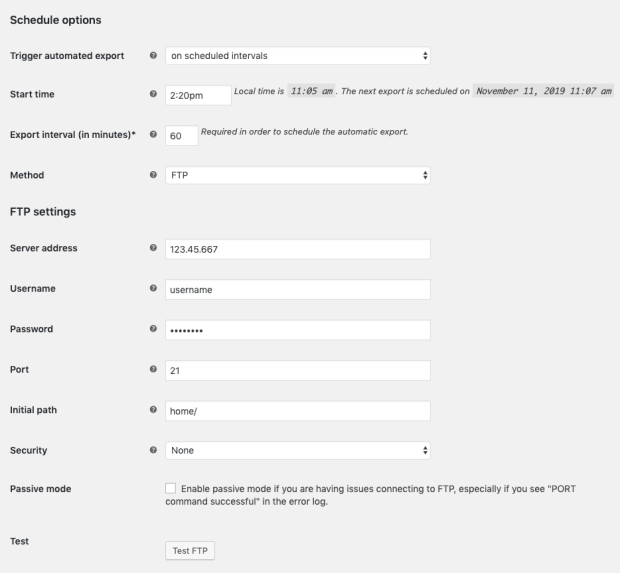
While we offer a range of predefined formats, you can also create your own customer, order, or coupon formats to ensure your file is organized exactly right for your business, CRM, or order fulfillment system. With custom formats, you can reorder and add new fields, including metadata and static values, and you can configure your export for CSV or XML output.
Become more visible on Google & Social Media?
In a free strategy consultation for data-driven online marketing, we uncover your untapped potential, review any existing ad accounts if necessary, examine your SEO ranking and visibility, and determine which strategy is appropriate for your budget and which active measures will lead to more inquiries or sales.

✅ More visibility & perception through targeted placement
✅ More visitors > prospects > customers > revenue
✅ Reach target groups scalably with SEA
✅ Act and grow sustainably with SEO
🫵 Maximum success with our hybrid strategy
💪 More than 15 years of experience across industries in over 1,000+ projects demonstrable!







Scheduled, Automated Exports
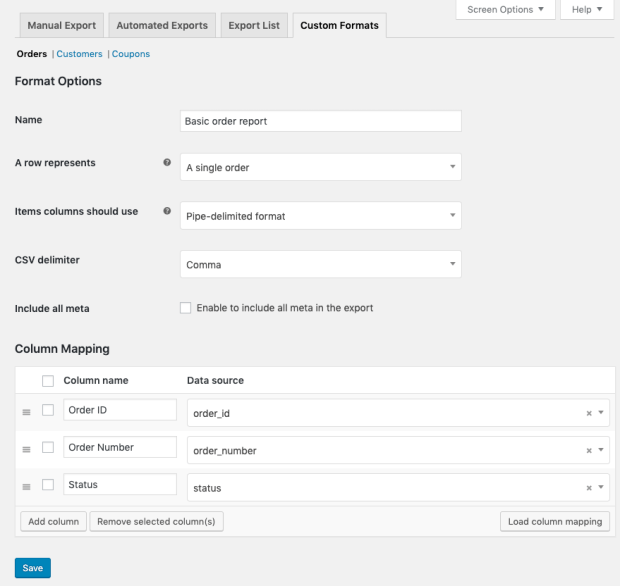
You can set up automated exports to regularly send customer and order data via email, FTP, or HTTP POST. This is ideal for order fulfillment workflows or updating your mailing lists without additional effort. Once a customer or order has been included in an automated export, it is marked as exported and excluded from future runs of that export to prevent duplicates.
Automated exports can be sent on a recurring basis (e.g., daily or every 5 minutes), and order exports can also be sent immediately after payment.
Quick and Easy Manual Exports
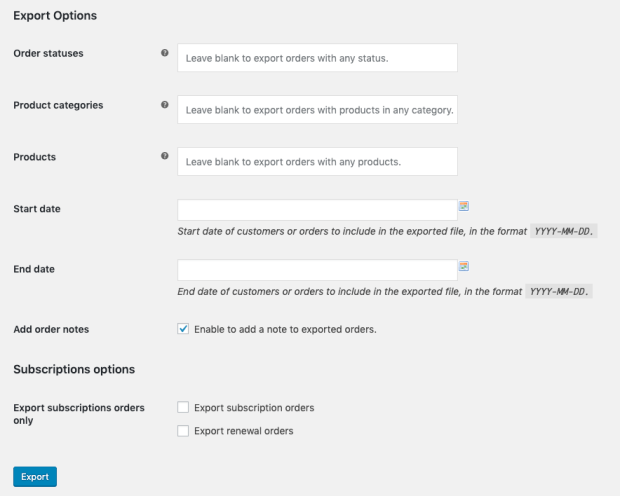
Beyond automated exports, you can also generate exports manually by selecting the desired customers or orders, or by using filters to target data based on specific attributes (e.g., customer registration date or order status).
Background Processing for Uninterrupted Workflow
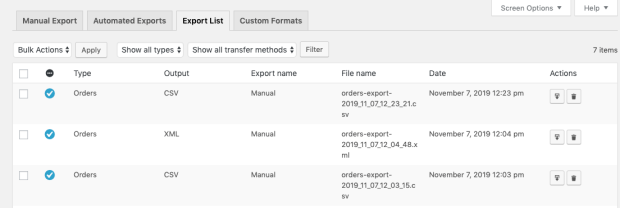
We know your time is valuable, and few things are more tedious than seeing a loading screen when exporting thousands of orders. Our plugin exports data asynchronously in the background of your site, so you don’t have to interrupt your work to attend to a modal. Exports are processed in the background while you work elsewhere on your site or even leave your site entirely. We store exports in our export list for 14 days, so you can retrieve your exported file at any time.
Excellent developer documentation
This extension has been designed to be as flexible as possible. For this purpose, filters are used, which allow you to customize or completely replace the generated output.
When exporting as CSV, there is an important recommendation: We strongly recommend not relying on the column order of the generated file. Although we do our best not to change the column order for standard formats, we sometimes have to, and this breaks all integrations based on a specific order. Instead, use the column names / keys, which are guaranteed never to change.
» Click here for the documentation
CSV Import Suite for Customers/Orders/Coupons
Easily import customers, orders, and coupons via a CSV file
Bulk import hundreds, even thousands, of customers, coupons, and orders into your WooCommerce store with the Customer / Coupon / Order CSV Import Suite. This user-friendly importer imports customers with minimal effort and can import orders and link them to your store’s customers and products.
This is an ideal tool when migrating an existing store on another eCommerce platform to WooCommerce, allowing you to maintain your customer accounts and order history. Do you have coupons that need to be migrated from your old e-commerce platform, or campaigns where hundreds or more coupons need to be created? The importer will import these too!
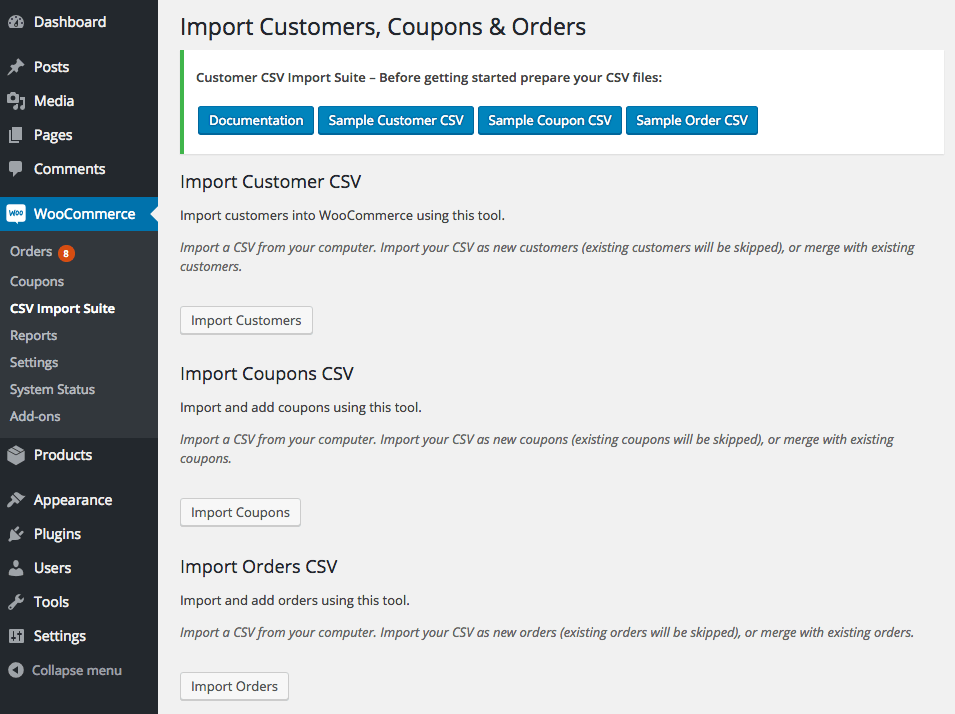
The importer is flexible enough to handle various types of import formats, and you can map your import columns to the corresponding WooCommerce data to merge or create customers, coupons, and orders. You can also import data from a variety of sources, such as an uploaded file, URL / file path, or by copy and paste.
What can the CSV Importer do?
- Choose a location for the import file: Upload your file, import from a URL / file path, or copy and paste the import data NEW
- Import customer data such as name, email, addresses, whether they are a paying customer, etc.
- Merge customer data from your import with existing users – useful for bulk updating customer information!
- Import coupons – all coupon fields are supported, including sale item exclusions and usage restrictions
- Merge coupons – useful for bulk updating coupon data
- Import order data, such as line items, linked customers, order totals, order notes, order numbers (works well in conjunction with the Sequential Order Number Pro plugin) and more
- Merge order data to update totals, order status, or add metadata in bulk like tracking numbers NEW
- Import custom fields (meta) for customers, coupons, and orders
- Import custom taxonomies for customers, coupons, and orders if you have added them via third-party plugins / code
- Supports multiple shipping methods per order
- Imports order data in the background, allowing you to import large amounts of data without timeouts NEW
- The flexible import format requires a minimum of fields to be imported, but allows for fully defined customers, orders, and coupons
- Fully compatible with the CSV Export of Orders/Customers extension
Import Process
The import process for customers, coupons, and orders is similar. You first select the location of your import file.
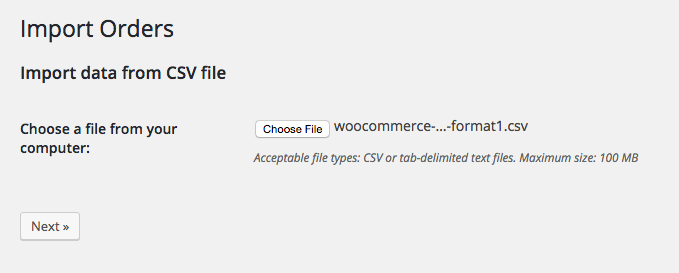
Then you select options for the import and get a brief preview of your import file to ensure that the plugin has correctly recognized the delimiter. For each import type, you can merge data, which updates existing records if they match, or only create data with each imported row.

Next, you map the columns in your import to the corresponding WooCommerce data. This allows you to easily import almost any file format, provided it contains the information required for the import.
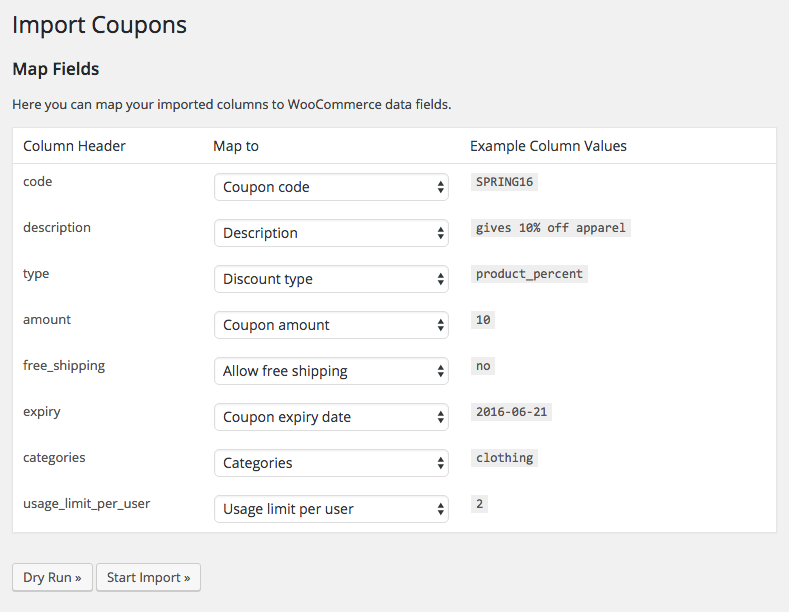
Finally, you can run a test run to ensure your file imports securely and then perform a live run. This is processed in the background, meaning you can leave the import page while it processes your imported file, which can even be thousands of lines long!
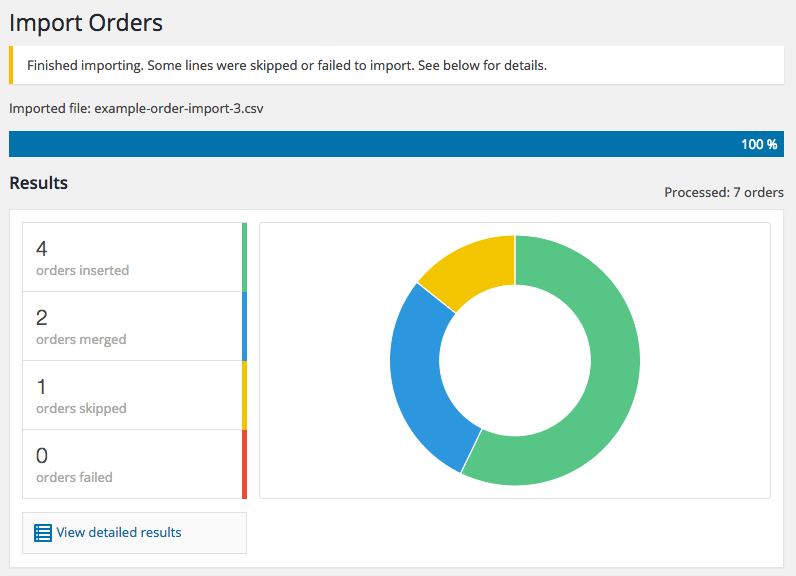
Once the import is complete, you will receive a status update on how many rows of data have been changed, inserted, or skipped.

Florian Ibe
CEO & Marketing Consultant
Your contact person: Florian Ibe




 DE
DE