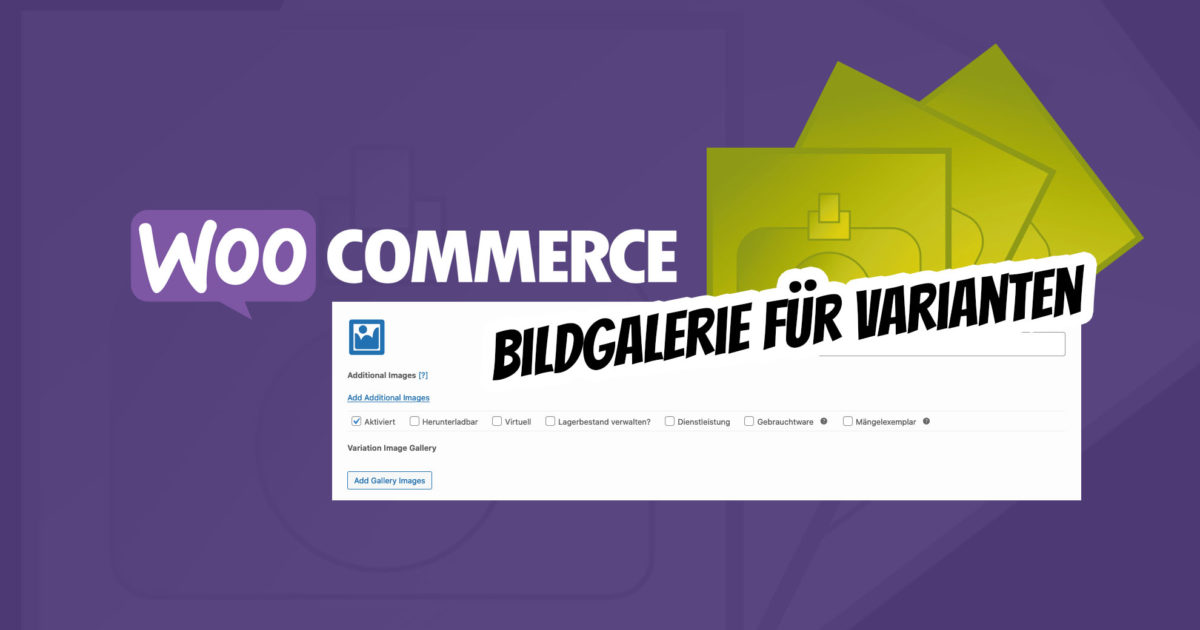
An image gallery for variable variant products in WooCommerce is possible with this great plugin. Now, not just one image but several images can be added as a gallery to each variant of a variable product. This allows for a flexibly adapted product gallery for each selection on the product page.
WooCommerce multiple variant images / variable products multiple product images as an image gallery
Add gallery images per variation / variant to variable products in WooCommerce. This is very easy and unfortunately not possible by default in a WooCommerce shop. With this affordable plugin, however, it is very flexible and easy. Additionally, it is also import and export compatible. The plugin can be easily translated into German (if necessary at all).
Add any number of images (product images) to your variable product variations
With the WooCommerce Additional Variation Images extension, you can add additional gallery images per variation for variable products in WooCommerce.
By default, WooCommerce only swaps the main variation image when you select a product variation, not the gallery images below it.
This extension allows visitors to your online store to swap different gallery images when they select a product variant. By adding this feature, visitors can see different images of a product variant, all in the same color and style.

Setup and Configuration
- Go to: WooCommerce > Products
- Select one of your variable products.
- In the Product Details field, select the Variations tab.
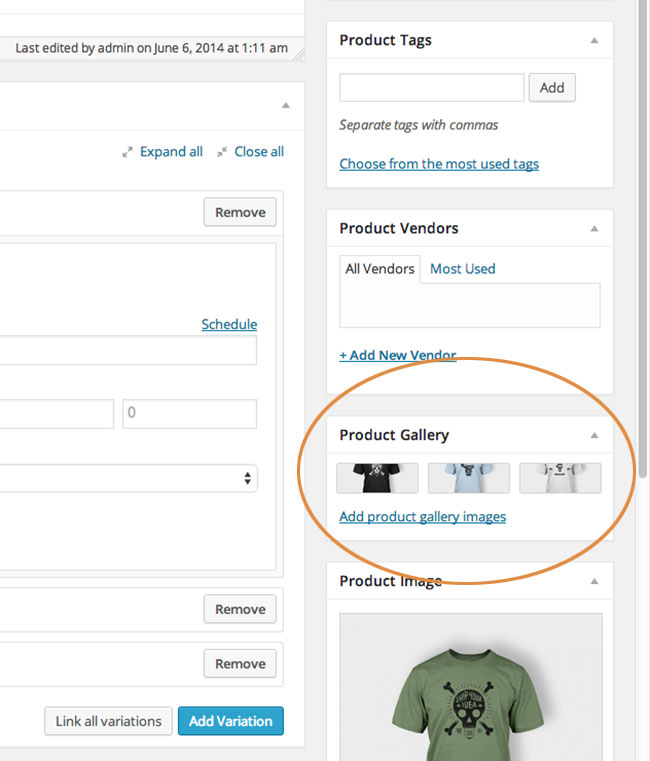
- Find the Add additional images link and click on it. This link allows you to add as many additional images as you want for each variation.

Delete or add images
- Delete an image by clicking on it.
- Rearrange images by clicking and dragging them to the desired position.
Make sure you have a default set of gallery images for your product, otherwise it will not work.
Troubleshooting
First, check if it is a theme compatibility issue. Switch to a WordPress default theme such as the Twenty Twelve or Twenty Fifteen theme and test again. If it still doesn’t work, try deactivating all plugins except WooCommerce and Additional Variation Images and test again.
Third-Party Plugin Support
Product CSV Import Suite
This plugin allows you to update/import/export your product variation images in bulk. If you are interested in using this plugin, here is the link WooCommerce Product CSV Import Suite
The best way to do this is to create a product with variation images and then export it first so you have a map structure to work with.
To import additional variation images, you need to add the column meta:_wc_additional_variation_images. Enter a comma-separated list of the IDs of the images on your website as the value. You can obtain these IDs by adding the images to your website in bulk via the Media Library.
Hooks
Many hooks are available to customize the plugin to your needs. While this section is primarily for developers, you can learn how to use hooks at https://codex.wordpress.org/Plugin_API/Hooks
Below is a list of hooks and a brief description of their function.
- apply_filters( ‚wc_additional_variation_images_gallery_images_class', string ) – Used to add additional class names to the HTML container tag that encloses all variation images
- apply_filters( ‚wc_additional_variation_images_main_images_class‘, string ) – Used to add additional class names to the HTML container tag that encloses the main image of the currently active variation.
Javascript Triggers
wc_additional_variation_images_frontend_before_show_variation– A callback function that is executed when a variation change is triggered.wc_additional_variation_images_frontend_ajax_response_callback– A callback function to be executed after a variation image change has already occurred.wc_additional_variation_images_frontend_init– A callback function that is executed once the plugin Javascript has been initialized.
Languages
This plugin is fully translatable and the POT is located in the plugin’s folder/languages. Place your translated MO file in the wp-content/plugins/woocommerce-additional-variation-images/languages folder.

Florian Ibe
CEO & Marketing Consultant
Your contact person: Florian Ibe





 DE
DE