Use a WooCommerce Order Bump as a purchase incentive (= German translation for it) to show customers last-minute product offers and upgrade their purchase, while increasing your average order value!
WooCommerce Order Bump (Upselling in Cart & Checkout)
An Upsell Order Bump Offer is an offer that allows online store operators to make special offers exclusively on their checkout page, thereby increasing conversions and the average order value. The offer is added to the customer’s existing order with just one click. Show them an exclusive offer at an incredible price at that moment. Appropriate offers can be set for specific goals to ensure customer satisfaction and thus lead to higher conversion rates. As a marketing agency focused on WooCommerce, we are very happy to use this additional feature.
- Create special offers on the checkout page
- Customize offer layouts specifically for your products.
- Increase your average order value and customer satisfaction rate.
- Schedule your bump offers for specific days.
- Edit your offers in sandbox mode.
- Skip bump offers if the offer product has already been added to the cart.
- Offer simple, variable, and subscription products as order bump offers.
- Track the performance of order bumps with order reports and behavioral analytics.
WooCommerce Order Bump for Upsell at Checkout (Offers)
In this article, we introduce two plugins for WooCommerce shops.
Direct link to the two plugins:
Further information can be found in the following article text.
Both plugins can, of course, be translated into German with Loco Translate.
Why use Order Bump?
1. Increases your average order value
When a customer accepts an Order Bump offer (upselling), they spend more than originally planned.
2. Improves the customer experience
Displaying targeted, personalized offers based on the customer’s current shopping cart content improves the overall customer experience and means more customer loyalty.
3. Attracts new customers
Customers who have benefited from the Order Bump are likely to refer new users to your website.
Become more visible on Google & Social Media?
In a free strategy consultation for data-driven online marketing, we uncover your untapped potential, review any existing ad accounts if necessary, examine your SEO ranking and visibility, and determine which strategy is appropriate for your budget and which active measures will lead to more inquiries or sales.

✅ More visibility & perception through targeted placement
✅ More visitors > prospects > customers > revenue
✅ Reach target groups scalably with SEA
✅ Act and grow sustainably with SEO
🫵 Maximum success with our hybrid strategy
💪 More than 15 years of experience across industries in over 1,000+ projects demonstrable!







How does an Order Bump work in the shop?
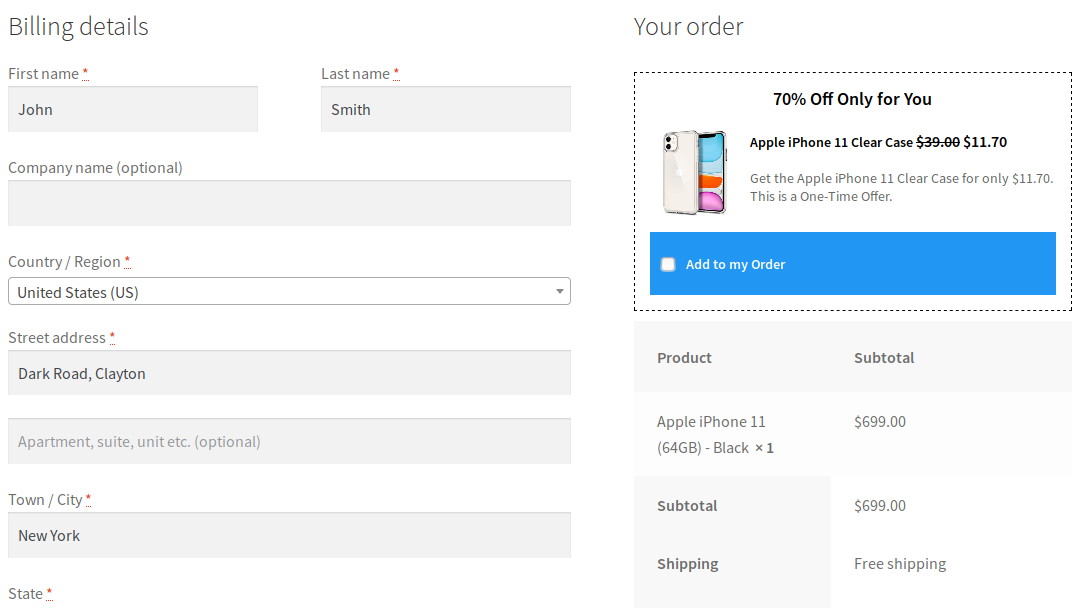
When a buyer adds a product to their cart and goes to the checkout page, they are shown a one-time offer for a product based on their current cart contents. Here, a customer receives a one-time discount on the back case for the phone when purchasing a phone:
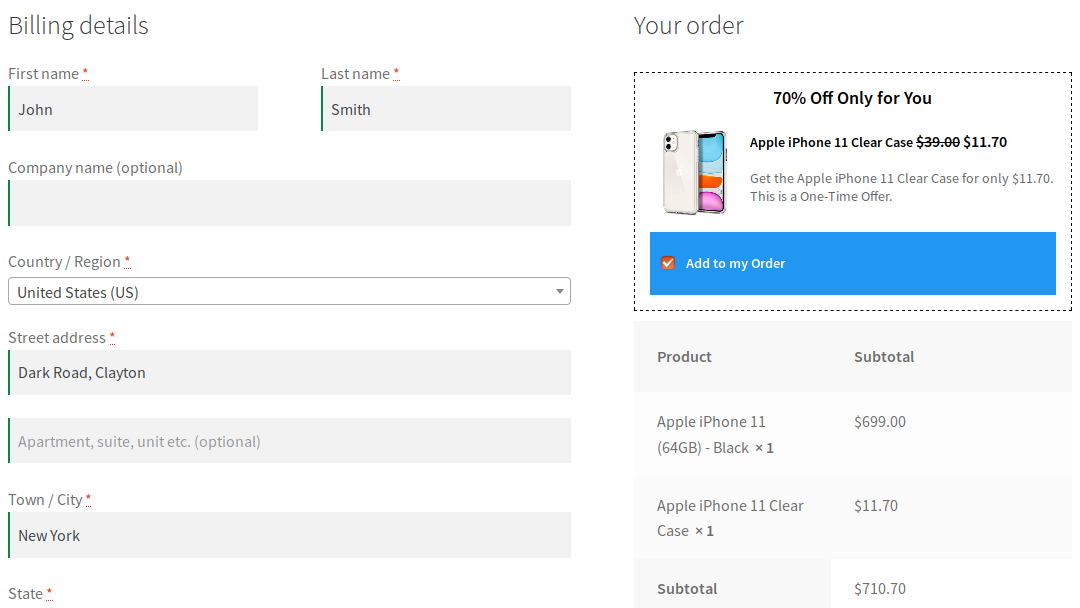
If the buyer wishes to accept the offer, the item will be automatically added to the cart at the reduced price by checking the "Add to my order" box.
Features of the official WooCommerce.com plugin:
- Multiple discount types: Offer deals with percentage discounts, fixed discounts, or fixed prices.
- Customizable design templates: Order Bump includes 20 customizable templates that you can swap out at any time.
- Choice of display positions: Choose whether order bumps should be displayed in one of four different positions on the checkout page.
- Detailed reports: The reports section contains important information about each order bump, including the number of visitors, number of orders, conversion rate, and revenue generated.
The high-performance alternative with additional functions: WooCommerce Checkout Upsell Funnel – Order Bump Plugin
is a WooCommerce extension that helps you offer customers product suggestions and smart order bumps with an attractive discount on their checkout page. On the checkout page, the WooCommerce Checkout Upsell Funnel – Order Bump suggests to customers that they buy additional products together with a good offer, without interrupting the checkout process.

Upselling Funnel
When customers click the „Place Order“ button, WooCommerce Checkout Upsell Funnel offers them a checkout funnel to purchase additional products at a discount. Furthermore, these offers will not interrupt the checkout process. If the customer accepts the offer, the additional product will be added to their current order.
- Suggest products : The plugin suggests customers buy more products when they click the „Place Order“ button. You can create the suggestion on the checkout page from many types of products in your WooCommerce.
- Display location: You can choose to display the suggested products on the checkout page, in a pop-up, or redirect customers to an "Order Suggestion" page.
- Pop-up: The order suggestion pop-up will appear on the checkout page when a customer clicks the "Place Order" button.
- On the checkout page: A product suggestion list is displayed on the checkout page when a customer clicks the „Place Order“ button.
- Page with Order Suggestion: With this option, customers will be redirected to this page when they click on Order.
- Display Time : Set the days of the week to display the suggested products.
- Discount Rules: Apply the discount type and amount for product suggestions to encourage customers to buy more products.
- Design Checkout Funnel: Many options to design the layout, content, title, product list, and icons of the checkout funnel. In addition, you can use the available shortcode to design titles, content, and messages in the checkout funnel more flexibly.
- Countdown Timer on Checkout Page: Create and design a countdown timer in the checkout funnel. Displaying the countdown timer on the checkout page will encourage customers to buy the suggested products faster.
- Custom CSS: You can add your own CSS code to design the upsell funnel on the frontend according to your wishes.
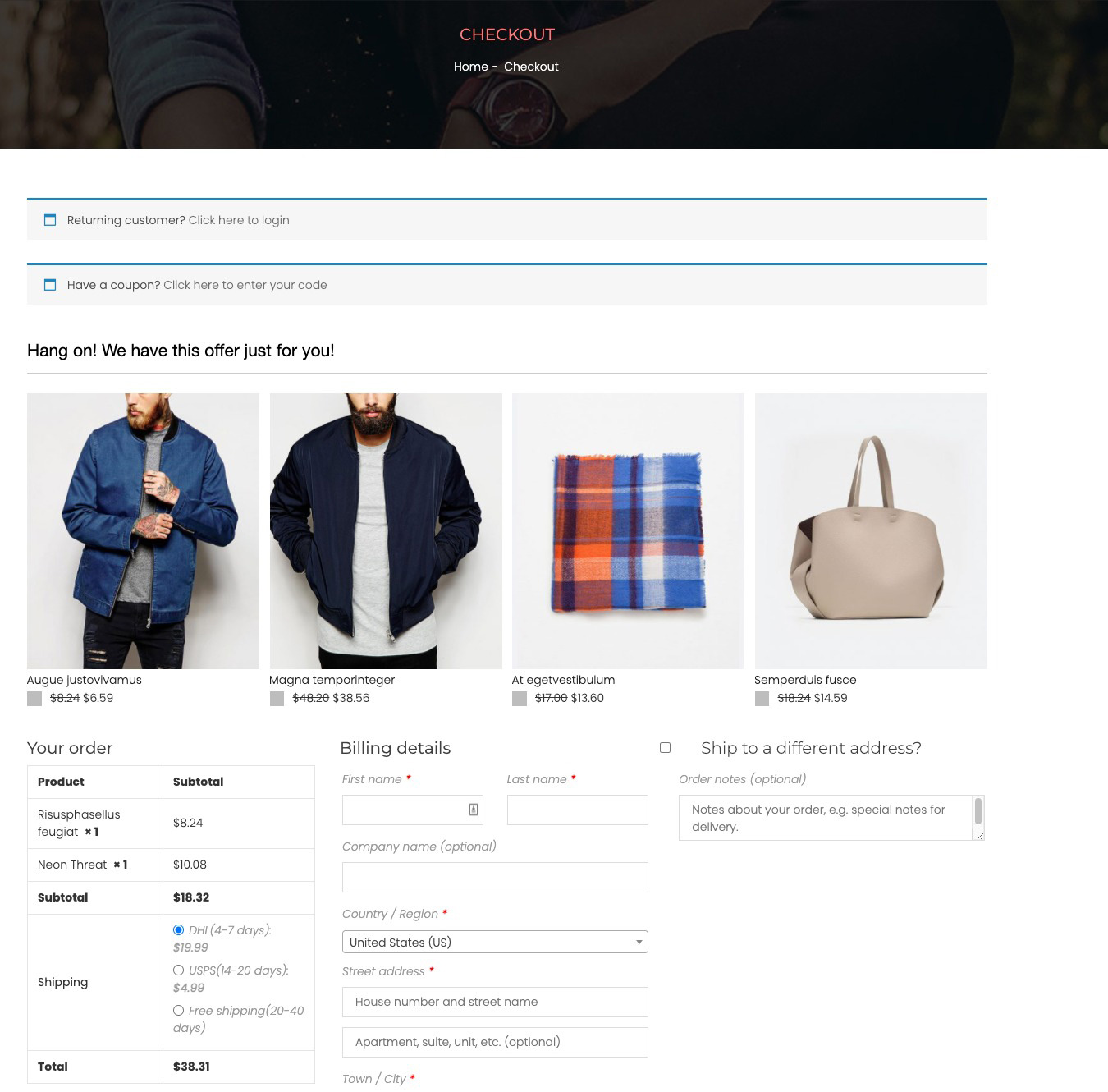
Conditions for displaying the upsell funnel
You can set the conditions for displaying the upsell funnel
- Product Conditions: Set conditions such as product price, include products, exclude products, include categories, exclude categories, product visibility.
- Cart Conditions: Cart total, items in cart, coupon applied, billing address, shipping address. Customers must meet the conditions with their carts to be offered the product suggestion on the checkout page.
- Customer Conditions: Limit per day, logged in only, include/exclude user role, include/exclude users. Only customers who meet the conditions will be offered the product suggestion on the checkout page.
Order Bump
Order bumps help to specify products on the checkout page that buyers can add to their cart. These are usually related products that complement what the customer is buying. With Smart Order Bumps, you can easily add an additional offer to the last step of the funnel to boost your sales.
- Unlimited Order Bumps: You can create as many Order Bumps as you like and assign them to work in your WooCommerce store.
- Products on the Order Bump Suggest : Create the suggestion on Order Bump from many types of products in your WooCommerce.
- Discount Rules for the Products on the Order Bumps: Apply the discount type and discount amount for the products displayed on the order bump.
- Cart Conditions for Displaying the Order Bump: Create the cart condition that will be applied to display the order bump, such as
- Customer conditions for displaying the Order Bump: Limit per day, logged in only, include/exclude user role, include/exclude user. Ö
- Design the Order Bump: Many options to design the background, title, messages, content, product images on the order bumps. In addition, you can use the available shortcode to make the content, messages on order bump more flexible.
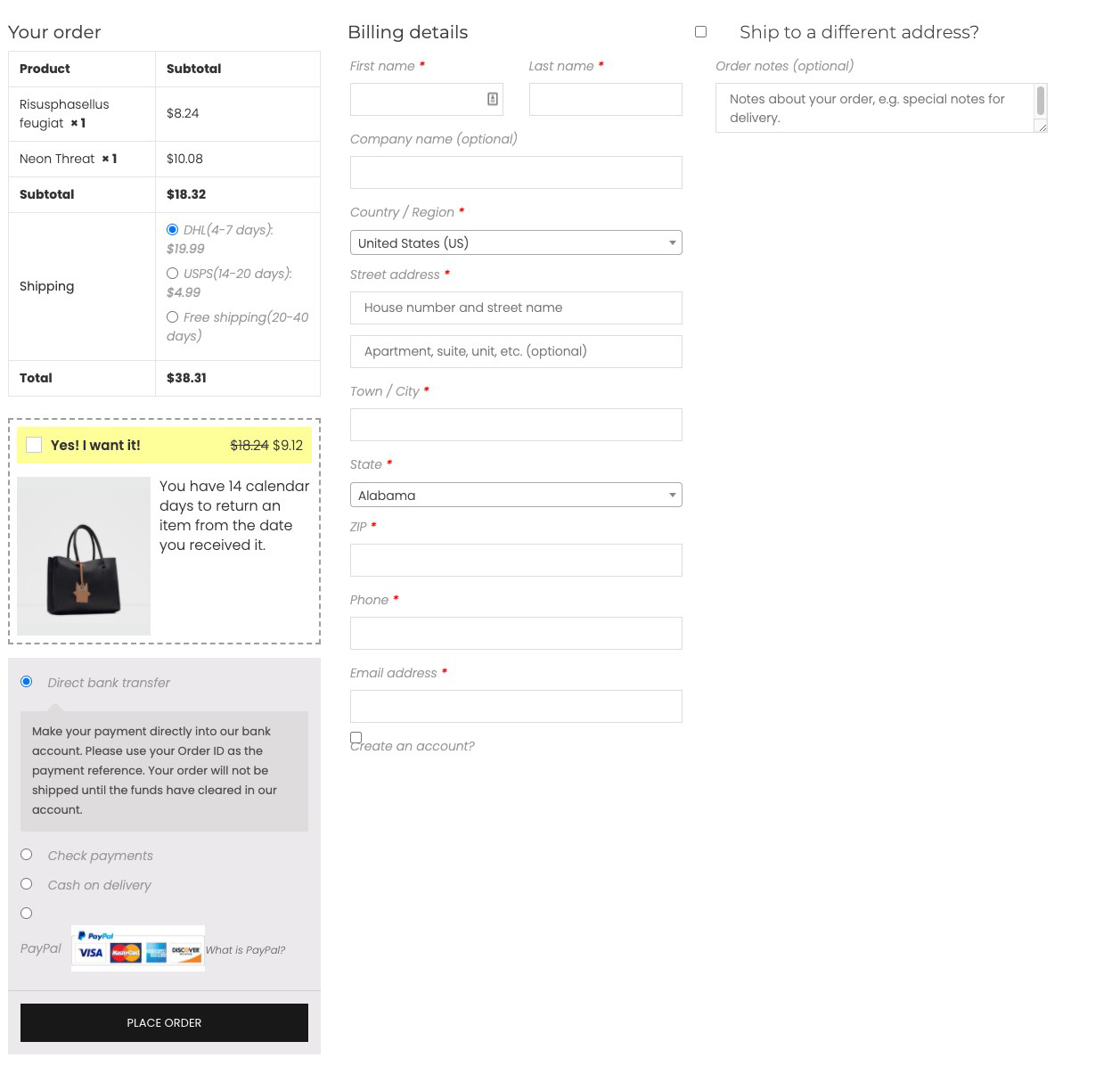
Reports & Statistics
The plugin provides reports for all items sold by Upsell Funnel and Order Bumps.
- Total Revenue: Report on the sales rate of Order Bump and Upsell Funnel compared to total revenue.
- Best-selling Products: Report on the products that sell best through Upsell Funnel or Order Bumps.
- Statistics Filter: Filter statistics based on order status, date, and month.




 DE
DE