A customer recently wanted to adjust the sorting order of their WordPress WooCommerce–products on the product category archive page and, of course, on the main shop page, as well as in widgets used on regular pages, in the blog, and in widgets, for example, in the sidebar. The archive used the default alphabetical sorting, but there were some products that needed to be listed at the top of the category list and overview. This is how we solved product sorting without an extra plugin, thanks to the new features in WooCommerce.
Sorting Options & Sorting Function for WooCommerce Products
WooCommerce offers the ability to customize the sorting order of products with a few setting changes.
For old WooCommerce versions before 5.0:
In your WordPress administrator, go to WooCommerce > Settings. On the „Products“ tab, under „Display,“ ensure that „Default product sorting“ is set to „Default sorting (custom order + name).“ Save the setting, then click on the administrator page for products in the WordPress admin sidebar.
As of WooCommerce 5.0, this is the new and better way:

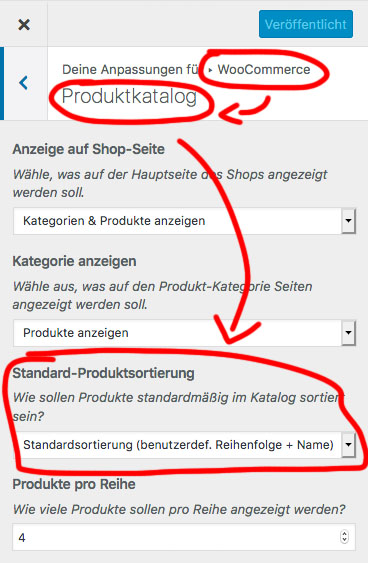
When logged in, click on „Customizer“ in the top left of the grey bar and navigate via WooCommerce > Product Catalog to the corresponding setting option:
Custom Sorting for Products in the Shop and Everywhere
The custom sortings are applied to all items and not just separate categories. Keep this in mind if you have a page that displays all products. In this particular project, the product pages were divided by categories, so the sorting options did not need to be as detailed as others might require.
In the Products administration area, you can select Sort and then drag and drop your products into the desired order. You can also adjust the products in the quick edit menu by changing the number in the menu order field.

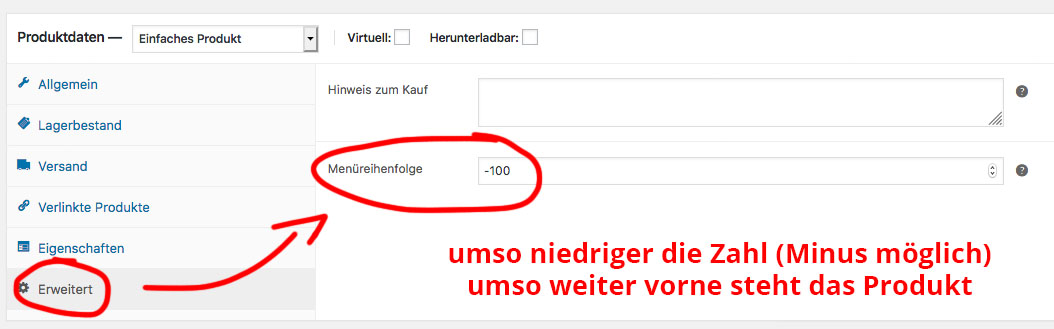
All items have a default value of 0 (zero). In custom order, lower numbers, including negative values, are displayed first. You can also edit the value in the field on the individual product edit page under the Product Data > Advanced tab.
Become more visible on Google & Social Media?
In a free strategy consultation for data-driven online marketing, we uncover your untapped potential, review any existing ad accounts if necessary, examine your SEO ranking and visibility, and determine which strategy is appropriate for your budget and which active measures will lead to more inquiries or sales.

✅ More visibility & perception through targeted placement
✅ More visitors > prospects > customers > revenue
✅ Reach target groups scalably with SEA
✅ Act and grow sustainably with SEO
🫵 Maximum success with our hybrid strategy
💪 More than 15 years of experience across industries in over 1,000+ projects demonstrable!







Move specific products up/to the front and thus influence the order or set the number in the field
If you want to sort every single product individually, you can do so. If you only want to move a few selected items to the top of the list, there is an easy way to do this.
Enter a negative number in the „Menu Order“ field of the product. When using a negative number, the item will have a lower value than the default „0“ and will therefore appear above those items. If you want to group a set of products together and have WooCommerce sort them alphabetically, simply use the same value/number in the field.
Conclusion:
WooCommerce is a powerful e-commerce solution (plugin for WordPress) and offers many ways to easily customize your online shop with just a few clicks. Adjusting the order and sorting of products in the overview is therefore playfully easy.

Weitere Fragen zu WooCommerce oder benötigen Sie Beratung/Hilfe für Ihren Shop?
E-Mail: fi@vastcob.com
Florian Ibe





 DE
DE