
Easily offer shipping costs based on distance or total travel time. With the WooCommerce Distance Rate Shipping extensions, you can easily offer your customer shipping costs based on distance or total travel time. This is also ideal for rentals or regional services. Both plugins are translatable into German and suitable for multilingualism. The settings are clear and easy to manage.
Shipping costs by distance for WooCommerce – 2 plugins for the perfect solution for e.g. delivery services or regional delivery and forwarding agencies
Rules can be set up to calculate based on distance,total travel time, as well as additional fees based on the total cart value, the total weight of the products in the cart, and the number of items in the cart.

- Distance / Range
- Travel time
- Weight
- Order value
- Quantity of items
This also allows for further combinations!
The WooCommerce Distance Rates Shipping extension is perfect for the store owner who wants to charge customers for item delivery based on the distance from the store. A perfect example would be a store that rents equipment or a takeaway store.
Suppose you are a business that rents or sells something regionally and delivers the equipment, but wants to charge different prices for delivery depending on how far the customer is from you and how many barrels they rent, then the WooCommerce Distance Rate Shipping extension is for you.
Or if you run a service that produces homemade meals but wants to charge more for delivery depending on how far the customer lives from you, then the WooCommerce Distance Rate Shipping extension is perfect.
The use cases are endless and can cover pretty much any scenario to calculate shipping based on total distance or travel time.
Important Note:
These extensions require a Google account as they use Google Maps, the Google Distance Matrix API, and the Google Maps Embed API. Some of these features are paid services. The returned route (and subsequent total distance) is used to calculate costs according to the data returned by the „Driving“ mode of the Distance Matrix API.
Documentation + Explanation:
Go to: WooCommerce > Settings > Shipping.
Select Edit in the shipping zone to which you want to add the method
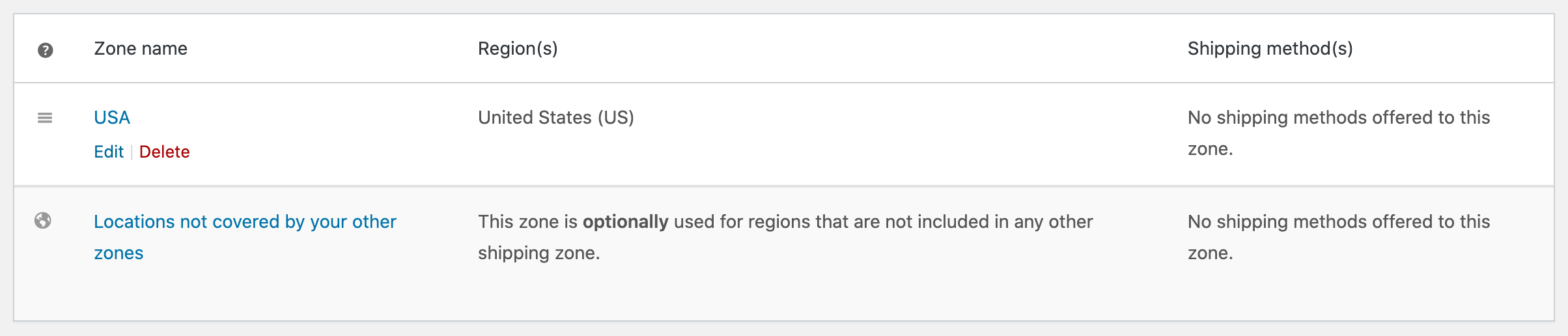
Select Below, in the Shipping Methods section, click the Add Shipping Method button.
Become more visible on Google & Social Media?
In a free strategy consultation for data-driven online marketing, we uncover your untapped potential, review any existing ad accounts if necessary, examine your SEO ranking and visibility, and determine which strategy is appropriate for your budget and which active measures will lead to more inquiries or sales.

✅ More visibility & perception through targeted placement
✅ More visitors > prospects > customers > revenue
✅ Reach target groups scalably with SEA
✅ Act and grow sustainably with SEO
🫵 Maximum success with our hybrid strategy
💪 More than 15 years of experience across industries in over 1,000+ projects demonstrable!







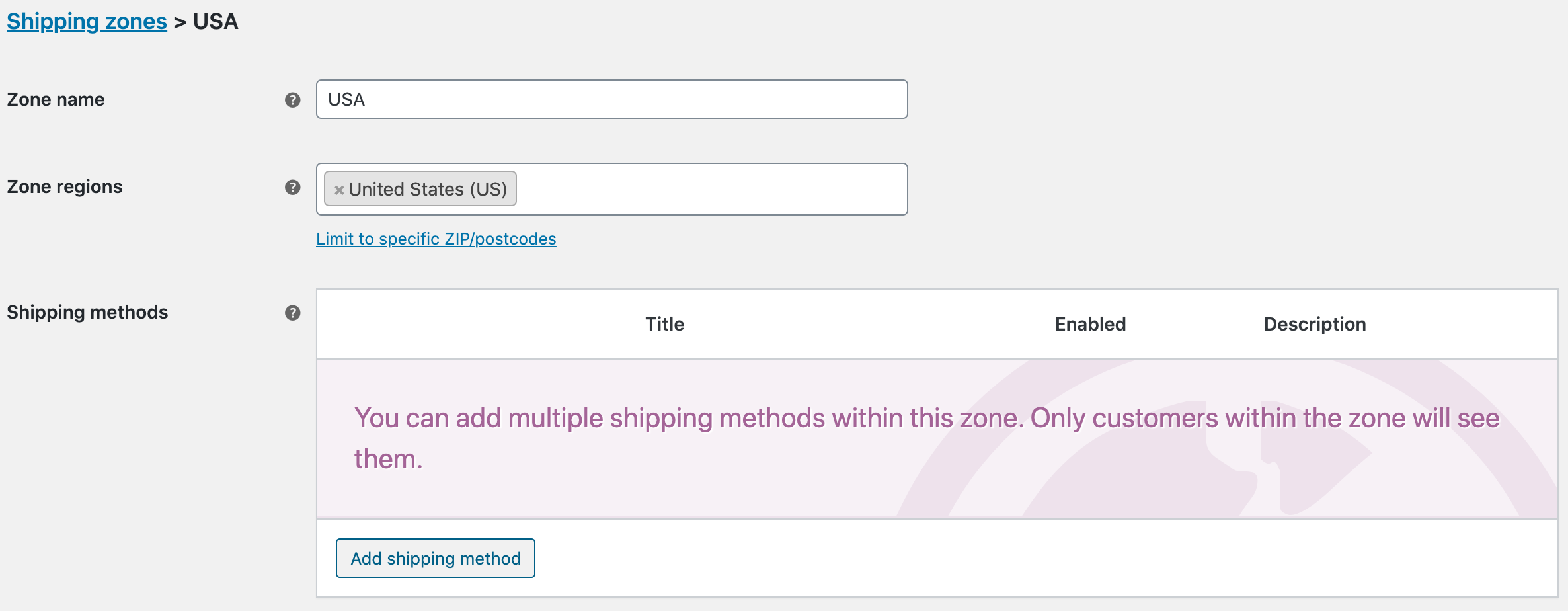
Select Distance Rate from the dropdown menu and click Add Shipping Method:

Select the new Distance Rate method to configure the settings:
- Method Title – Name the shipping method. This is visible to customers.
- Tax Status – Whether prices include tax or not.
- Travel Mode – Transport method used to deliver your products.
- Avoid – Things to avoid when calculating distance; None, Tolls, Highways or Ferries.
- Distance Unit – Whether you use the metric or imperial system for working out distances.
- Display Distance – Whether to display the actual distance on the cart/checkout pages when showing the customer their shipping costs.
- Display Duration – Whether to display an approximation of the delivery time.
- Shipping From Address – The address you are shipping from, this can be your location or if you are shipping from another location to your store, enter that location’s address here.
Distance Rate Rules
6/ Add Distance Rate Rules to define different settings for shipping.
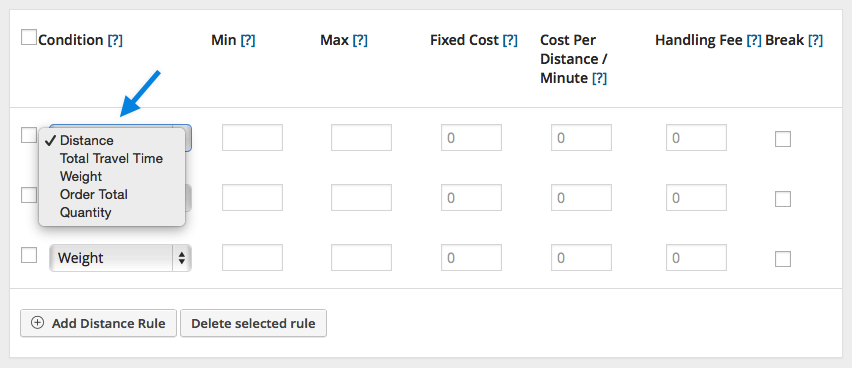
Multiple rules can be set up with different options:
- Condition is to specify what rules are based on, whether it is distance, total travel time, number of items in the cart, weight, or total cart value.
- Min and Max to specify a range that the type falls into (travel time in minutes). Leave the fields empty if there is no limit.
- Fixed Cost to be applied if the rule matches, excluding taxes.
- Cost Per Distance / Minute is the value to be calculated based on the total travel time or distance to the customer’s address, excluding taxes.
- With the Handling Fee you can enter a fixed amount or percentage to be added to the shipping costs (e.g., 2.50 or 5%).
- Break will stop searching for other rates below this rule (from top to bottom) if the condition is met. Prices calculated up to the Break Point will be offered.
- Abort disables this shipping method if the condition is met. No prices will be offered.
Note: Conditions can currently only be evaluated individually, not in combination with each other. For example, you can set up distance rules based on the total OR distance of the order , but not on the total AND distance of the order .
An alternative plugin for shipping costs based on distance for WooCommerce shops

With distance-based shipping rates, you can easily charge your customers for shipping based on the distance between your shipping location and theirs.

See the flexibility of the Distance Rate Shipping plugin in action. The plugin is built entirely with our options and requires no custom coding.
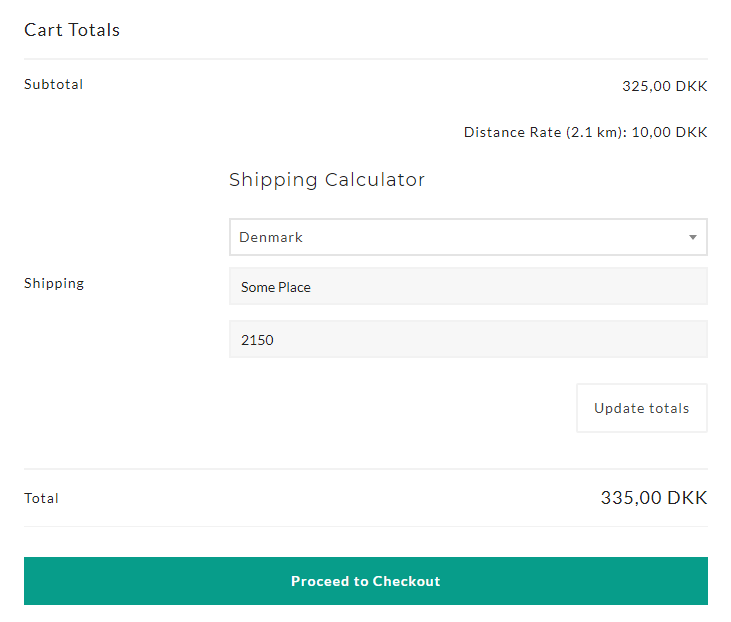
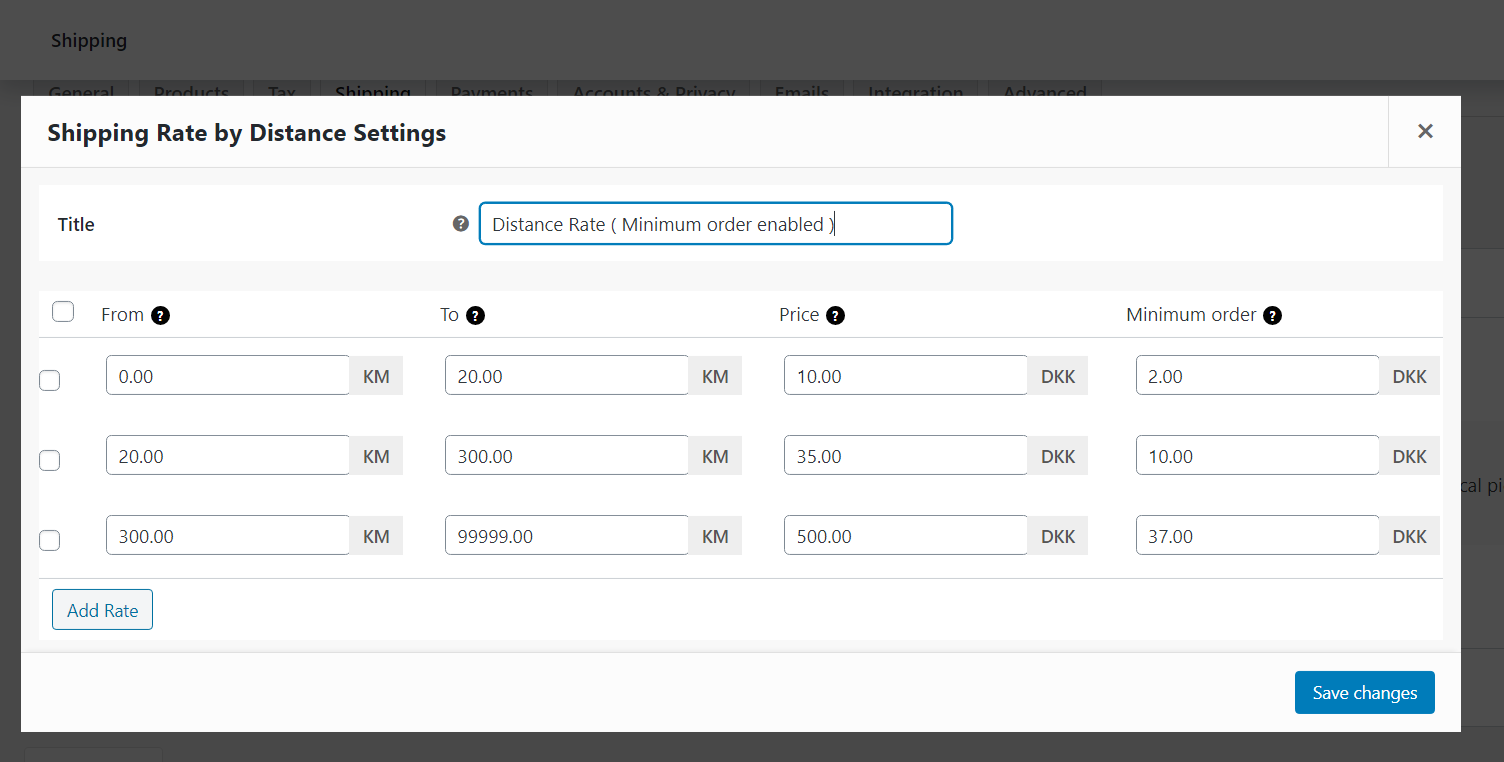
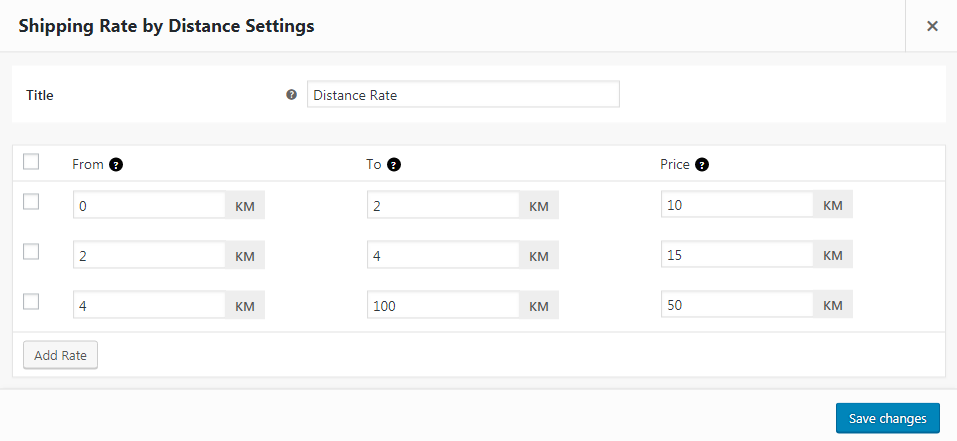
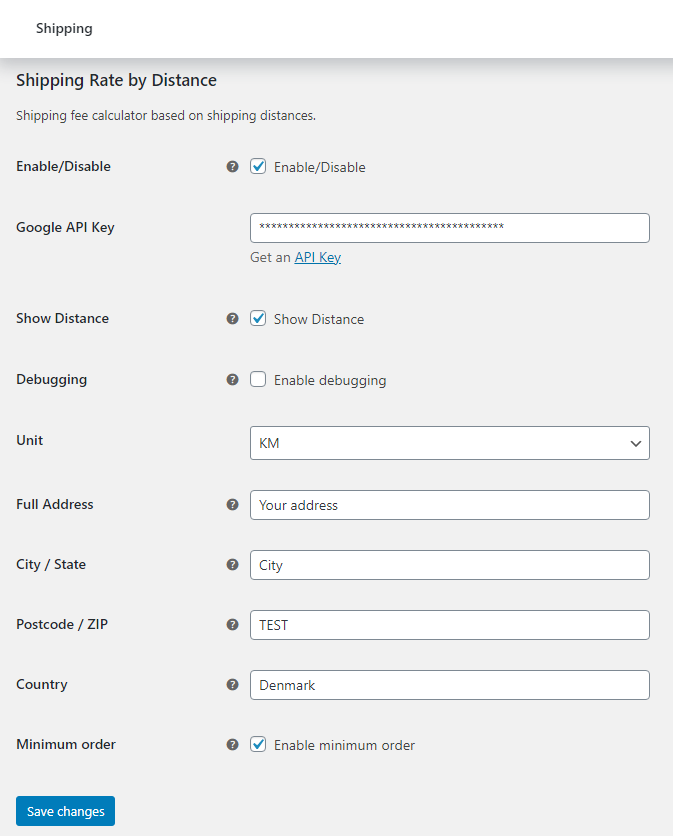
Note: This WooCommerce plugin also requires the Google Distance Matrix API to calculate the distance (Google Maps API).
You can choose between the official WooCommerce.com plugin* and a bestseller on Envato*.
Use cases and examples for shipping costs and rules based on distance
Do you only offer shipping for shipments under a certain distance?
Suppose you offer a delivery service within a 50-mile radius of your warehouse and want the distance rate API to calculate delivery costs based on the distance traveled, you can set a distance condition rule with a maximum value of 50.
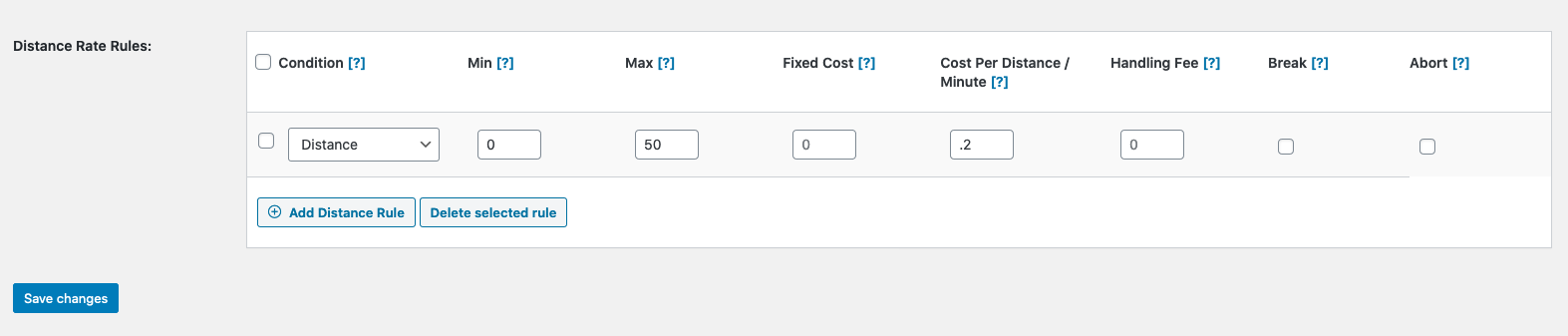
Any distance calculated at checkout over 50 will not match the rule and an error message will be displayed:

No cost for the first range, only charge for distances beyond that
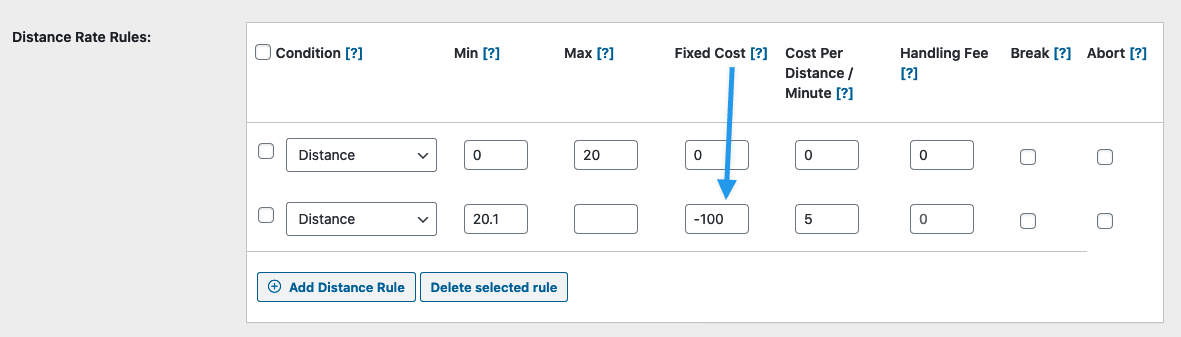
If you want to allow free shipping for closer deliveries (e.g., the first 20 miles) but charge for further shipments, you can achieve this by adding a „0“ cost rule for the free shipping distance (Min 0, Max 20) and then add another rule for distances beyond that (20.1 miles as Min, Max can be left empty or assigned to a range). In this second rule, set the „Cost per Distance / Minute“ amount you want to charge (for $5 per mile, simply enter 5 in this field), but in the „Fixed Cost“ field, add a negative amount equal to the number of miles in the free distance range multiplied by the cost per mile (20 * 5 = 100, so enter -100 as the fixed cost).





 DE
DE