Many shop operators using WooCommerce wish to set an extra shipping cost per product, item or variant especially for bulky products or products with high weight. This can be done with a lot of effort and inconveniently via the standard function of shipping groups and product links with flat-rate shipping, but this is not practical starting with just 5 products with individual shipping costs (see instructions at the bottom). We therefore recommend the WooCommerce Plugin per Product Shipping*.
WooCommerce shipping costs per item / product / variant
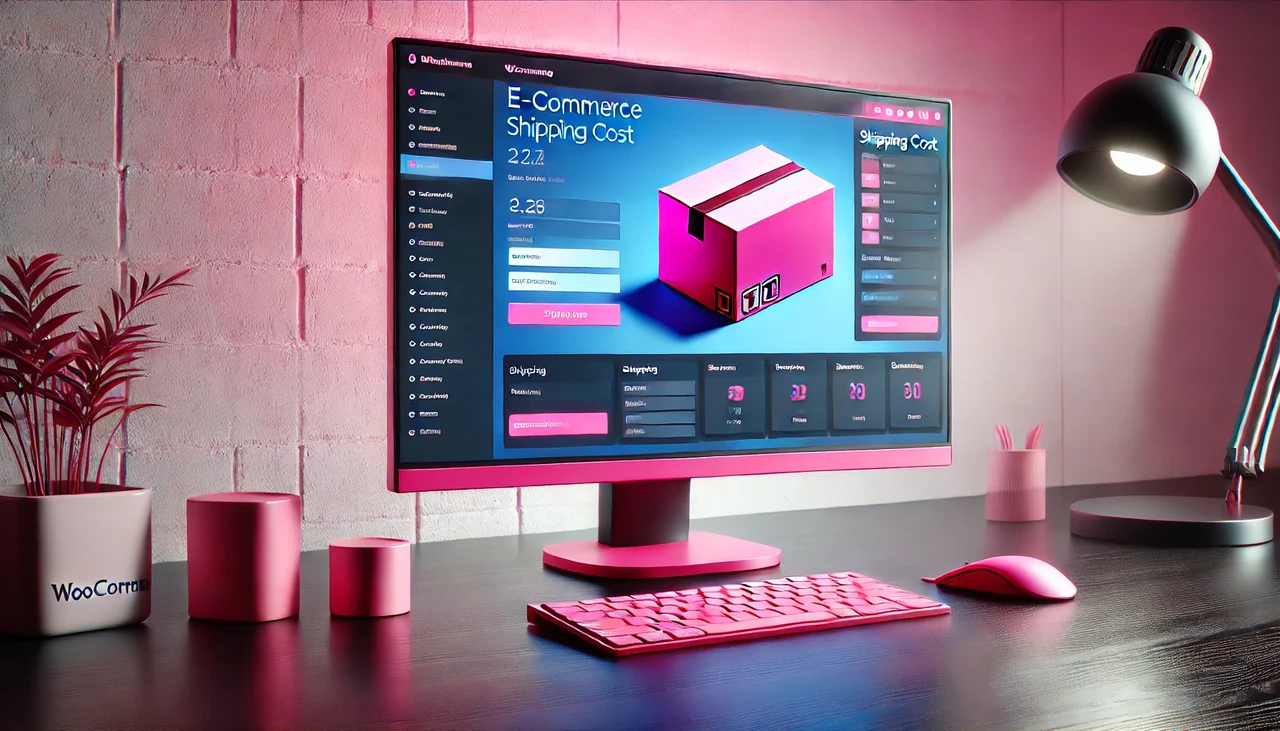
Define shipping costs per item, product and variation in just a few minutes
Per product shipping allows you to define different shipping costs for products, based on customer location (country or even postal code).
Costs can be added to other shipping methods or as standalone Shipping method can be used – super practical and setting shipping costs is extremely easy!
Features of the WooCommerce plugin with the function shipping costs per item / product:
- Define the costs for lines and items per product
- Define the costs for lines and items per variation
- The costs can vary depending on destination
- Import and export rates via the integrated simple CSV handler
- Use as standalone shipping method, where the final costs are the sum of all product costs
- -or- add additional product costs to other shipping methods
This is a fantastic solution if your business sells unique, heavy, or large products that require additional shipping compared to the rest of your catalog, or if you only have a few products with fixed shipping costs.
Note: And as always, the plugin is also very easy to translate into German with Loco Translate.
Set shipping per product, item, and variant easily:
Per Product Shipping is a premium extension for your WooCommerce online shop that allows you to define different shipping costs for products depending on the customer’s location. These shipping costs can be added to other shipping methods or used as a standalone shipping method.
How per product shipping can be used
Per product shipping can be implemented in two ways:
Become more visible on Google & Social Media?
In a free strategy consultation for data-driven online marketing, we uncover your untapped potential, review any existing ad accounts if necessary, examine your SEO ranking and visibility, and determine which strategy is appropriate for your budget and which active measures will lead to more inquiries or sales.

✅ More visibility & perception through targeted placement
✅ More visitors > prospects > customers > revenue
✅ Reach target groups scalably with SEA
✅ Act and grow sustainably with SEO
🫵 Maximum success with our hybrid strategy
💪 More than 15 years of experience across industries in over 1,000+ projects demonstrable!







- Multiple shipping methods : When this option is enabled, the fees can be applied in addition to your other shipping methods. Example: If your store offers a bulky product that you want to set up with additional shipping costs, you can create a fee that is added to this specific product. If you had multiple items in your cart, two shipping methods would be displayed in one price – a) your standard shipping costs for the other items in the cart and b) the shipping costs of the bulky item.
- Standalone method : In this scenario, per product shipping is the default shipping method. In this case, all product costs are added to a single rate.
Setup and configuration of WooCommerce per product shipping
The setup follows this order:
- Go to WooCommerce > Settings > Shipping > Shipping Zones and add the per-product shipping method. This is required for per-product shipping to be displayed at checkout.
- Go to WooCommerce > Products and select a product for which per-product shipping should be enabled .
- Define the shipping costs for products and variations as explained in the following sections.
- Choose a method: Multiple shipment or standalone.
Define shipping costs for products, items and variants
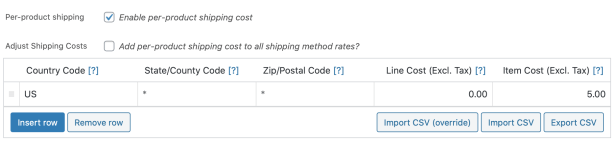
Edit your product first. On the Shipping tab you will find a per-product shipping checkbox. Check the box to enable per-product shipping – from there you can add your costs:
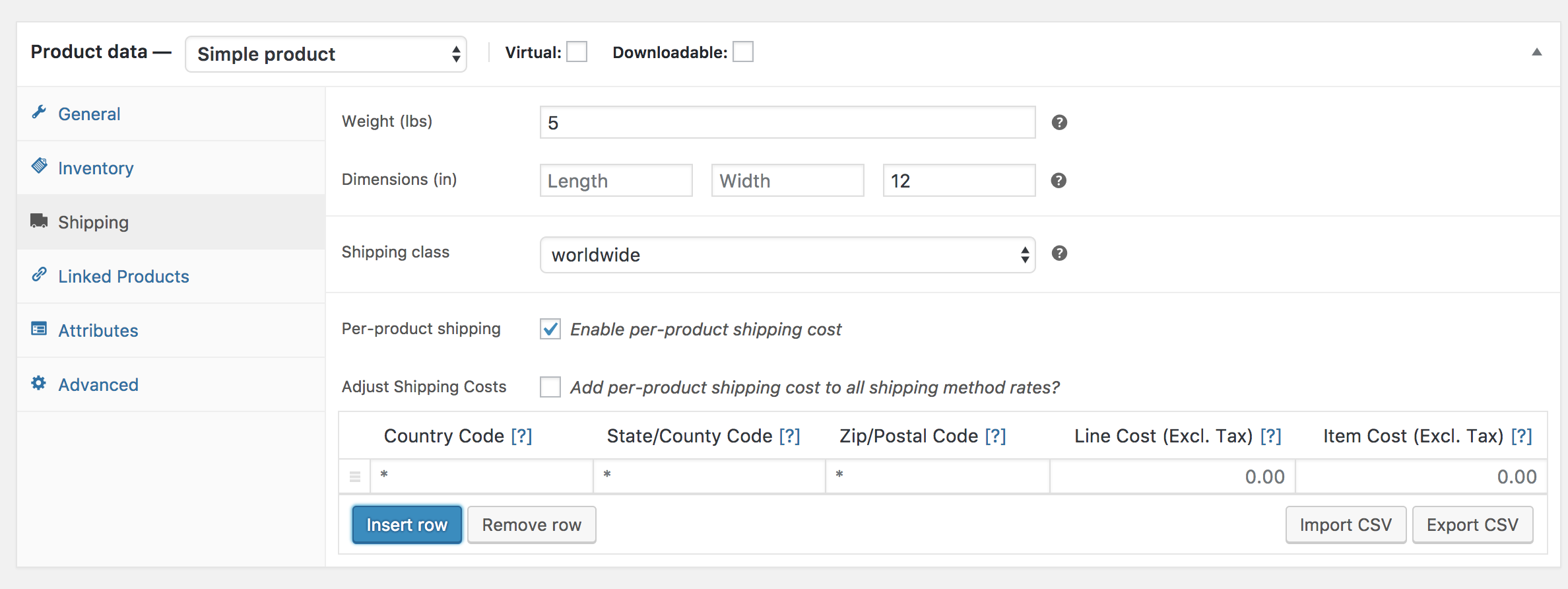
Note: The following: „Add per-product shipping costs to all shipping method rates?“ This option is only displayed if you are using the old per-product shipping. It is recommended to use the new method instead.
If you want to select the option „Add per-product shipping costs to all shipping method rates?“ With this option, the per-product shipping costs you set will be added in addition to the additional shipping methods you have enabled (excluding free shipping).
In the table, define your custom prices. Click „Insert row“ and fill in each column.
- Country code – Use the two-digit country code, e.g. US or GB
- State / Country code – Use a two-digit state code, e.g. AL or NY
- Postal code – Enter a single postal code to which the rule should be applied. Use a wildcard to match multiple similar postal codes, e.g. PE* or 90210
- Line costs – Enter the costs applied to the line (ignores quantity). These costs should exclude taxes.
- Item costs – Enter the costs applied to the item (costs * quantity). These costs should exclude taxes.
You can add as many rows as you like. Only one row matches the customer location, starting from top to bottom.
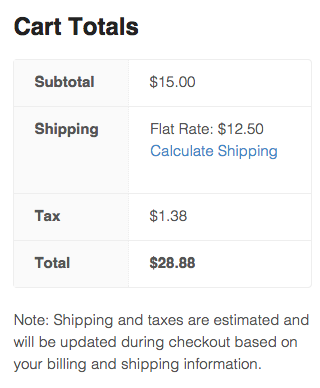
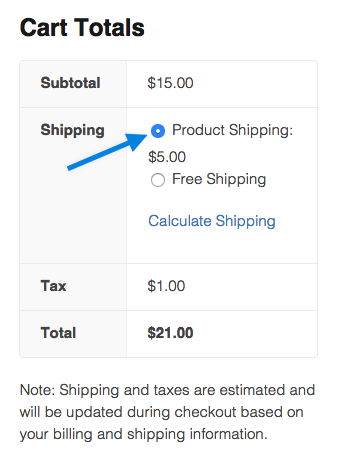
In the following example, flat rate shipping was set to $7.50 and per-product shipping to $5 (according to the screenshot settings above).
Export CSV
Below the rate price table you will see two Import / Export buttons. Using the Export button will export the product rates to a CSV file containing the following columns:
- Product ID
- Country Code
- State Code
- Postal Code
- Line Costs
- Item Costs
For more information on importing CSVs, see Importing Rates via CSV. This is useful when you want to import similar rates for all products.
Define Shipping Costs for Variations
Each variation can have the same shipping options per product. To enable these costs, go to the Variations tab and expand . Enable the Shipping checkbox Per Variation shown below:
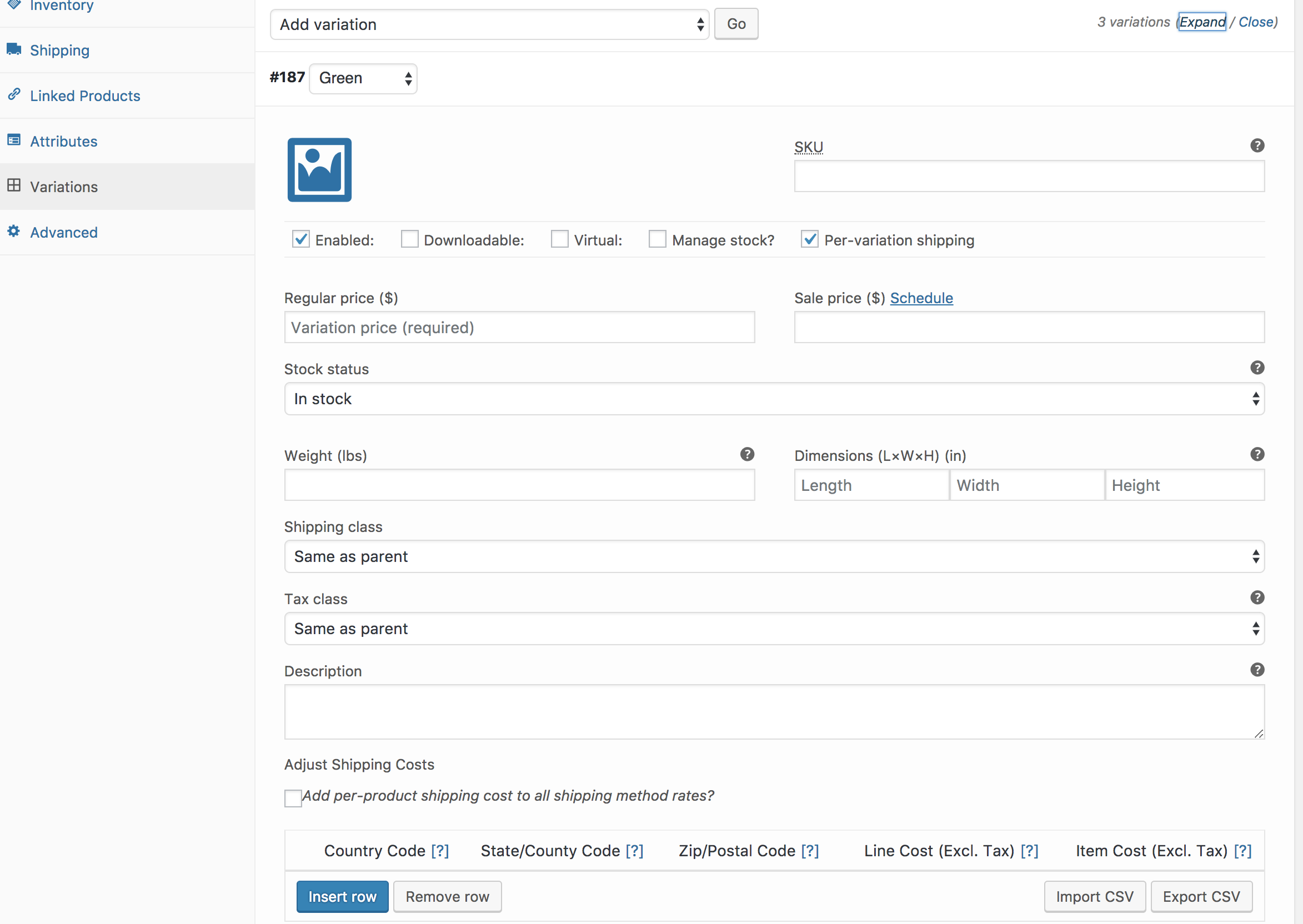
After that, the same table with shipping rules per product will be displayed.
Note: Variation rates override product rates.
Use as a standalone method
Per-product shipping can be used as a standalone method where all product costs are added to a single rate.
To enable go to: WooCommerce > Settings > Shipping > Shipping zones.
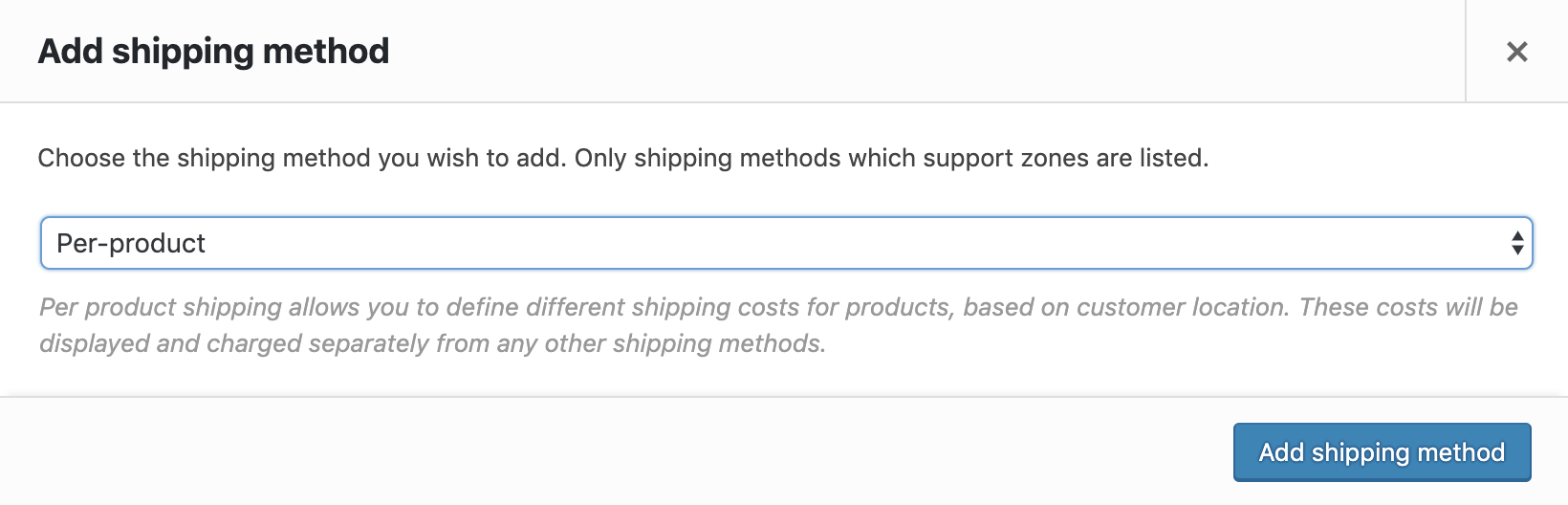
Add the per-product shipping method to a zone. After you have added the method, you can enter the configuration.
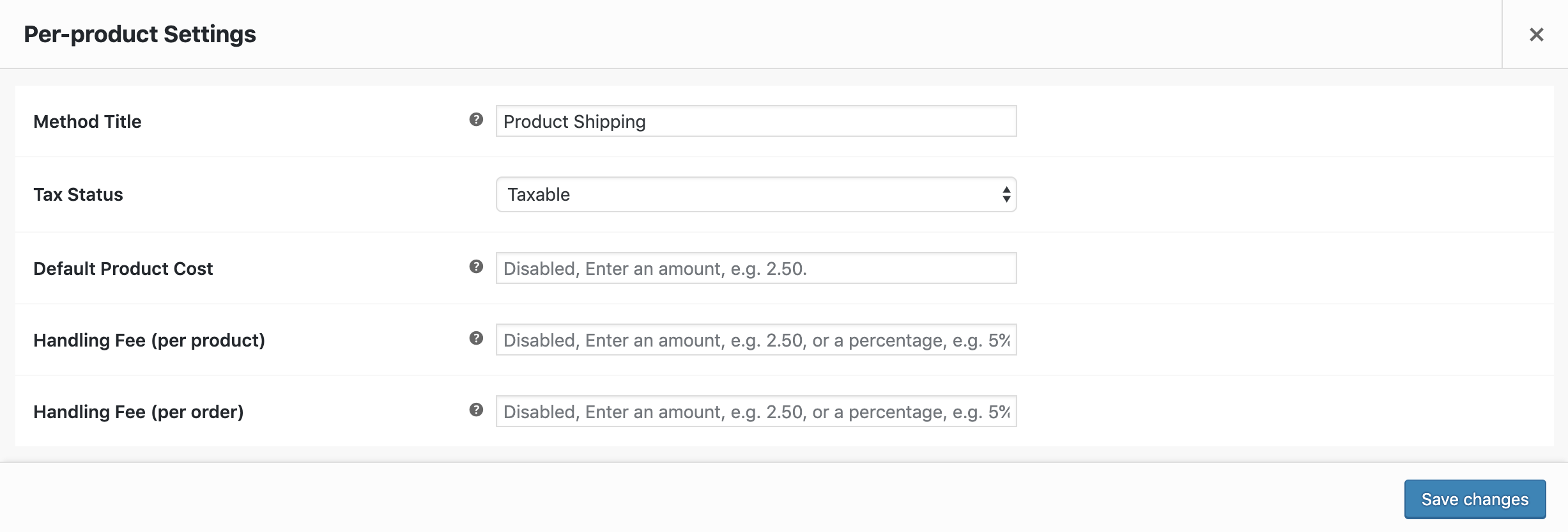
The following options are available:
- Standalone Method – Enable this option to activate per-product shipping as a separate shipping method.
- Method Title – In standalone mode, this is the name of this shipping method displayed to the customer.
- Tax Status – Specifies whether taxes should be added to this method.
- Default Product Cost – If no rates are set up for products, they inherit this cost.
- Handling Fee (per Product) – This fee is either fixed or percentage-based and is added to each product in the cart.
- Handling Fee (per Order) – This fee is either fixed or percentage-based and is applied once to the entire cart.
Save Changes .
Importing Rates via CSV
Note: Before uploading, edit your export file to change the Product ID column to the ID of the new product.
To import prices via a CSV file, either go to Tools > Import > Shipping Costs per Product or click one of the import buttons below a price table:
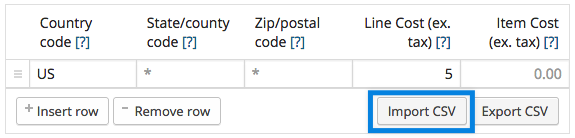
If CSV import (overwrite)is selected, rows that match existing imports will be updated. If you only CSV import select, imported values will be inserted into new rows.
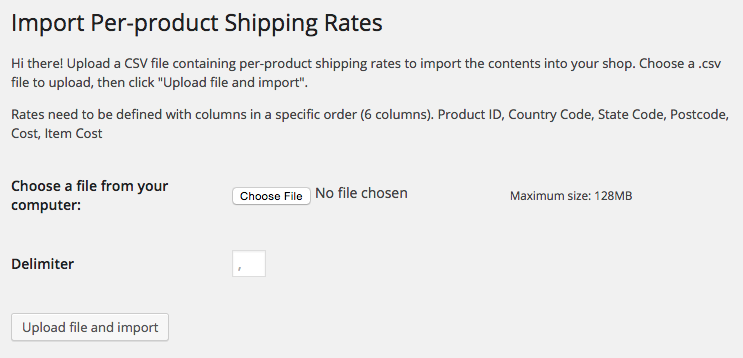
Upload your CSV file on the import screen:
Formatting your CSV file
Your CSV must contain a fixed number of columns (6 total) that include the following:
| Product ID | Country Code | Status Code | Postal Code | Shipping Cost | Item Cost | |
| Description | ID of the product this price applies to | 2-digit country code (if applicable) | 2-digit status code (if applicable) | A single postal code or a wildcard | Shipping cost for each ad listing | Cost to ship each individual item |
| Example | 30 | UNS | AL | PE30 * | 9.99 | 2.99 |
The free but very time-consuming function to administer:
WooCommerce > Settings > Shipping > Flat rate shipping you can select at the bottom per item, per order or per shipping class and then you can enter a price for each of your shipping classes. You must create shipping classes beforehand in Products.

Florian Ibe
CEO & Marketing Consultant
Your contact person: Florian Ibe





 DE
DE