
Do you want to optimize the display, sorting, and order of product variations in your WooCommerce shop? A targeted adjustment of the sorting order of variation selection can significantly improve the user experience and simplify the purchasing process for your customers. In this guide, we will show you how to adjust the default sorting order for attributes via the WooCommerce settings. Whether you prefer an alphabetical arrangement, need a numerical sort, or want a completely custom order, we will guide you through the necessary steps. You will also learn how to ensure optimal presentation of your products through simple adjustments in the dashboard or by targeted changes directly to the product variations. Make your WooCommerce shop even more user-friendly with these simple adjustments!
Change WooCommerce Variation Selection Order (Variation Display – Variable Products)
To change the sorting order of variation selection in WooCommerce, there are several methods that can be applied depending on the needs and complexity of the requirements. Here are some of the most common methods you can use:
1. Change via WooCommerce Settings: Product Attributes
You can adjust the order directly in the WooCommerce settings, especially for basic product attributes:
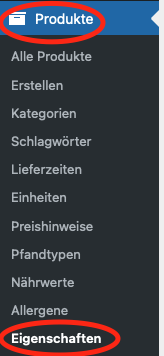
- Go to: WordPress Dashboard → Products → Attributes.
- Select the attribute whose order you want to change.
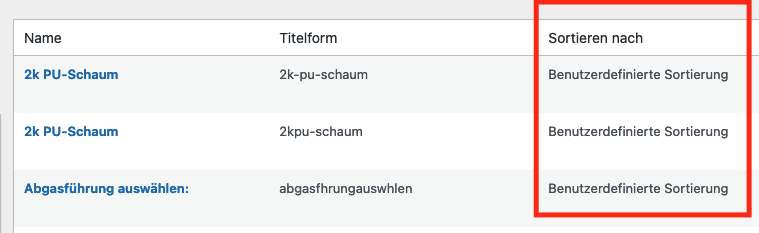
- You can change the order of attributes by dragging and dropping them.
- For the variations themselves, go to the product and adjust the order in the variation settings.
This method is best suited for simple adjustments.
Advanced Options for Attribute Sorting Order (Display Order):
- Open WordPress Dashboard: Go to your WordPress Dashboard and navigate to „Products“ > „Attributes“.
- Edit Attribute: Select the attribute you want to edit by clicking on the name of the properties.
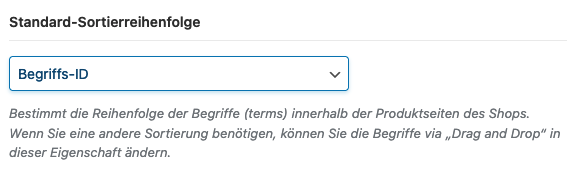
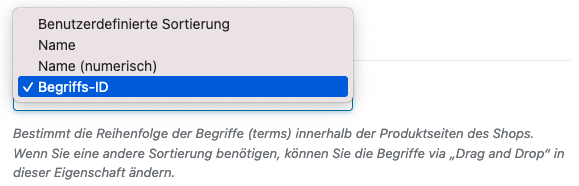
- Set the sort order: Within the attribute settings, there is an option for „Default sort order“. Here you can choose how the attributes should be sorted. The options include:
- Name: Sorts the attributes alphabetically by their name.
- Name (numeric): Sorts the attributes numerically (useful if your attributes contain numbers).
- Term ID: Sorts the attributes by their term ID in the database. This is the default option and is based on the order in which the attributes were created.
- Custom order: Allows you to manually sort the attributes. After selecting this option, you can go back to the attribute overview page and drag & drop the attributes into the desired order.
- Save Changes: Don’t forget to click „Save Changes“ or „Update Properties“ to apply your adjustments.
Applying the Sort Order to Product Variations:
When it comes to sorting variant selections on the product page, WooCommerce follows the order of attributes as defined under „Products“ > „Attributes“. However, if you want to make specific adjustments for individual products, you need to edit the variations directly in the product:
- Edit Product: Open the product whose variation order you want to adjust.
- Edit Variations: Go to the „Product Data“ section and select „Variations“. Here you can adjust the order of variations by dragging and dropping them.
- Save Changes: Make sure to save all changes by updating the product.
These advanced options give you the flexibility to customize the display of your product variations and attributes exactly as best suits your shop.
2. Customization with Custom Code
For more specific requirements or if you want to change the order based on other criteria, you can add custom code to your theme’s functions.php file:
add_filter( 'woocommerce_dropdown_variation_attribute_options_args', 'custom_variation_order' );
function custom_variation_order( $args ) {
if ( ‚your_attribute‘ === $args['attribute'] ) { // Replace ‚your_attribute‘ with the actual attribute name
$args['orderby'] = 'custom_order'; // Options: ’name‘, ‚id‘, ‚menu_order‘ etc.
// For ‚custom_order‘ you need to implement your own logic
}
return $args;
}
This code provides a flexible basis for customizing the order, but requires PHP knowledge and a clear understanding of how the sorting should be adjusted.
3. Use plugins for property display
There are also plugins that can facilitate the customization of variant order without requiring code. Plugins such as „WooCommerce Variation Swatches“ or „Improved Variable Product Attributes for WooCommerce“ can be helpful. These plugins typically offer a user-friendly interface to adjust the order of variants and attributes.
Become more visible on Google & Social Media?
In a free strategy consultation for data-driven online marketing, we uncover your untapped potential, review any existing ad accounts if necessary, examine your SEO ranking and visibility, and determine which strategy is appropriate for your budget and which active measures will lead to more inquiries or sales.

✅ More visibility & perception through targeted placement
✅ More visitors > prospects > customers > revenue
✅ Reach target groups scalably with SEA
✅ Act and grow sustainably with SEO
🫵 Maximum success with our hybrid strategy
💪 More than 15 years of experience across industries in over 1,000+ projects demonstrable!








Conclusion for the sorting & order of properties in WooCommerce for variant selection in variable products on the product page in the shop
The best method depends on your specific requirements. For simple adjustments, the WooCommerce settings are often sufficient. However, if you need more specific control or want to implement complex sorting logic, adding custom code or using a plugin might be the better choice.
Additional tip for more complex variants and product options:
WooCommerce Variable Products with Extra Options (Product Extra Options)





 DE
DE