
To disable (turn off) WordPress comments, there are various methods – individually or globally. In this article, we will discuss how to disable comments in WordPress and introduce three recommended plugins that facilitate this process, as well as answer the 5 most frequently asked questions. Bonus tip: Extend the comment function to make it more useful with individual settings and management.
Disable WordPress Comments – Turn off comment function for posts, pages, taxonomy with settings or plugin
In the world of WordPress, the comment function offers a valuable platform for exchange and interaction with readers. However, there are situations where it is desirable or necessary to disable this function, whether to simplify content management, avoid spam, or create a quieter, undisturbed online environment.
Whether for individual posts, pages, or entire taxonomies, WordPress allows users to turn off the comment function flexibly and easily. This can be done directly via the settings in the WordPress dashboard or with the help of specialized plugins that offer additional control and adaptability. In any case, disabling comments in WordPress provides a simple solution to design your website exactly according to your needs.
Step-by-step guide: Disable WordPress comments
Starting with the global settings in the WordPress dashboard under „Discussion,“ you can disable the comment function for future posts by unchecking the corresponding option. For already published posts or specific pages, WordPress offers the flexibility to disable comments individually via the editing options for each post or page, allowing you to shape the interaction on your website according to your wishes.
Global Deactivation
- Log in to the WordPress Dashboard: Log in to your WordPress backend.
- Navigate to Settings: Go to "Settings" and select "Discussion".
- Adjust Comment Settings: Uncheck "Allow people to post comments on new articles". This will disable the comment function for future posts.
- Save Changes: Do not forget to save your changes.

Deactivation for individual posts or pages
- Select post or page: Open the post or page for which you want to disable comments.
- Find discussion settings: Scroll down to the „Discussion“ settings below the editor. If you do not see them, click on „Screen Options“ (top right) and enable „Discussion“.
- Disable comments: Uncheck "Allow comments".
- Save changes: Update your post or page to apply the changes.

Both settings are really very simple and are available in EVERY WordPress installation.
As a video explanation:
Become more visible on Google & Social Media?
In a free strategy consultation for data-driven online marketing, we uncover your untapped potential, review any existing ad accounts if necessary, examine your SEO ranking and visibility, and determine which strategy is appropriate for your budget and which active measures will lead to more inquiries or sales.

✅ More visibility & perception through targeted placement
✅ More visitors > prospects > customers > revenue
✅ Reach target groups scalably with SEA
✅ Act and grow sustainably with SEO
🫵 Maximum success with our hybrid strategy
💪 More than 15 years of experience across industries in over 1,000+ projects demonstrable!








The 3 Best Plugins for Managing WordPress Comments, Especially Disabling WordPress Comments
1. Disable Comments
Disable Comments allows you to disable comments on your entire WordPress website or on specific post types with just a few clicks. It is ideal for websites that do not require a comment function or prefer to move discussions to social media.
2. WP Disable Comments
With WP Disable Comments, you can disable comments at various levels: globally, per post type, on individual pages or posts, and even in widgets. It also offers the option to hide comment links in the menu.
3. Anti-Spam by CleanTalk
While Anti-Spam by CleanTalk is primarily an anti-spam plugin, it also offers comment management features. It can block unwanted comments and provides additional controls over the comment function, making it a good choice for sites struggling with spam.
Extend, Manage, and Effectively Use the Comment Function

CommentPress* is a powerful WordPress plugin designed to make inserting, editing, and deleting comments quick and easy. The plugin uses Ajax, jQuery, and PHP to insert comments without page reloads. It offers many customization options, including a captcha to prevent spam and increased security in forms. CommentPress is fully responsive and provides a variety of features to optimize the comment function on your website.
Feature List:
- Insert comments: Users can add new comments.
- Reply to comments: Option to reply specifically to comments.
- Edit comments: Already published comments can be edited.
- Delete comments: Inappropriate or unwanted comments can be removed.
- Ajax-based loading: Comments are loaded and displayed without reloading the page.
- Comment Pagination and Limitation: Settings for the number of comments displayed per page.
- Multimedia in Comments: Support for embedding images, videos, and links.
- Comment Rating: Comments can be rated with "Like"/"Dislike".
- Character Limit for Comments: Restriction on the length of comments.
- Commenting for Registered Users: Option to restrict commenting to registered users.
- Full Field Validation: Ensures input quality.
- Captcha: Spam protection through Captcha verification.
- Automatic and manual integration: Easy to integrate via shortcodes or widgets.
- Customizable styles: Four available styles to customize the appearance.
- Support for custom post types: Comment function also available for custom post types.
- Compatibility: Fully compatible with WordPress 4.9+ and various plugins such as BuddyPress.
CommentPress is ideal for website operators who want a flexible and comprehensive comment function to promote and manage interaction on their website.
A great addition if the comment function is to be used – thumbs up and down for comments
Comments Like Dislike is the free WordPress plugin to enable like and dislike icons for standard WordPress comments. Choose thumbs up or thumbs down, smiley or frown, correct or incorrect icons, or your own custom like-dislike icons, the choice is yours.

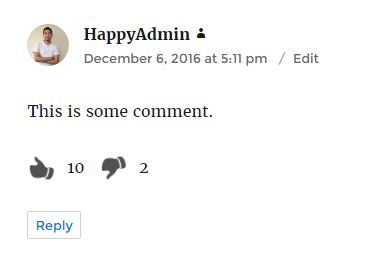
The plugin increases interaction with WordPress’s own comments by enabling like and dislike buttons along with the count.
Settings and management vary depending on the WordPress theme
The handling of the comment function in WordPress can vary depending on the theme used. Themes not only influence the design of your website but can also change certain functions and their management options. Here are some points to consider if you want to deactivate the comment function depending on the theme used:
Theme-specific comment settings
- Setting options: Some themes offer their own options for controlling the comment function. You may find these in the theme settings or in the customizer. Check if your theme offers special settings for comments that work independently or in addition to the global WordPress settings.
- Design and layout: The way comments are displayed varies depending on the theme. Some themes offer extended layout options for comments, including adjustments to the design or the display of comment forms. These settings can influence whether and how you want to deactivate comments for your website.
Theme support and documentation
- Documentation: Many themes provide extensive documentation explaining how to customize various features, including the comment function. It is advisable to consult the available documentation to find specific instructions on disabling comments.
- Support Forums: For questions about disabling comments or customizing your theme, support forums can be a valuable resource. Many theme developers and community members share their knowledge there and can offer individual support.
Customization through Child Themes
- Child Themes: If your theme does not directly offer the option to disable comments as desired, or if you need to make code adjustments, it is recommended to use a child theme. By using a child theme, you can make changes without the risk of losing your customizations during a theme update.
Programmatic Adjustments
- Hooks and Filters: Some themes allow or require programmatic adjustments for extended functionalities, including disabling comments. WordPress offers a range of hooks and filters that allow you to programmatically control the comment function. These adjustments can be made in your child theme’s functions.php file.
What to consider depending on the theme
Customizing the comment function in WordPress can vary depending on the theme used. It is important to understand the specific settings and possibilities of your theme and, if necessary, consult the documentation or support. Individual customizations or extensions through plugins can help you design and manage the comment function exactly according to your wishes.
Normally, however, the basic settings described above work with every good theme!
Theme Recommendation:

Florian Ibe
CEO & Marketing Consultant
Your contact person: Florian Ibe

The 5 Most Frequent Questions and Answers about WordPress Comments and the Comment Function
1. How can I disable comments for already published posts?
You can disable comments for already published posts by editing the post and unchecking the „Allow comments“ option under „Discussion“. If you want to do this for multiple posts at once, use the bulk editing function in the „Posts“ section of your dashboard.
2. Can comments be disabled retrospectively?
Yes, comments can also be disabled retrospectively for individual posts or pages by adjusting the respective settings in the editing area.
3. What happens to existing comments if I disable the comment function?
Existing comments remain visible even if you disable the comment function. If you want to hide them, you must delete them manually or disable the display of comments in the theme.
4. Can I disable comments on certain pages, such as the homepage?
Yes, the comment function can be individually disabled for each page or post. This also applies to special pages such as the homepage, provided it is set up as a static page.
5. Is there a way to automatically disable comments after a certain period?
Some plugins, such as „Disable Comments,“ allow you to automatically disable comments after a certain period. This feature can be helpful to keep discussions timely and facilitate comment management.
Plugin Tip:
Turn Off Comments – Remove Comment System, Hide Comment Box and Disable Comments
Conclusion on disabling comments individually or globally
Disabling the comment function in WordPress and turning off comments can simplify the management of your website and help you maintain control over the content. The presented steps and plugins offer effective solutions for various needs, from global deactivation to targeted control on individual pages or posts. With the answers to frequently asked questions, you can also ensure that you make informed decisions about handling comments on your website.





 DE
DE