Anchor links, also known as jump links, are special URLs that allow users to jump to a specific point or section within the same page. Instead of making users scroll through long pages to find the desired information, anchor links enable quick and direct navigation to specific content. This type of linking is particularly useful on extensive pages with a lot of content, such as FAQs, guides, or long blog posts. By leading users directly to the most relevant section, anchor links significantly improve the user experience. They enhance website accessibility by simplifying information retrieval and increasing usability. Furthermore, anchor links can increase the time spent on a page and help organize the structure of web content in a way that search engines can understand, which can indirectly improve SEO performance.
Setting WordPress Anchors – Our Guide
Basics of Setting Anchors in WordPress
Setting anchors in WordPress allows you to link to specific content or sections within your website, which supports efficient navigation. To set an anchor, it is first necessary to assign a unique CSS ID to the target section. A CSS ID is an identifier assigned to an HTML element, making it unique so you can link directly to it.
Setting WordPress Anchors: A Step-by-Step Guide
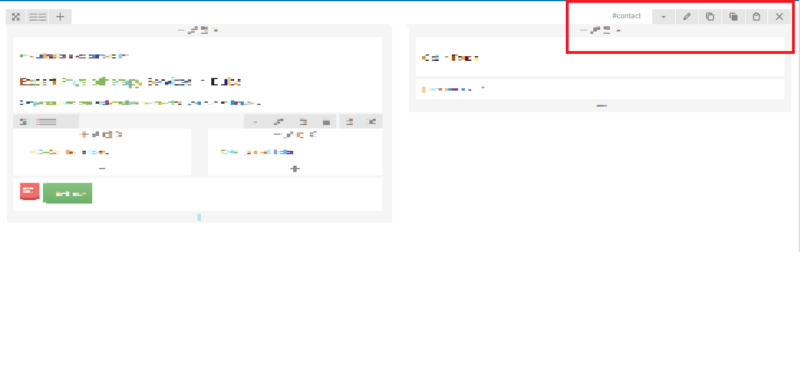
- Add CSS ID to a section: In the WordPress editor, select the section or element you want to jump to and add a unique ID in the „Advanced“ section under „Additional CSS Classes“. The ID should be concise and reflect the content of the section. In the example, we use the WPBakery Page Builder
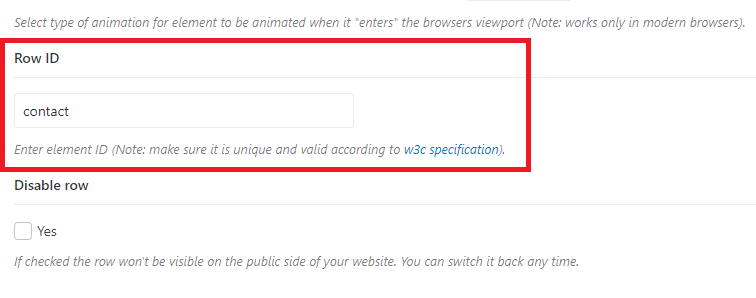
- Create an anchor link: To link to this section, create text or an image to serve as the link. When adding the link, use the ID of the target section, preceded by a hash (#), for example „#my-anchor“. The hashtag will be set automatically; you do not need to insert an extra hashtag.
- Review and adjustment: After setting the anchor link, test it to ensure it works correctly. It may be necessary to slightly adjust the anchor’s position so that users are directed precisely to the desired spot on the page.
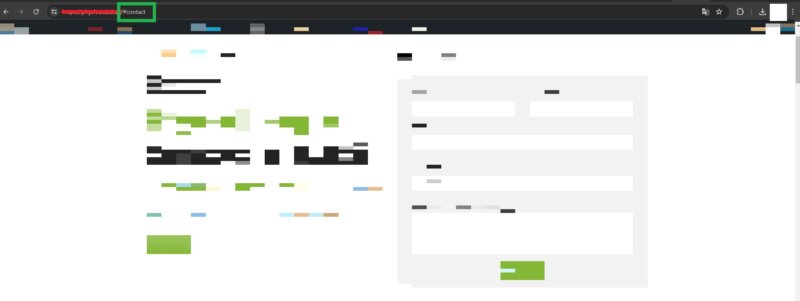
Set WordPress jump link for efficient navigation
Jump links, also called anchors, are particularly useful in WordPress for making long pages more user-friendly. After defining your CSS IDs and assigning them to the corresponding sections, you can provide your page with a well-structured navigation. For example, you can place a table of contents with anchor links to the various sections at the beginning of a long article or page. This improves the user experience, as visitors can quickly access the information that interests them without having to scroll extensively. By using jump links in WordPress, you ensure that your website is not only attractive and accessible to users but also helps to clearly communicate the structure of your content.
Advanced Techniques with Page Builders
Page builders like Elementor, Beaver Builder, or Divi offer intuitive drag-and-drop interfaces that simplify the design and functionality of websites, including the setup of anchor links. These tools extend the capabilities of WordPress and allow for even more specific control over setting anchors.
Setting Elementor Anchors Made Easy
In the Elementor Page Builder, setting anchors is particularly user-friendly. To set an anchor, simply use the menu widget or any other widget that offers link functionality:
- Select the Menu Widget: Drag the Menu Widget to the desired location on your page.
- Add CSS ID: Select the section or element to which the anchor should lead and enter a unique CSS ID in the „Advanced“ section.
- Link the Menu Widget: In the widget’s link field, enter the CSS ID of the target section with a preceding hash (#), e.g., `#my-anchor`.
This enables fluid navigation within the page, which significantly improves user experience.
Setting an Elementor Anchor Link: A Detailed Guide
To use anchor links in Elementor even more effectively, please note the following details:
Become more visible on Google & Social Media?
In a free strategy consultation for data-driven online marketing, we uncover your untapped potential, review any existing ad accounts if necessary, examine your SEO ranking and visibility, and determine which strategy is appropriate for your budget and which active measures will lead to more inquiries or sales.

✅ More visibility & perception through targeted placement
✅ More visitors > prospects > customers > revenue
✅ Reach target groups scalably with SEA
✅ Act and grow sustainably with SEO
🫵 Maximum success with our hybrid strategy
💪 More than 15 years of experience across industries in over 1,000+ projects demonstrable!







- Use of sidebars: Place anchor links in sidebars or in the header/footer for constantly accessible navigation.
- Mobile view: Check how your anchor links work on mobile devices and adjust the positioning or visibility of the links if necessary.
- Troubleshooting: If an anchor link does not work as expected, check the correct spelling of the CSS ID and ensure that no duplicate IDs are used.
Setting anchors with other page builders
Other page builders such as Beaver Builder or Divi also make it easier to set anchors:
- Beaver Builder: Similar to Elementor, in Beaver Builder, you can select a module to add a CSS ID in the module’s advanced tab. Then, you set the anchor link by entering the ID in the link field of another module.
- Divi: In Divi, you enter a CSS ID in the „Advanced“ section of a module, row, or section. Then use the text editor or a menu module to create the anchor link.
Each of these page builders has its specific functions and interfaces, but the principle of setting anchors remains the same. By using these advanced techniques, you can optimize the navigation on your website and thus improve the user experience.
Design and UX Considerations when Setting Anchors
Setting anchors is not only a practical method for improving website navigation but also plays a crucial role in shaping the user experience (UX). Anchor links can help make a website clear and user-friendly by allowing users to quickly and easily access the content relevant to them. This is particularly important on extensive pages with a lot of content, such as long blog articles, FAQ pages, or comprehensive service overviews.
To ensure an optimal user experience, anchor links should be integrated into the overall design of the page so that they are natural and intuitive to use. Visual highlighting of anchor links, for example, through colors, icons, or hover effects, can help users recognize them more easily. Furthermore, the placement of anchor links should be well thought out – often a fixed navigation bar at the top of the page or a side table of contents is useful.
How to name your anchor links
The naming of anchor links is another important factor that can influence both the user experience and the search engine optimization (SEO) of a website. The following tips will help you name anchor links effectively:
- Uniqueness: Each anchor link should have a unique ID to avoid conflicts and confusion. This ensures that the link correctly leads to the target.
- Descriptive: The name of the anchor link should briefly and concisely describe the content or purpose of the target section. This helps not only users but also search engines to better understand the content of the page.
- Simplicity: Use simple and easy-to-remember names for your anchor links. Complicated or long IDs can be prone to errors, both when creating the links and when using them.
- No special characters: Avoid using special characters in IDs, as these can cause problems with URL interpretation. Stick to letters, numbers, and underscores.
- Consistency: Be consistent when naming your anchor links. If you have decided on a specific naming convention, use it consistently throughout your website.
By following these practices, you not only improve the navigation and user experience on your website, but also help search engines better understand and index your content.

Common Problems and Solutions for Setting Anchors in WordPress
Setting anchors in WordPress can sometimes lead to challenges that impair functionality or user experience.
Anchor link does not lead to the correct section
This problem often occurs when the CSS ID has not been correctly assigned to the target section or if there are typos in the anchor link. Check the spelling of the CSS ID in both the section and the link and ensure that both match exactly.
Anchor link does not work on mobile devices
Responsive design can sometimes cause issues with anchor links, especially if certain elements or sections are displayed differently on smaller screens. Test your anchor links on various devices and adjust the layout or positioning of the target sections if necessary.
The page does not scroll smoothly to the anchor point
For a better user experience, many website operators prefer a smooth scroll effect when an anchor link is clicked. If this effect does not work, a JavaScript or jQuery snippet might be required to implement the smooth scroll effect. There are also plugins that can integrate this functionality into WordPress pages.
Why Your Anchor Link Is Not Working: Troubleshooting
If anchor links on your WordPress site are not working as expected, there are several points you should check:
- Checking CSS IDs: Ensure that the ID of the target section is unique and correctly referenced in the anchor link. Make sure that no spaces or special characters are used that could be problematic in URLs.
- Check for conflicts with themes or plugins: Sometimes, certain WordPress themes or plugins can interfere with the functionality of anchor links. Temporarily deactivate other plugins or switch themes to see if this resolves the issue.
- JavaScript errors: Check the JavaScript console in your browser for errors that might indicate scripts on your page are causing problems. JavaScript errors can impair the functionality of anchor links.
- Adjusting the permalink structure: In rare cases, WordPress’s permalink structure can affect how anchor links work. Experiment with different settings under „Settings“ > „Permalinks“ to see if this resolves the problem.
By checking these points and making appropriate adjustments, you can effectively resolve most issues with anchor links in WordPress and thus ensure an optimal user experience.


 DE