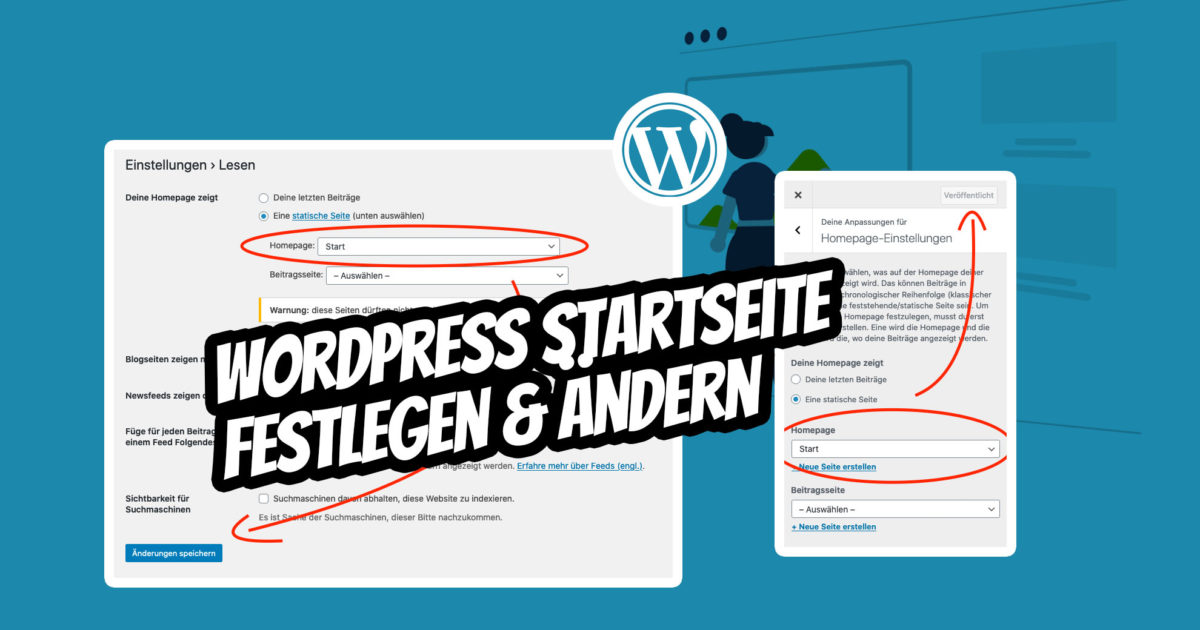
Setting or changing the WordPress homepage is very simple. As expected from the world’s most used CMS, a WordPress page can be set as the homepage in just a few seconds. Changing the WordPress homepage at a later time is just as easy.
Set, change, configure & define WordPress homepage in a few seconds
A quick guide to setting & changing the WordPress homepage
If you’re just starting with WordPress, the first thing you need to do is set a WordPress page as your homepage. One of the great things about WordPress is how easy it is to use. In this blog post, we’ll show you how to set, define, or change your WordPress homepage in just a few seconds! Further down, you’ll also find an explanation for static or dynamic homepage settings.
Note: These settings also work for the page builders: Divi homepage setup & Elementor homepage setup!
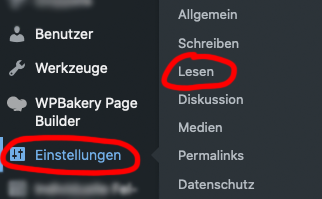
To change the WordPress homepage, simply go to Settings > Reading in the administration (backend) and select the desired page from the „Homepage displays“ dropdown menu. You can also choose to display your latest posts on the homepage by selecting „Your latest posts“ from the same dropdown menu.
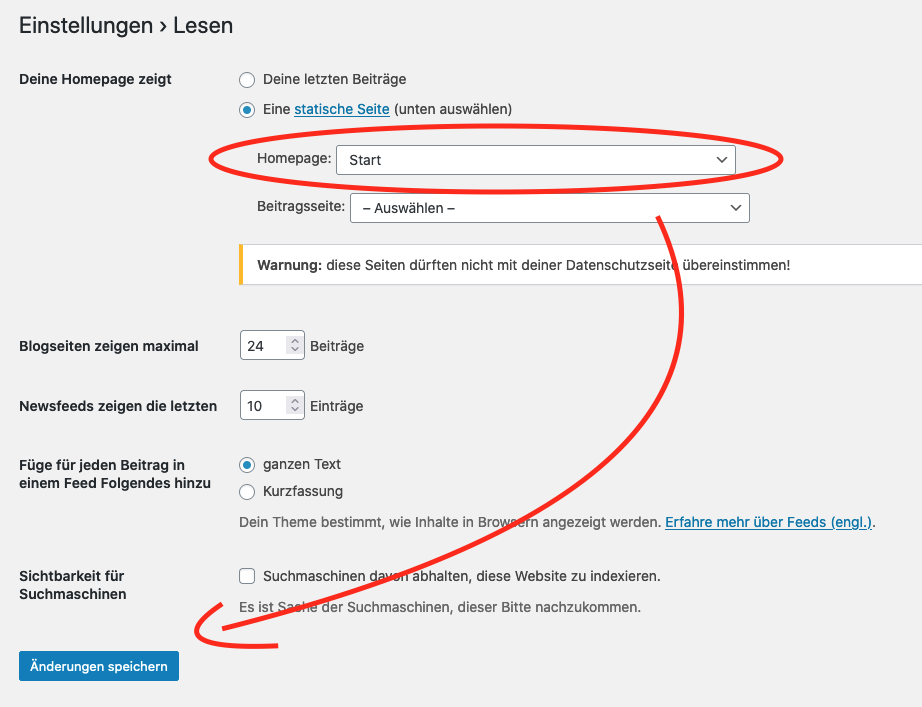
Once you have made your selection, click the „Save Changes“ button at the bottom of the screen to save your changes. That’s all there is to it! Now, when someone visits your WordPress website, they will see the homepage you have chosen.
If you want to change or set the WordPress homepage for the first time, simply follow the steps above and select a different page from the dropdown menu. Once you have made your selection, click „Save Changes,“ and your new WP WordPress homepage will be set. It’s child’s play!
Set WordPress homepage via the Customizer (Option 2)
The settings mentioned above for configuring the WordPress homepage are the simplest and most widely used option and should always work. The Customizer was integrated in 2018 as a preliminary stage for the increasingly popular Full-Site-Editing and also allows for global settings.
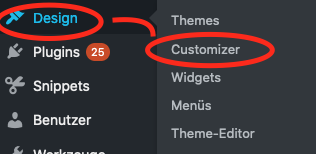
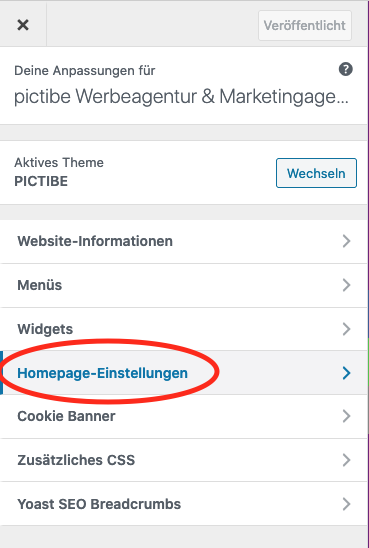
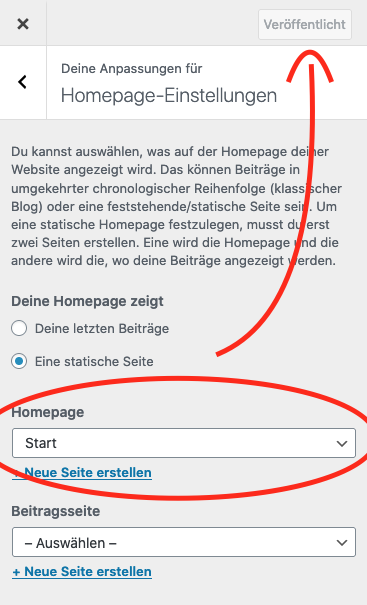
To do this, simply go to Appearance > Customize > Homepage Settings > use the selection field under "Homepage" > publish at the top right:
A video in English on defining the WordPress homepage:
Become more visible on Google & Social Media?
In a free strategy consultation for data-driven online marketing, we uncover your untapped potential, review any existing ad accounts if necessary, examine your SEO ranking and visibility, and determine which strategy is appropriate for your budget and which active measures will lead to more inquiries or sales.

✅ More visibility & perception through targeted placement
✅ More visitors > prospects > customers > revenue
✅ Reach target groups scalably with SEA
✅ Act and grow sustainably with SEO
🫵 Maximum success with our hybrid strategy
💪 More than 15 years of experience across industries in over 1,000+ projects demonstrable!







Setting the WordPress homepage with some themes and extra definitions
There are some themes that require changing and setting the WP homepage in the Theme Settings. An example of this is the Enfold Theme*.
This is also the most common reason why „WordPress homepage setting not working“ or „WordPress homepage cannot be changed“ is searched for on Google. 😉
What is a WordPress homepage?
The homepage is the first page visitors to your WordPress website see. You can set any page on your WordPress website as the homepage, including a static page or one or more posts. Customizing and defining the WordPress homepage is very easy with the explanation above.
What is a dynamic WordPress homepage?
As briefly mentioned above, you can also display current posts from your WordPress blog as a list, depending on the theme. This dynamic display is the alternative setting to a static WordPress homepage / landing page with fixed content. Important: Of course, you can also display dynamic content and blog articles on your manually created static homepage!
Do you have questions about setting up or changing the WordPress homepage? Let us know in the comments below!

Florian Ibe
CEO & Marketing Consultant
Your contact person: Florian Ibe
WordPress homepage cannot be changed in WordPress settings?
If you want to change your WordPress homepage, you need to do so through the WordPress editor. In the WordPress editor (backend), you can change the homepage by going to the „Pages“ section and selecting the „Homepage“ page. From there, you can change the title, permalink, and content of the homepage. Once you have made your changes, click „Publish“ to save them. You can then select and display this page as described above.
That’s all there is to it! You can now visit the new homepage of your WordPress website. Enjoy!
The most beautiful WordPress homepages are created with the following two themes:




 DE
DE