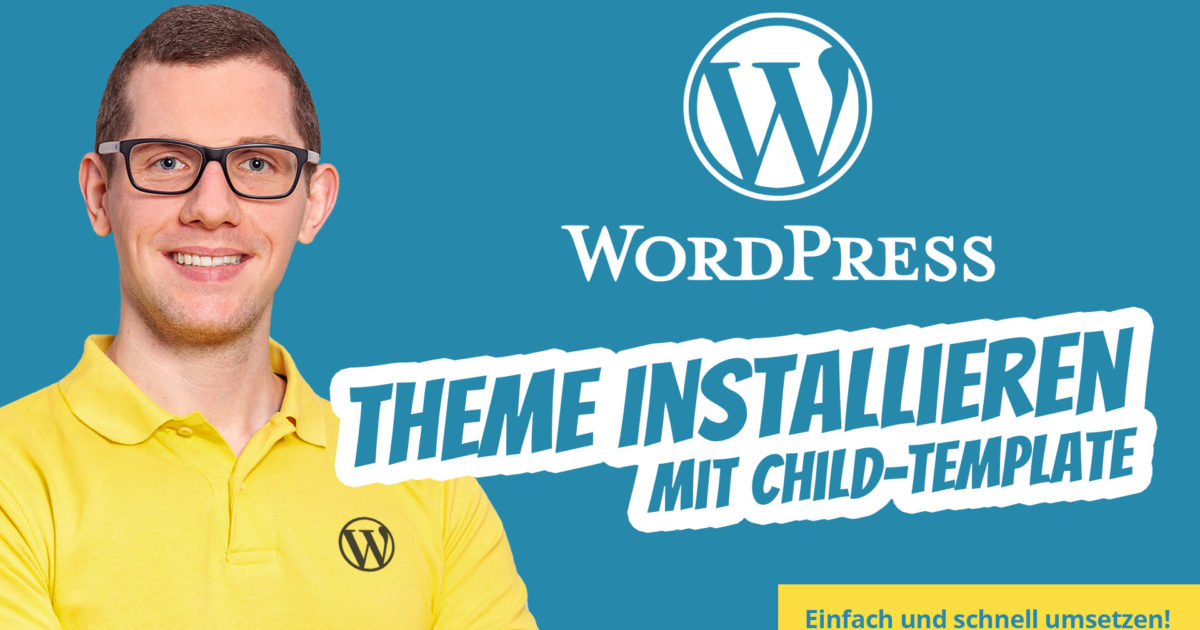
Many people are looking for a guide on how to install WordPress themes or a simple tutorial on how to install a template, preferably with a child theme. This works with EVERY hosting provider, regardless of whether it’s Strato, 1&1 Ionos, HostEurope, One, Domainfactory, Uniteddomains, etc. =)
Install WordPress Theme (Template) – Easy Guide Without FTP + Child Theme
Would you like to install a WordPress theme?
There are thousands of WordPress themes (free and paid). As a beginner, you might want to try some of them on your website until you find the right one.
In this beginner’s guide, you will find detailed step-by-step instructions on how to install a WordPress theme. We will cover three different ways to install a WordPress template, so you can choose the method that suits you best.
Before you install a WordPress theme
Installing a WordPress theme is easy. However, please note that changing your theme will alter the appearance and functionality of your website. If you are switching from an existing theme, you should check our checklist of things to do before changing WordPress templates.
If you are installing a WordPress theme on a new site, you can get started right away.
This is how easy it is to install a WordPress theme yourself!
Installing a WordPress template is quick and easy if you know how and what the correct procedure is.
Just watch the video:
Become more visible on Google & Social Media?
In a free strategy consultation for data-driven online marketing, we uncover your untapped potential, review any existing ad accounts if necessary, examine your SEO ranking and visibility, and determine which strategy is appropriate for your budget and which active measures will lead to more inquiries or sales.

✅ More visibility & perception through targeted placement
✅ More visitors > prospects > customers > revenue
✅ Reach target groups scalably with SEA
✅ Act and grow sustainably with SEO
🫵 Maximum success with our hybrid strategy
💪 More than 15 years of experience across industries in over 1,000+ projects demonstrable!







And this is how easy it is: Install WordPress Theme (Template) + Child Theme cleanly and securely
You don’t need to be afraid because installing WordPress themes manually without FTP is really easy with this guide/tutorial and also fast. Additionally, I will show you how to install the child theme cleanly and update-proof directly.
To the best WordPress theme*
Article and video about BeTheme:
Install a Theme Using the WordPress Admin Theme Search
If you want to install a free WordPress theme from the WordPress.org themes directory, the easiest way is to use the built-in theme search function.
- First, you need to log in to your WordPress administration area. Next, navigate to the Appearance » Themes page and click on the Add New button.
- On the next screen, you can choose from: Featured Layouts, popular WordPress themes, latest WordPress templates, search for a specific design, or search for themes with specific features.
- By clicking the „Feature Filter“ button, you can sort themes by features. For example, you can sort themes by subject, specific features, and layout.
Based on your search, you will see a list of themes that match your criteria. In our case, we searched for the popular Astra theme.
When you see the theme you want to install, simply hover your mouse over the image. This will display the Install, Preview, and Details buttons.
Click the Install button.
WordPress will now install your theme and show you a success message along with „Activate“ or „Live Preview“ buttons.
Click the Activate button and you have successfully installed and activated your WordPress theme.
Depending on the theme, additional settings options may be added that you may need to configure.
In your design, you may be prompted to install recommended plugins, download demo data, or review settings.
You can follow the on-screen instructions or click the Customize button to start setting up your theme.
Install a Theme Using the WordPress Admin Upload Method
The first method we covered only allows you to install free themes available in the WordPress.org theme directory.
What if you want to install a premium WordPress theme from companies like StudioPress, Elegant Themes, Themify, or ThemeForest* (recommendation) etc.?
Or what if you want to install a custom theme? In this case, you would need to install the theme using your WordPress administrator’s upload method.
First, download the ZIP file of the theme you purchased from a marketplace or a commercial theme shop.
Next, go to the Appearance » Themes page in the WordPress admin area and click the Add New button at the top.
- This will take you to the Add New Themes page with free themes. Since you already have the theme you want to install, click the „Upload Theme“ button at the top.
- You will be prompted to select the previously downloaded Zip file. Select the file and click Install Now.
- Once your theme is installed, a success message will appear along with the link to activate and preview the theme. (ATTENTION: Activate the child theme and DO NOT use the main theme –> see video!!!)
- Click the „Activate“ link and you have successfully installed and activated your WordPress theme.
Depending on the theme, additional settings options may be added that you may need to configure either through the Design Customizer or through a separate option panel.
Note: The theme upload feature is only available for self-hosted WordPress.org users. If you are using WordPress.com, you will not see this option as it restricts you.
Uploading via FTP to the /wp-content/themes/ folder is also still possible, but more complex and less straightforward.
FAQs on installing WordPress themes / templates
Below are some of the most frequently asked questions about installing WordPress themes.
1. How many themes can I use in WordPress?
You can only use one theme at a time. However, you can install as many themes as you like. Not all themes installed on your WordPress website are active.
Once you activate a WordPress theme, your previous active theme is automatically deactivated and the new theme becomes your active theme.
2. What is a Child Theme in WordPress?
A child theme in WordPress is a sub-theme that inherits all the functions, features, and style of the parent theme. You must install both parent and child themes on your website and activate the child theme.
For more information, please refer to our guide on how to create a child theme in WordPress and how to install a child theme in WordPress.
3. What is a WordPress Theme Framework?
Theme frameworks are highly optimized WordPress themes intended to be used as a parent theme.
These theme frameworks are designed for advanced users and developers and include various code and speed optimizations that other developers can quickly build upon.
Genesis by StudioPress is the best example of a WordPress theme framework. For more information, please refer to our article on WordPress theme frameworks.
4. Premium vs Free Themes – Which should I use?
If you are just starting out with a limited budget, we recommend starting with a flexible free theme. Check out our selection of the best free WordPress themes for blogs and the best free themes for business websites.
If you can spend a little more, choose a premium theme. These themes receive priority support, which is particularly useful for beginners.
For more information on this topic, please refer to our guide on free and premium WordPress templates.
5. How do I choose the best theme for my website?
There are so many WordPress themes, and most have been designed by professionals, so they really look great.
This makes it somewhat confusing for beginners to choose the perfect theme for their website.
We recommend keeping it simple. Choose a minimalist design that comes close to what you envision. Make sure the theme looks good on mobile devices and perform a website speed test on the demo site.
Learn how to choose the perfect WordPress theme for your website in our beginner’s guide.
6. Can I use the same theme I saw on another WordPress site?
Unless it’s a custom WordPress theme, you can find and use the same theme on your own website.
We hope this step-by-step guide has helped you install a WordPress theme on your website.
Do you still have questions about installing themes in WordPress?
My team and I are happy to help you:
WordPress Consulting, Support & Phone Hotline (also WooCommerce)



 DE
DE