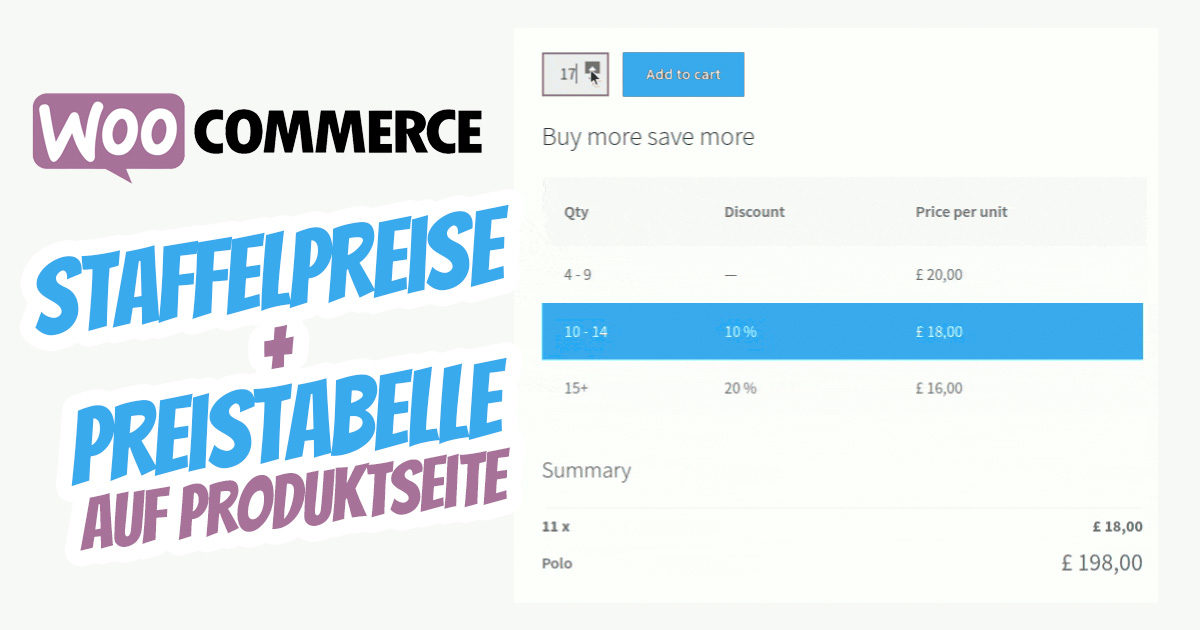
Tiered pricing in online shops is not uncommon, but WordPress with WooCommerce unfortunately does not offer a standard solution here. In this article, we present the absolute best solution as a plugin for quantity & tiered pricing with display on the product page.
The operation is extremely simple and the optics are dynamic and truly fantastic for prospective and potential customers!
WordPress WooCommerce Tiered Pricing with Price Table on Product Page for Different Product Quantities
Tiered pricing / price tiers can be very useful for wholesalers and anyone offering fixed or percentage discounts depending on quantity. You can easily set up individual prices for different quantity ranges, and your customers can see how the price for an item changes depending on the quantity you select. This is visually very clearly solved, and the user can change something via the normal quantity field or by clicking on the corresponding row in the price table.
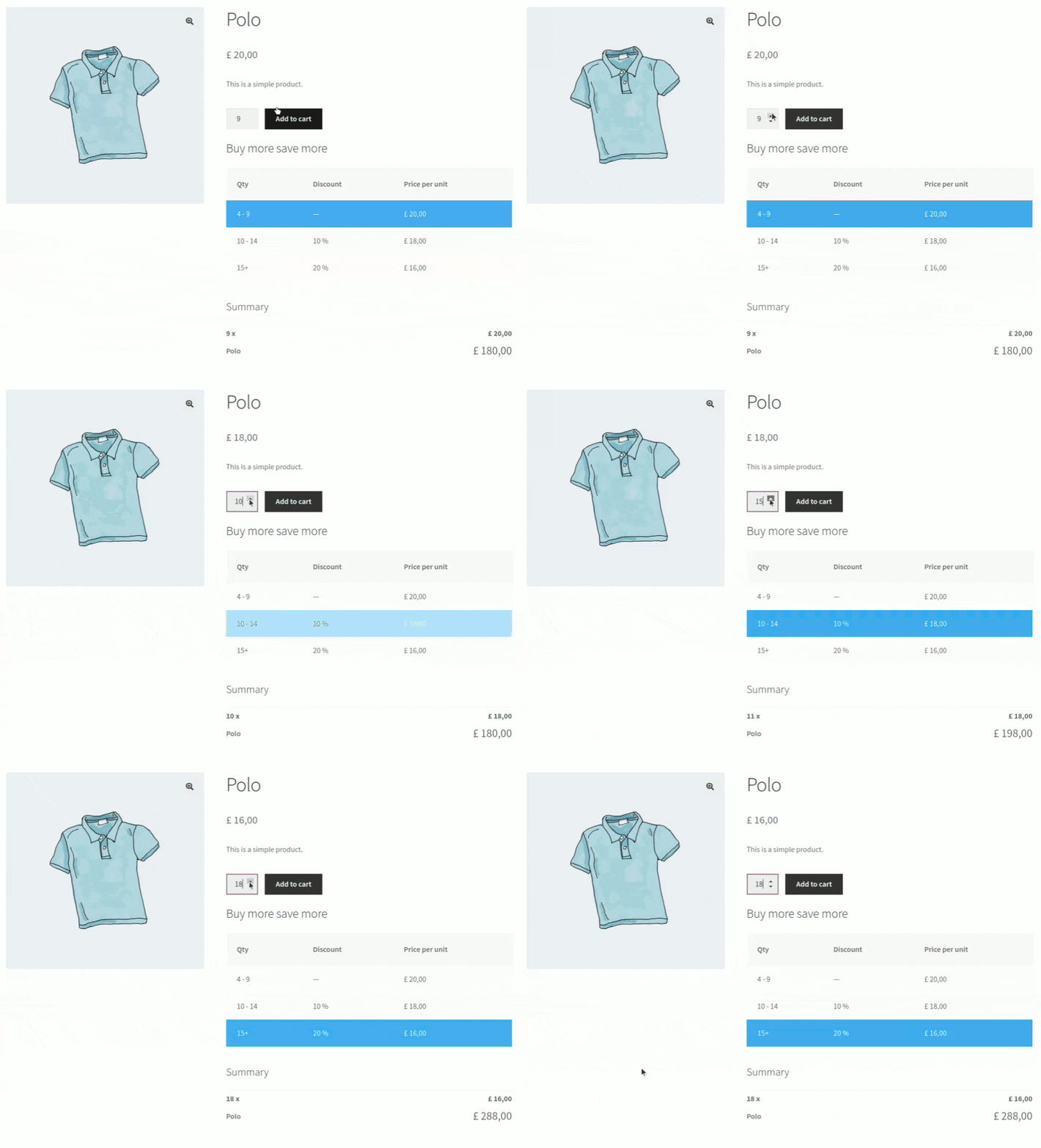
Dynamic Pricing with Tiered Pricing for WooCommerce Products Based on Product Quantity with Clear Price Table on the Product Page
“Tiered Pricing Table for WooCommerce*” is a simple WooCommerce plugin that allows you to set different prices for different quantities of a product. What makes this solution special: Display the quantity & price overview on a product page and increase sales by offering a discount based on quantity, so that the customer can see it directly!
The easiest to set up and powerful plugin for tiered pricing with a price table for WooCommerce.
Note: With Loco Translate everything can be easily translated into German!
Video about the plugin:
Main features & functions of the plugin:
- Fixed prices or percentage discounts for a certain number of products
- Automatic price change depending on the selected quantity of the product
- A price table on the product page with quantity-dependent pricing
- Option to choose where the price table and summary block should be displayed on the product page
- The ability to customize the appearance of the price table
- Automatically applies your theme styles
- Works correctly with variable products, individual table for each variation
- Display summary block with totals or replace product price with actual or total price
- Price rules are met regardless of where the user makes the purchase (post \ catalog \ widgets \ etc)
- Works with regular WooCommerce Import \ Export and WP All Import
How it works in the backend as an administrator:
The plugin configuration is quite simple; you only have two places to do it.
In the general settings, you can manage the following:
- static table content (title, column text, content of summary blocks, etc.)
- general appearance (background color, apply CSS classes)
- areas where the table would be placed
- price settings (display price range, prefix, display total price)
To design different pricing rules for each product, you need to go to the product page and set up a quantity and price ranges in the Tiered Pricing tab:
Become more visible on Google & Social Media?
In a free strategy consultation for data-driven online marketing, we uncover your untapped potential, review any existing ad accounts if necessary, examine your SEO ranking and visibility, and determine which strategy is appropriate for your budget and which active measures will lead to more inquiries or sales.

✅ More visibility & perception through targeted placement
✅ More visitors > prospects > customers > revenue
✅ Reach target groups scalably with SEA
✅ Act and grow sustainably with SEO
🫵 Maximum success with our hybrid strategy
💪 More than 15 years of experience across industries in over 1,000+ projects demonstrable!








Here you can set a discount per piece or specify the fixed price.
The number of tiered price ranges is unlimited. Additionally, you can choose the minimum quantity users can purchase.
How it looks in the frontend for the shop visitor:
After you set up price ranges in wp-admin, the price table will automatically appear on the product page.
Displaying the price table, where your users can determine the exact price for different quantity ranges, is the main advantage of the plugin, while other plugins mostly only count prices for a specific quantity and calculate the total discount in the cart.
When someone selects a specific quantity, the total price is immediately adjusted, taking into account the discount and stating the cost per piece.
You can control whether the summary block should be displayed or not. Furthermore, you can display the total or actual cost instead of the regular product price.

Prices will be displayed correctly in all other places in your store (e.g., catalog page, related products, widgets, etc.).
You can choose how prices for these locations should be displayed:
- Price range from min to max price per piece
- The minimum cost with the prefix (e.g. „from $10“)
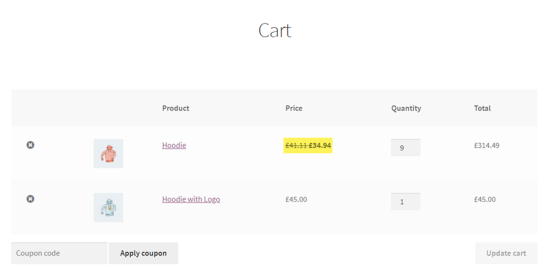
When users jump to the shopping cart, they will see the crossed-out price there (regular price and price per quantity they buy).
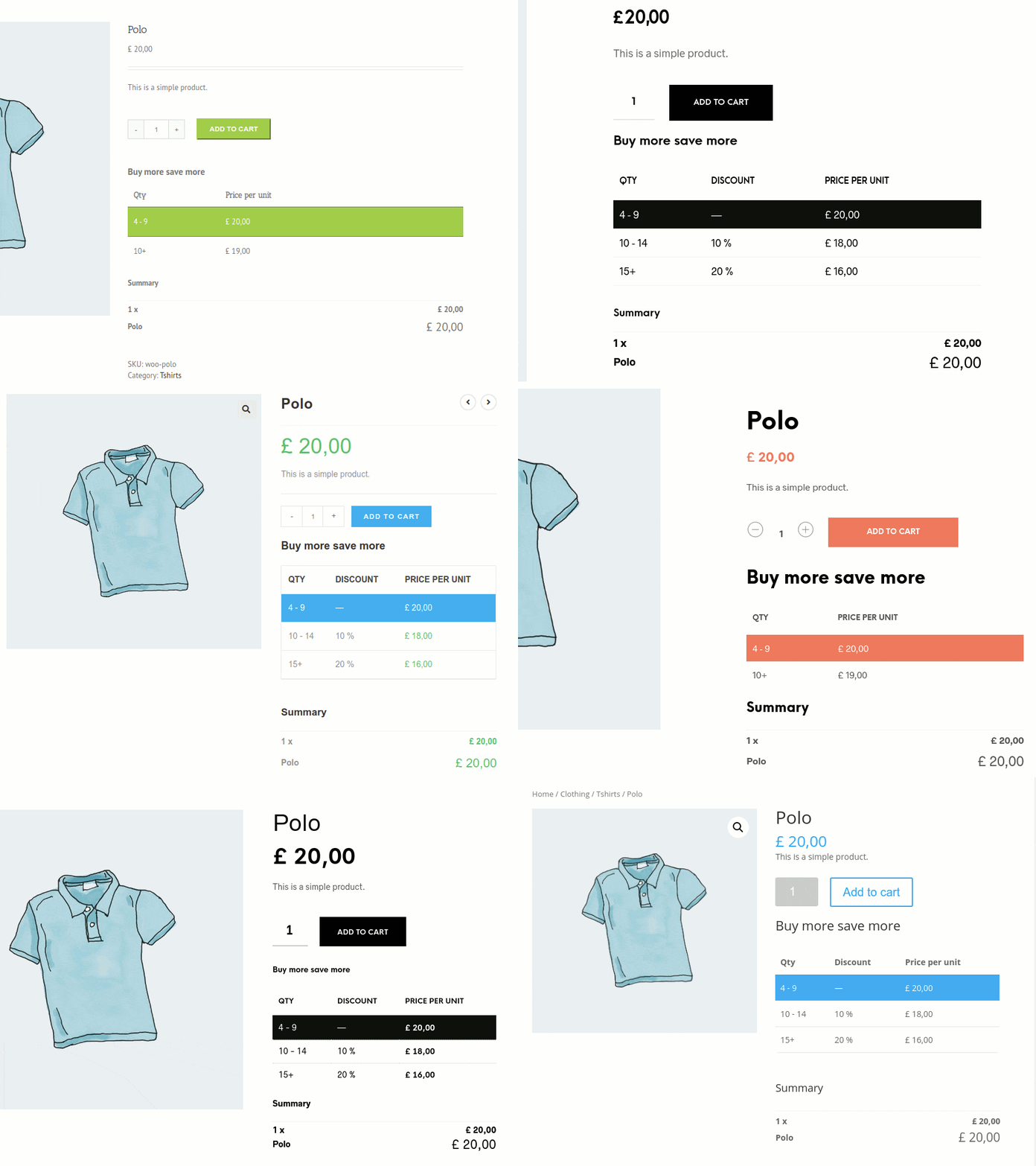
Last but not least, the plugin uses the theme’s „shop_table“ class. This means that the original theme’s appearance (colors, fonts, etc.) is automatically applied to the price table. You only need to specify the table position and the active price color.

Fragen zu WooCommerce oder benötigen Sie Hilfe?
E-Mail: fi@vastcob.com
Florian Ibe
Setup and Configuration of the Tiered Pricing Plugin for WooCommerce
Before using this plugin, we recommend setting it up.
To add a table or tooltip with prices to the product page, check the „Show tiered price table“ checkbox.
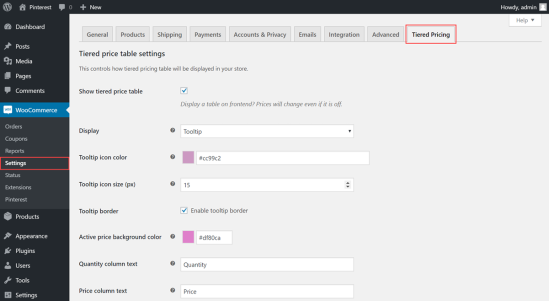
Even if you do not check the box, prices will be changed according to the product settings.
In the ‚Display‘ menu, you can select how tiered prices should be displayed:
- Table
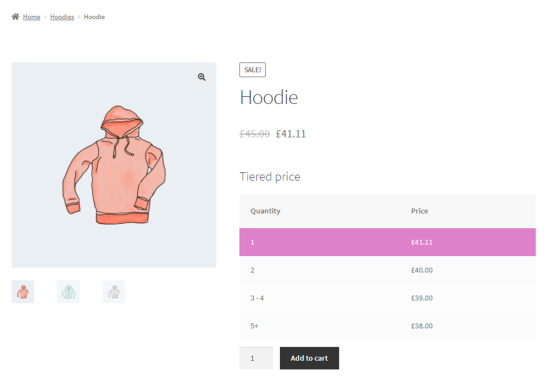
- Tooltip
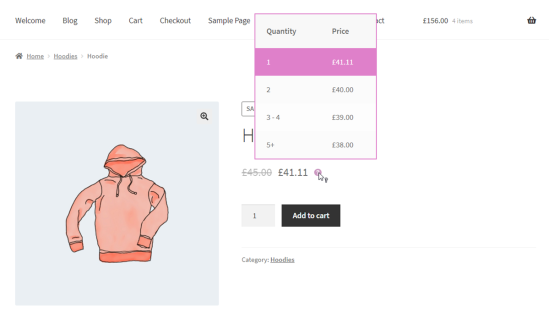
If you have selected a table, the following settings are available:

Table title:

Table position:
- Above the buy button

- Below the buy button

- Top of add to cart

- Bottom of add to cart

- Above the product title

- Before the product overview

- After product overview

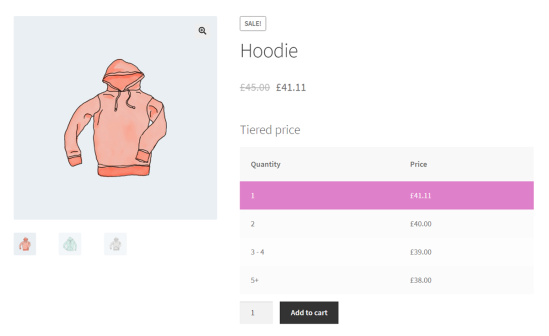
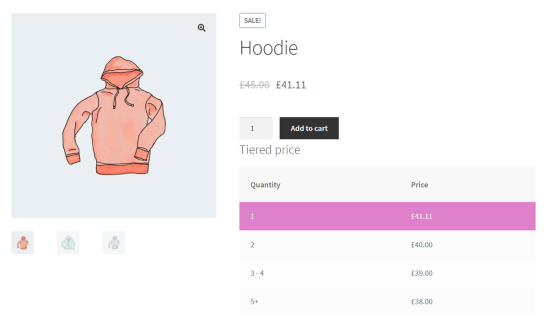
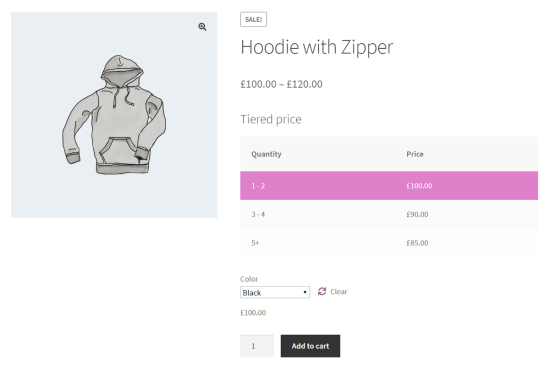
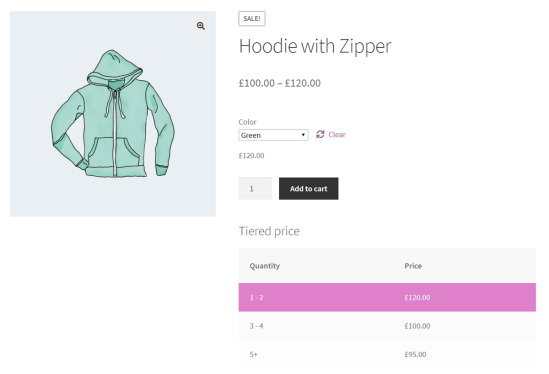

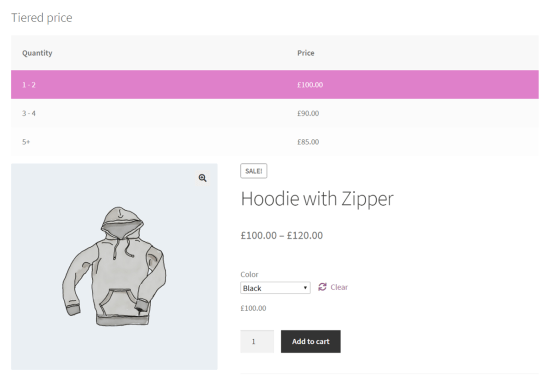

If you have selected a tooltip:
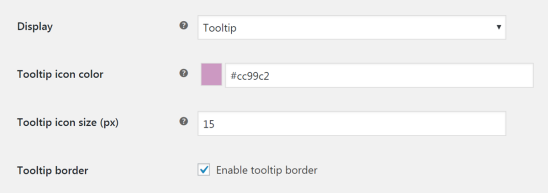
Here you can change the colors of the tooltip icons, their size and the border.
There are settings that affect both a table and a tooltip:
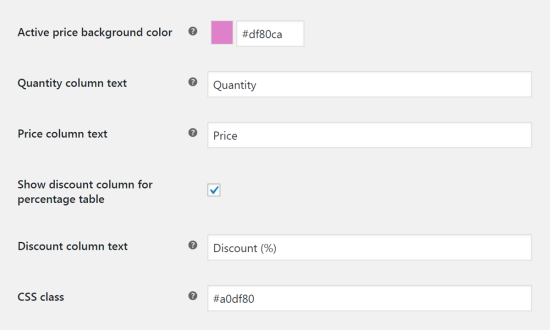
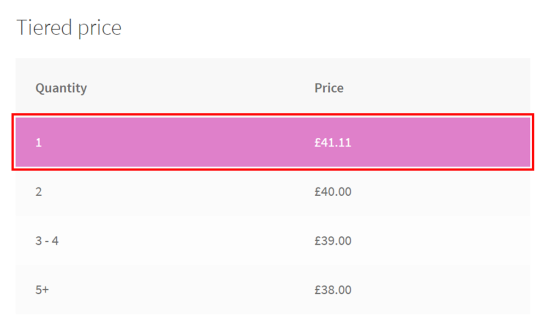
Active a price background color
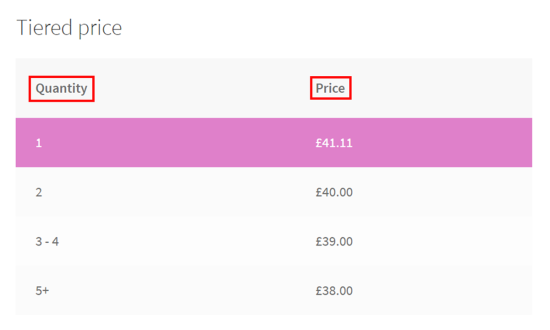
Quantity column text and Price column text
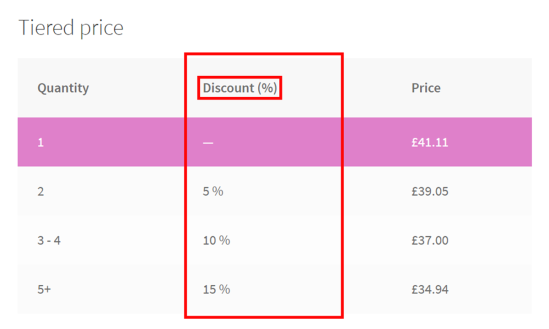
You can also display a percentage discount for the tiered table „Percentage“. To do this, check the „Show discount column for percentage table“ checkbox. You can also change the column name in the ‚Discount column text‘ field.
You can add custom styles to the table or tooltip using the CSS class field.
Price display settings
In this section, you can change the price display of products with tiered pricing.
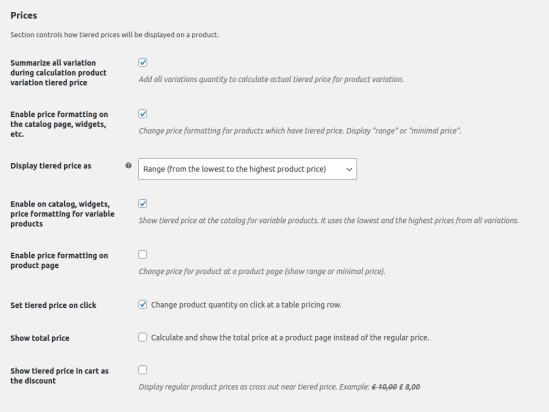
The „Summarize all variations during product price calculation“ option takes into account all bound variations that a user has added to the cart during the calculation of the actual price for that variation.
The „Enable price formatting on catalog page, in widgets, etc.“ option changes the simple product price in the product catalog according to the selected display option in the „Display tiered price as“ menu.
The available options under „Display tiered price as“:
Range (from lowest to highest)

Lowest price
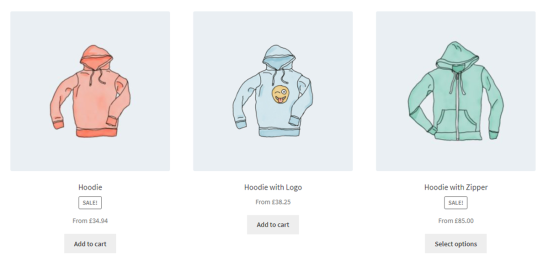
If you choose „Lowest price“, you can change the prefix „From“:

The „Enable catalog, widgets, and price formatting for variable products“ option replaces the normal range of variable products according to the selected display option in the „Display tiered price as“ menu.
The „Enable price formatting on product page“ option changes the prices for simple and variable products according to the selected display option in the „Display tiered price as“ menu.
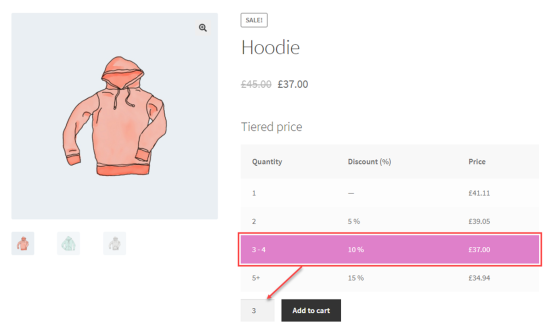
The „Set tiered price on click „ option allows you to change the product quantity by clicking on the table price row on the product page.
The „Show total price“ option replaces a regular price with the total price.
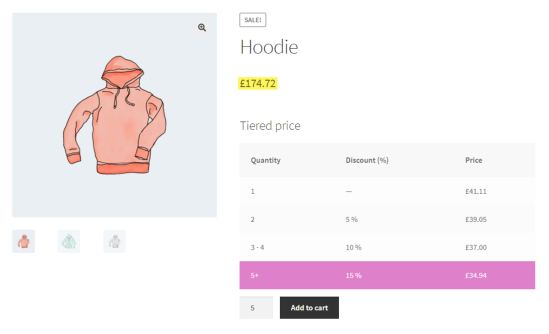
The „Set tier price on click“ and „Show total price“ options do not work with „Enable price formatting on product page“. If you want to use these two options, you must disable the „Enable price formatting on product page“ option.
The "Show tier price as discount in cart" option:
Summary Display
The idea behind having the summary block is to display „totals“ on a product page. Your customers will see the actual product price per quantity and the total cost for that quantity in a structured way. The block automatically updates depending on the selected product quantity.

You can change the block position on a product page as well as its title. The same options as for the price table.
If you choose „Show summary block“, you have two ways to display it:
Price Table

In the row
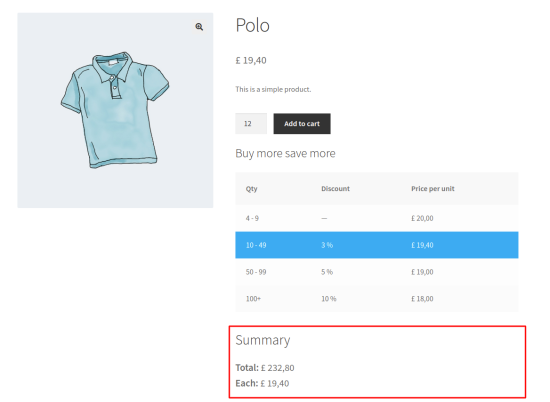
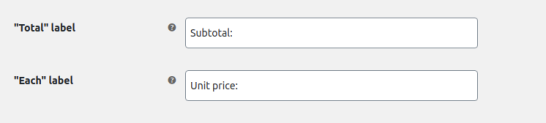
With the inline method, you can change labels:
After clicking „Save“, you will see:

Setting up Tiered Pricing at the Product Level
Simple Product
After the plugin is activated, two new fields will appear on the General tab: ‚Tiered Price Type‘ and ‚Tiered Price‘.
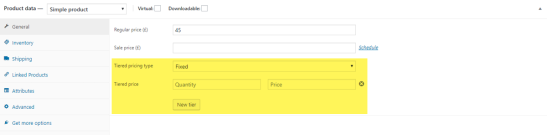
The first field specifies the type of tiered pricing applied to a product. There are two types:
Fixed. When selecting this type, you must specify a fixed price per product and quantity at which this price will be used.
In the tiered price table, in the first field, specify the quantity of products, and in the second, the price at which this product will be sold at that quantity.
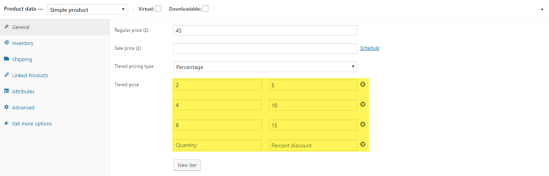
Percentage. When selecting this type, you must specify the discount per product as a percentage and the number of products for which this price will be used.
In the tiered price table, in the first field, enter the number of products, and in the second field, enter the percentage discount at which this product will be sold in that quantity.

Click the „New Tier“ button to add a new row.
If a product has a sale price, the tiered price will be formed based on it.
Variable Product
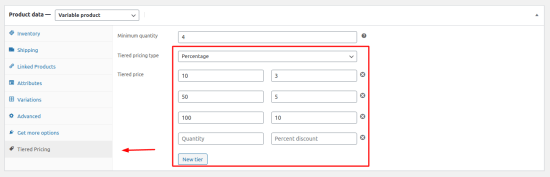
Tiered pricing for variable products works for all variations individually, just like for simple products. For each variation, you can select a different tiered price type and specify a different number of products and a price per item for that quantity.

However, you can also set up rules for all variations on the tab „Tiered Prices„:
Minimum Product Quantity
If you sell from a certain product quantity, you may need to adjust the table and not display the quantities you do not offer. You can specify the minimum sales quantity in the „Tiered Price Table“ tab:

The table automatically adjusts and displays the correct values:
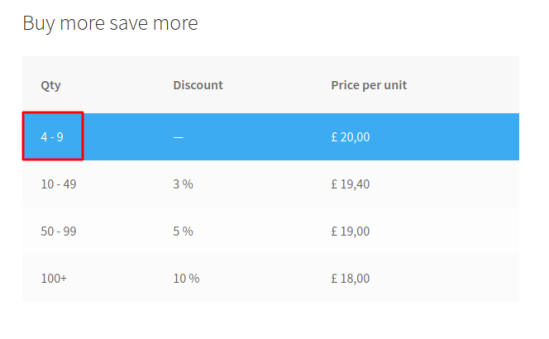
Please note that the tiered pricing table does not restrict the purchase to the minimum value, but is only used to adjust the table to display the correct quantities.
For actual restrictions, use specific plugins such as Min / Max Quantities for WooCommerce.
Simple Product
The table with the prices you offer for a product is added to the product page.
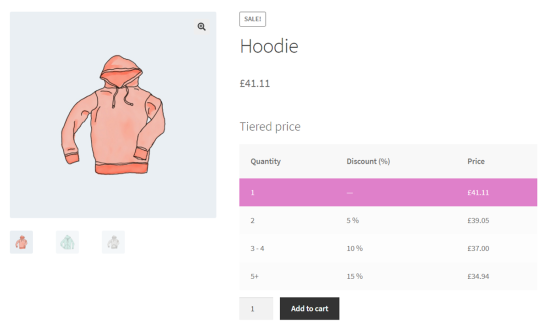
If the quantity changes, a customer will see the corresponding price in the table and the product price will automatically be changed to correct the following:
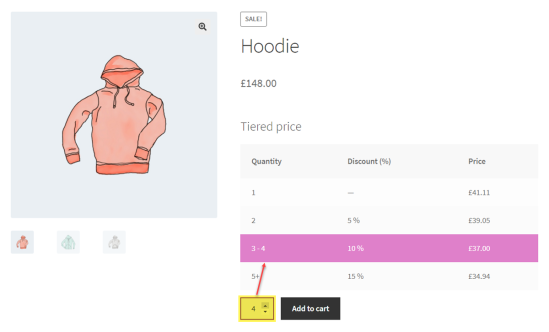
Variable Product
For variable products, the table is displayed after the variation has been selected:

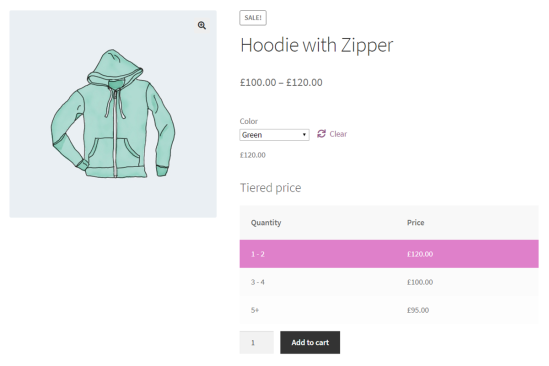
Import Export
You can import and export using standard WooCommerce tools.
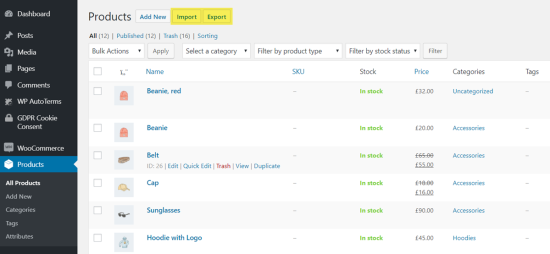
Export
In the ‚Which columns to export?‘ field, you can select „Fixed Tier Prices“ and „Percentage Tier Prices“, „Minimum Price Quantity for Tier Prices“, „Price Type for Tier Prices“, and for example, „Name“ or „ID“ for product identification.
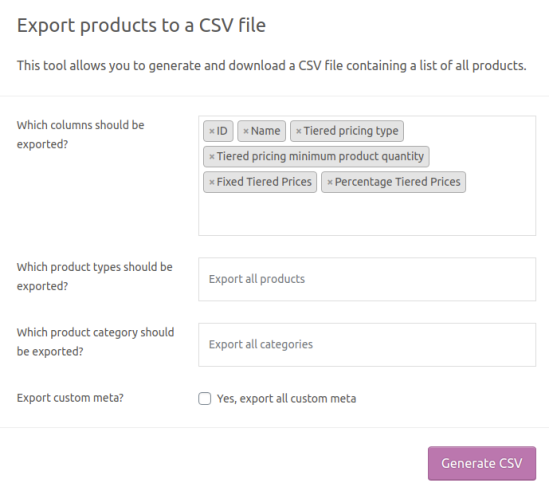
This format specifies tiered pricing ‚quantity_of_product: item_price‘ for fixed rules and ‚quantity_of_product: discount‘ for percentage rules:

Import
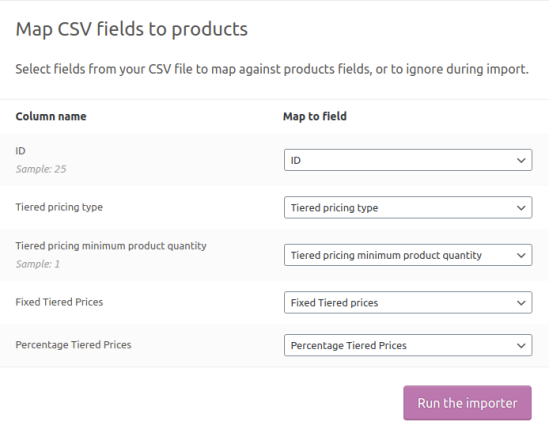
Tier price fields are automatically detected and you will be prompted to map them to product data:
Import via WPAllImport
If you import your products in step 3 via the popular plugin „WPAllImport„, a new widget will appear that allows you to map tiered price data to product fields:
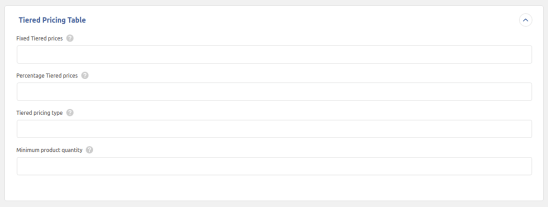
The format for percentage and fixed rules is the same as for the WooCommerce import tool.
An alternative for a pure B2B shop is the B2B Market Plugin, which also offers a tiered pricing function in WooCommerce on the product page:





 DE
DE