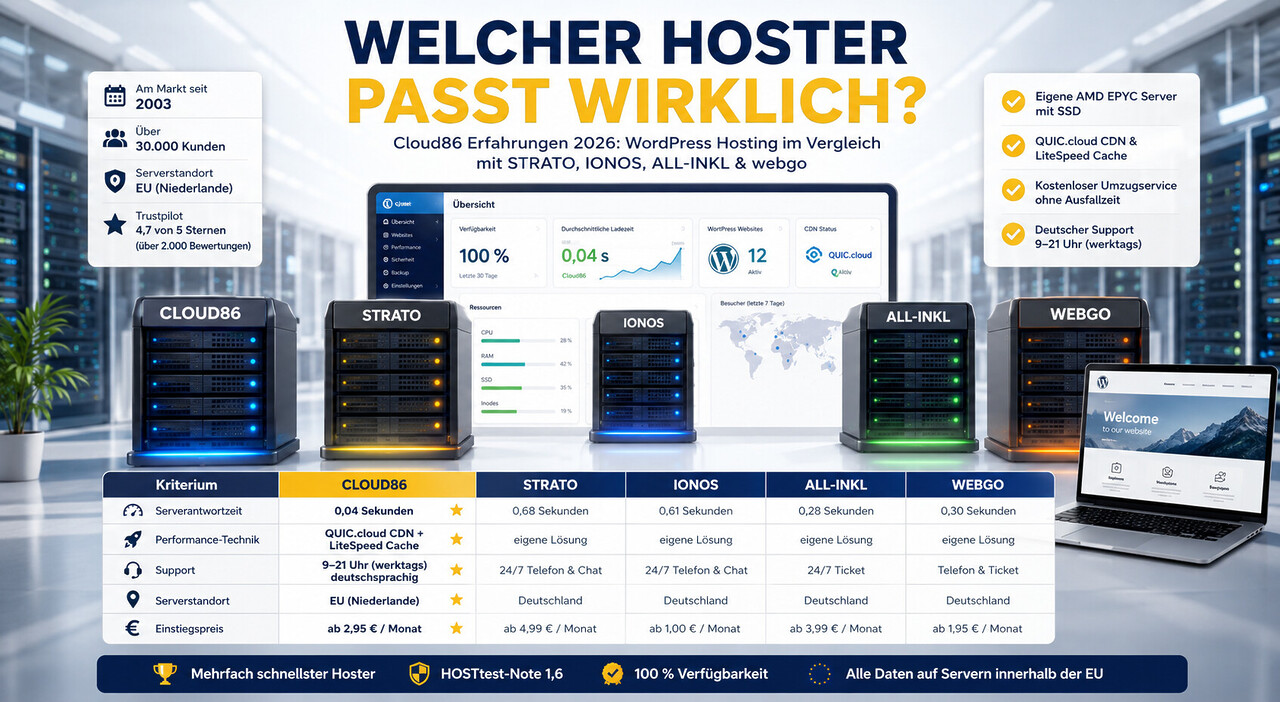
All-Inkl ist ein anerkannter Webhosting-Anbieter, der eine Vielzahl von Dienstleistungen anbietet, einschließlich spezieller WordPress Hosting-Pakete für WordPress Webseiten und WooCommerce Shops. Die Stärke von All-Inkl* liegt in seiner Zuverlässigkeit, Skalierbarkeit und dem mehr als sehr guten Support, was es zu einer beliebten Wahl für sowohl Einsteiger als auch erfahrene Webentwickler macht. All-Inkl bietet eine optimierte Umgebung für WordPress, die schnelle Ladezeiten und verbesserte Sicherheit gewährleistet + bezahlbare Server mit extrem guter Leistung ohne Skriptlimitierung. Wir selbst nutzen als WordPress Agency all-inkl bereits seit 2010 und unsere all inkl Erfahrungen sind ebenfalls sehr gut.
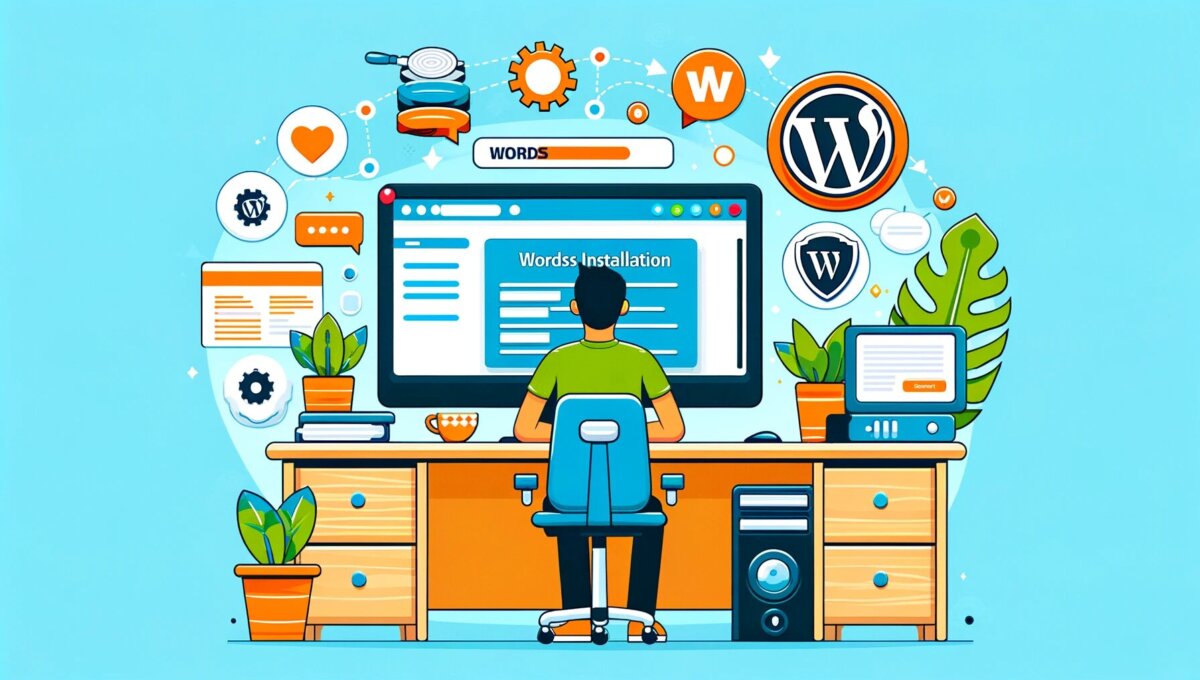
Install All inkl WordPress / Installation Guide + Hosting with Domain + Setup
Web hosting is the central foundation of everything, similar to the engine in a car. If it does not run smoothly or lacks sufficient performance, even the most beautiful car, the best tires, and the best driver cannot accomplish much.
All-Inkl not only offers a stable and powerful hosting environment, but also a user-friendly interface that allows even beginners to install and configure WordPress with ease. With options for automatic and manual installations, anyone, regardless of their technical background, can get a WordPress website up and running quickly.
The automatic installation via All-Inkl's Customer Administration System (KAS) is a straightforward process that takes only a few minutes and requires no technical knowledge. For those who want more control over their installation, manual installation offers the flexibility to set up WordPress according to individual needs. Both methods are supported by All-Inkl's reliable infrastructure and excellent customer service.
Furthermore, All-Inkl offers various package options tailored to different requirements and budgets, from simple personal blogs to extensive business websites. With features such as automatic backups, SSL certificates, and comprehensive security measures, All-Inkl ensures that your WordPress website not only runs smoothly but is also secure and protected.
In this introduction, we will walk through the various steps of installing WordPress on All-Inkl, from choosing the right hosting package to configuring your WordPress website. We will also share tips and best practices for managing your website to ensure you get the most out of your All-Inkl WordPress hosting.
Whether you are a beginner or an experienced web developer, this guide will help you understand and implement the necessary steps to set up and optimize your WordPress website on All-Inkl.
Our offer in advance:

Florian Ibe
CEO & Marketing Consultant
Professional help for WordPress + WooCommerce
Become more visible on Google & Social Media?
In a free strategy consultation for data-driven online marketing, we uncover your untapped potential, review any existing ad accounts if necessary, examine your SEO ranking and visibility, and determine which strategy is appropriate for your budget and which active measures will lead to more inquiries or sales.

✅ More visibility & perception through targeted placement
✅ More visitors > prospects > customers > revenue
✅ Reach target groups scalably with SEA
✅ Act and grow sustainably with SEO
🫵 Maximum success with our hybrid strategy
💪 More than 15 years of experience across industries in over 1,000+ projects demonstrable!







Open contact form
Your contact person: Florian Ibe
If you do not yet have web hosting and/or a domain, be sure to use all-inkl for your WordPress site or WooCommerce shop as a truly reliable provider:
Recommendation: Premium package for websites up to 1,000 visitors per day and for launching WooCommerce shops up to 30 orders per day.
Current Video on All-inkl since 2024:
Package options at All-Inkl – Neue Medien Muennich
All-Inkl offers various hosting packages tailored to different needs and budgets. These range from basic shared hosting options to powerful dedicated servers. Each package has its own features regarding storage space, bandwidth, number of websites that can be hosted, and other technical specifications.

Checklist:
- Determining required memory & CPU: Estimate how much performance your website or shop will need.
- Estimating required bandwidth: Consider the expected traffic to determine how much bandwidth is required. With all-inkl completely unlimited.
- Future Scalability: Consider whether the selected package is flexible enough to keep pace with your future growth.
Preparation for the all inkl WordPress installation
Before you install WordPress on All-Inkl, some preparations must be made. This includes understanding the technical requirements of WordPress and selecting the appropriate all inkl WordPress hosting that meets these requirements.
Checklist:
- Check technical requirements: Make sure your hosting package meets the minimum requirements for WordPress, such as PHP version and MySQL.
- Domain Registration: Register or transfer your domain to All-Inkl.
- Set up SSL certificate: Activate an SSL certificate for your website to ensure a secure connection. Mandatory! Free with Let's Encrypt certificate
After that, we can start and set up the WordPress installation.
What belongs to a good & solid WordPress installation?
A WordPress installation comprises several key components and steps to create and operate a functional and secure website. Here is an overview of the essential components and procedures to consider when installing WordPress:
- Hosting and domain:
- Web Hosting: Selection of a suitable web hosting provider. The hosting should support PHP and MySQL, which are required for WordPress.
- Domain Registration: Register a domain (your website's URL) if you don't already have one.
- WordPress software:
- Download: Download the latest WordPress version from the official website wordpress.org (German version!).
- Upload: Upload the WordPress files to your web server, either via an FTP program or directly through the hosting dashboard if available.
- Database Creation and Configuration:
- Create database: Create a MySQL database via the hosting control panel.
- Edit Configuration File: The file
wp-config.phpwith the database information.
- WordPress Installation Script:
- Installation Process: Start the WordPress installation process by accessing your website in a web browser and following the instructions.
- Set website details: Enter information such as website title, administrator username, password, and email address.
- Basic Settings and Configuration:
- Permalinks: Define the structure of URLs for blog posts and pages.
- Discussion settings: Configure settings for comments and pingbacks.
- Privacy policy page: Create and assign a privacy policy page.
- Time zone, language, and formatting: Customize according to your requirements and preferences.
- Theme Selection and Customization:
- Select theme: Choose a design theme for the appearance of your website.
- Customize Theme: Customize the theme to refine the appearance of your website.
- Plugin installation:
- Install necessary plugins: Install and configure plugins for SEO, security, caching, backups, contact forms, etc.
- Create and manage content:
- Posts and pages: Create and publish content, including text, images, and videos.
- Media Library: Management of media content such as images and documents.
- Security and Maintenance:
- Security Measures: Install and configure security plugins, set up SSL certificate.
- Regular Updates: Update WordPress core, themes and plugins regularly.
- SEO and performance optimization:
- SEO Plugins: Installation and configuration of SEO plugins to improve visibility in search engines.
- Performance Improvements: Caching plugins and image optimization to accelerate your website.
- Backup and Recovery:
- Backup solutions: Set up regular backups of your website.
- Recovery process: Ensure that you know how to restore your website from a backup.
These steps form the foundation for a successful WordPress installation. Each of these aspects plays an important role in ensuring that your website is functional, secure, and attractive to your target audience.
More information here in the article

Install WordPress on All-Inkl – Installation in just a few minutes manually or automatically
Installing WordPress on All-Inkl can be done in two ways: through one-click installation, which is recommended for beginners, and through manual installation, which offers more control and customization options.
One-click installation:
- Login to the KAS (Customer Administration System) from All-Inkl: Log in with your access credentials.
- Navigate to Software Installer: Look for the 'Software Installer' option in the KAS menu.
- Select WordPress: Find WordPress in the list of available applications and select it.
- Set installation details: Specify the domain on which WordPress should be installed and, if necessary, set a subdirectory path.
- Database configuration: The system automatically creates a new database for your WordPress installation.
- Starting the Installation: After you have entered all required information, start the installation with a single click.
- Completion and access credentials: Once the installation is complete, you will receive the access credentials for your WordPress website.
Manual Installation (preferred):
- Download WordPress: Download the latest version of WordPress from the official website wordpress.org.
- Upload to your web server: Use an FTP program to upload the downloaded WordPress files to your web server in the directory of your choice.
- Create database: Log in to KAS and create a new MySQL database for your WordPress installation.
- Edit Configuration File: Name the file
wp-config-sample.phpinwp-config.phpand edit it to enter your database details. - Run installation script: Open the URL in your web browser where you uploaded WordPress (e.g.
IhreDomain.de/wp-admin/install.php). - Enter installation details: Follow the instructions of the installation wizard to configure WordPress. You must enter information such as website details and administrator access credentials.
- Complete the installation: After you have entered all required information, click on "Install WordPress".
Checklist:
- Decision on an installation method: Choose between the simpler one-click installation and the more flexible manual installation.
- Have database information ready: Make sure you have all necessary database information, especially for manual installation.
- Verification after installation: Test your website after installation to ensure that everything is functioning correctly and only then begin with the setup.
These detailed instructions for both installation methods are intended to make it easier for users to set up WordPress on All-Inkl hosting, regardless of their technical knowledge level.

WordPress configuration, setup and optimization
After WordPress has been installed on All-Inkl, it is important to properly configure and optimize your website. This ensures that your website not only runs securely and efficiently, but also provides a good user experience.
Configuration:
- Adjust basic settings: Log in to the WordPress dashboard and go to "Settings". Here you should set your website title, tagline, email address, time zone, and permalink structure. These settings are fundamental to your website's identity and SEO.
- Set reading settings: Under "Settings" > "Reading" you can specify what visitors see when they access your main URL. You can decide whether your latest posts or a static page should be displayed.
- Discussion and comment settings: Determine how you would like to handle comments. You can decide whether comments should be automatically approved or whether you would like to review them manually.
Optimization:
- Set up caching: Install a caching plugin such as W3 Total Cache or WP Super Cache to improve loading times. Caching stores parts of your website to deliver them faster to returning visitors.
- Image optimization: Use plugins such as Smush or ShortPixel to automatically compress images. Large images can slow down your website, so it is important to optimize them.
- Database optimization: Over time, your WordPress database can become bloated with unused data. Plugins like WP-Optimize can help clean up your database and improve performance.
Security and backup:
- Install security plugin: Use security plugins such as Wordfence or iThemes Security to protect your website from attacks.
- Activate SSL certificate: Make sure your SSL certificate is activated to establish a secure connection with your visitors. All-Inkl typically offers a simple way to enable SSL.
- Regular backups: It is important to perform regular backups of your website. You can do this either manually or use a plugin such as UpdraftPlus, which enables automatic backups.
Performance Monitoring:
- Check loading time: Use tools such as Google PageSpeed Insights or GTmetrix to monitor your website's loading times and receive improvement suggestions.
- Ensure responsiveness: Make sure your website looks good and functions well on different devices and screen sizes.
- SEO Optimization: Use SEO plugins such as Yoast SEO to optimize your content for search engines and achieve better rankings.
Checklist:
- Check configuration settings: Ensure that all basic settings are configured correctly.
- Perform optimization measures: Implement caching, image optimization, and database optimization.
- Set up security and backups: Focus on security measures and regular backups.
- Monitor performance and SEO continuously: Keep an eye on your website's performance and continuously optimize for SEO.
For the fastest loading time and best page speed with caching, here is our tip:
Page Speed Optimization in WordPress & WooCommerce – faster loading time + security
The solution for absolute professionals with maximum performance:
Nitropack: Pagespeed optimization with just one click without settings in under 5 minutes?

Themes and plugins for WordPress
Selecting the right theme and appropriate plugins is crucial for the functionality and appearance of your website. There are a variety of free and paid options from which you can choose.
Brief explanation:
In WordPress, themes and plugins serve to extend and customize the appearance and functionality of a website:
- Themes:
- Appearance: A theme determines the basic design, style, and layout of your WordPress website. This includes aspects such as color schemes, fonts, layouts, and other design elements.
- Customizability: Many themes offer customization options that allow you to change the appearance of your website without programming knowledge.
- Responsiveness: Modern themes are typically responsive, meaning they automatically adapt to different screen sizes and device types.
- Plugins:
- Advanced functionality: Plugins are extensions that add new features to your WordPress website. They range from simple features like contact forms to complex functions like e-commerce solutions.
- Diverse applications: There are plugins for almost every need, including SEO optimization, social media integration, security improvements, speed optimization, and much more.
- User-friendliness: Plugins are generally designed to be easy to install and configure. Even without technical knowledge, you can extend your website's functionality with plugins.
In summary, themes provide the visual foundation and determine the appearance of your website, while plugins extend functionality and performance. Both are central components of WordPress and enable you to create individual and powerful websites.
Checklist for selecting a theme:
-
- Design Quality: Choose a theme that looks professional and matches your brand identity.
- Responsiveness: Ensure that the theme works well on all devices, especially on mobile devices.
- Loading Time: Check whether the theme is optimized for fast loading time.
- Customization Options: Look for themes with extensive customization options to design your website according to your ideas.
- Support and updates: Choose themes from developers who offer regular updates and reliable support.
Tip:
Checklist for selecting plugins:
-
- Necessity and Purpose: Install only plugins that you really need to improve the functionality of your website.
- Ratings and reviews: Check the ratings and reviews from other users to assess the quality and reliability of the plugin.
- Compatibility: Ensure that the plugin is compatible with your current WordPress version and other installed plugins.
- Support and Updates: Prefer plugins that are updated regularly and are known to provide good support.
- Performance impact: Ensure that the plugin does not negatively affect your website's performance.

Website Management & Maintenance
Regular maintenance of your website is essential to minimize security risks and ensure website performance. This includes regularly updating WordPress, themes, and plugins as well as performing backups.
Checklist:
- Regular Updates: Keep WordPress, themes, and plugins always up to date.
- Perform backups: Implement a regular backup strategy.
- Monitoring website performance: Monitor loading times and respond to any issues.
Support and Resources from All-Inkl
All-Inkl offers comprehensive support options and resources for its users. This includes access to a knowledge base, customer support through various channels, and community forums.

Important tip: It is best to always log in via the Members Area and then write under Support so that the account assignment can be made directly without additional verification.
Checklist:
- Using the support offer: Familiarize yourself with All-Inkl's support options and use them as needed.
- Search Resources: Use the knowledge base and online tutorials for additional help.
- Community support: Engage in forums and discussion groups to get tips and tricks from other users.

Conclusion and next steps for a good and clean WordPress installation or ongoing WooCommerce shop
With All-Inkl as your hosting partner and this comprehensive guide, you should be well equipped to successfully operate your WordPress website. Remember that continuous maintenance and adjustment of your website is crucial for its long-term success. Installing WordPress with All-Inkl is very easy and quick. Please also note our help, tips and tricks and feel free to contact us at any time if you have any questions.
Checklist:
- Checking website functionality: Ensure that all aspects of your website function as expected.
- Further education and learning: Stay informed about new WordPress features and best practices.
- Feedback and improvements: Collect feedback from users and implement improvements based on this feedback.
FAQ – Questions & Answers about All-Inkl WordPress Installation / Installing WordPress with All-Inkl
1. Question: How do I start the installation of WordPress on All-Inkl?
- Answer: Log in to your All-Inkl KAS (Customer Administration System), go to the software installer, and select WordPress from there. You can then perform a one-click installation or upload and install the files manually.
2. Question: Can I install WordPress on All-Inkl manually?
- Answer: Yes, you can install WordPress manually by downloading the latest version from the official WordPress website, uploading the files to your server via an FTP program, and running the installation script through your browser.
3. Question: Do I need a database for the WordPress installation?
- Answer: Yes, a MySQL database is required for WordPress. With one-click installation, this is created automatically for you. With a manual installation, you must create it through All-Inkl's KAS.
4. Question: How do I choose the right hosting package at All-Inkl?
- Answer: Choose a package based on your needs such as storage space, bandwidth, number of websites you want to host, and your budget. For smaller websites, the most affordable package is often sufficient, while larger or high-traffic websites may require a higher-tier package.
5. Question: How do I configure my WordPress installation after setup?
- Answer: After installation, log in to the WordPress dashboard and configure your settings, such as website title, time zone, and permalink structure. Additionally, you should make security and performance settings by installing appropriate plugins.
6. Question: Is an SSL certificate necessary for my WordPress site at All-Inkl?
- Answer: An SSL certificate is strongly recommended to ensure the security of your website. All-Inkl typically offers an easy way to enable SSL.
Question 7: Can I transfer existing content to my new WordPress site with All-Inkl?
- Answer: Yes, you can transfer existing content via the WordPress import tool or by directly copying the database and file contents.
8. Question: How do I keep my WordPress installation on All-Inkl up to date?
- Answer: WordPress notifies you in the dashboard about available updates. You can perform updates for WordPress itself, themes, and plugins directly from the dashboard.
9. Question: Are there special security settings for WordPress at All-Inkl?
- Answer: All-Inkl offers general security features at the server level. Additionally, you should use WordPress-specific security plugins such as Wordfence or iThemes Security.
10. Question: Does All-Inkl offer support for WordPress installation issues?
- Answer: Yes, All-Inkl offers customer support for hosting-related questions. For specific WordPress issues, you can contact the WordPress community or specialized service providers.



 DE
DE