Change, customize or add a new WordPress favicon? It’s easy if you know where and how. The website icon or logo in the tab of the website or shop is somewhat hidden in the WordPress settings. Many users also ask themselves: „How do I remove the WordPress logo from the browser address bar?“. Here is the solution for how to change the favicon website icon as a logo in the tab!
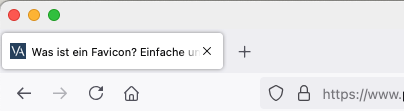
Change & add WordPress favicon + apple-touch-icon (customize logo / icon / graphic / symbol address bar browser tab)
In WordPress, you can easily change the favicon, also known as the site icon. Here are the steps on how to do that:
- Admin Dashboard: Log in to your WordPress admin dashboard.
- Customizer: In the dashboard, go to Appearance and click on Customize. This will open the WordPress Customizer.
- Site Identity: In the sidebar of the Customizer, you will find an option called Site Identity. Click on it.
- Select Logo: Here you see the option for the Site Icon. The Site Icon is what serves as your website’s favicon. Click the Select Logo button to upload an image or select an existing image from your media library.
- Upload Image: Choose an image that is at least 512 x 512 pixels. WordPress uses this image not only as a favicon but also as an app icon for mobile devices.
- Crop Image: After uploading, you can crop your image. Once you are satisfied, click Crop and Publish.
- Publish: Click the Publish button at the top to save your changes.
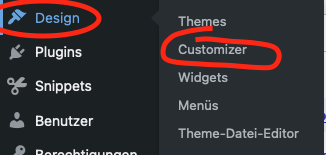
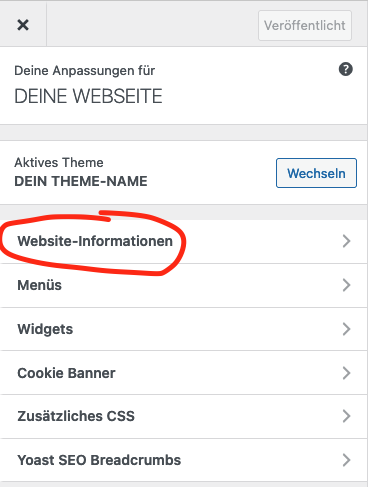
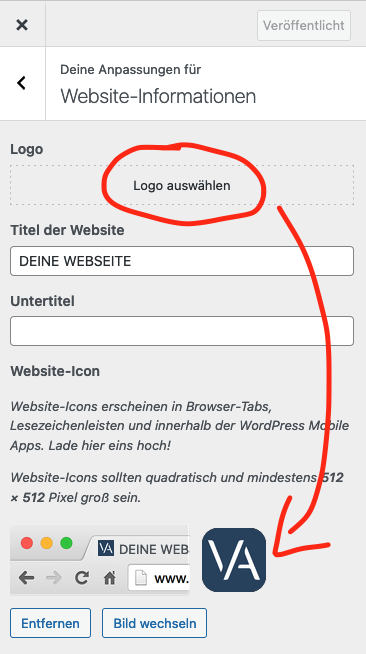
Summary: Exchange, insert or change in the Customizer under "Site Identity > Site Icon".
The new favicon should now appear on your website and be visible in browser tabs, bookmarks and as an app icon when the page is added to the home screen of a mobile device. So, inserting the WordPress favicon is very quick and easy. By the way, this works just as well when using WooCommerce.

Florian Ibe
CEO & Marketing Consultant
Your contact person: Florian Ibe
Become more visible on Google & Social Media?
In a free strategy consultation for data-driven online marketing, we uncover your untapped potential, review any existing ad accounts if necessary, examine your SEO ranking and visibility, and determine which strategy is appropriate for your budget and which active measures will lead to more inquiries or sales.

✅ More visibility & perception through targeted placement
✅ More visitors > prospects > customers > revenue
✅ Reach target groups scalably with SEA
✅ Act and grow sustainably with SEO
🫵 Maximum success with our hybrid strategy
💪 More than 15 years of experience across industries in over 1,000+ projects demonstrable!







Insert / change WordPress favicon with the theme settings
Using our preferred BeTheme as an example, there is an extra setting that does NOT override the Customizer setting. However, this is not always guaranteed depending on the theme programming.
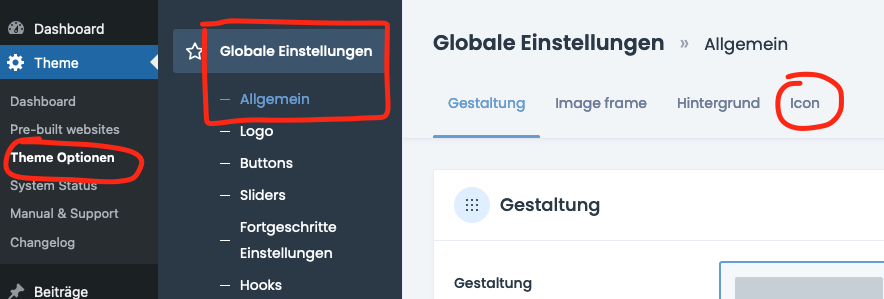
the method for changing or inserting a favicon in WordPress can vary depending on the theme used. Many modern themes offer their own options for managing the favicon, often beyond the Customizer interface or through special theme options. Here are some points to consider when working with different themes:
1. Theme-Specific Options
Some themes have their own sections in their settings for the favicon. You can often find these under a section like „Theme Options“ or „Header Settings.“ These settings can be more detailed than the standard WordPress options and may offer additional features such as different icons for different devices.
2. Customizer
Even if the theme offers special options, the WordPress Customizer remains a common place to change the favicon. It’s always a good idea to check there first, as many themes integrate WordPress’s native functionality.
3. Plugins
If a theme doesn’t offer an easy way to add or change a favicon, a plugin can provide a solution. There are dedicated favicon plugins that offer additional features, such as managing multiple icons for different platforms or easily switching the favicon.
4. Code Changes
In some cases, especially with older or highly customized themes, you may need to directly edit the code to change the favicon. This could mean adding or editing the HTML link tag for the favicon in the theme’s header template.
5. Documentation and Support
Check the theme’s documentation or contact support if you are unsure how to change the favicon. Many theme developers offer detailed instructions or can provide specific guidance.
It is important to pay attention to whether your changes might be overwritten during theme updates, especially if you have made changes directly in the code. In such cases, it is advisable to use a child theme to safely preserve your customizations.
Tip for the best themes:
Favicon or apple-touch-icon?
The Favicon and the Apple Touch Icon serve similar, yet different purposes and are used differently on various devices. Here is a brief overview of both:
Favicon
- Definition: A Favicon is a small icon displayed in the address bar of a browser, in bookmarks, tabs, and other user interface elements.
- Format: Usually saved as an
.icofile to ensure compatibility with older browsers, but can also be a.pngor.gif. - Size: Traditionally 16×16 pixels, but often also provided in sizes such as 32×32 or 64×64 for Retina displays.
Apple Touch Icon
- Definition: An Apple Touch Icon is used on Apple devices when someone adds your website to their home screen. This icon then appears on the device similar to an app.
- Format: Always as a
.pngfile. - Size: A size of 180×180 pixels is recommended to ensure good display on various Apple devices.
Important: The favicon is changed via the WordPress Customizer and is SIMULTANEOUSLY also the apple-touch-icon! So only set it once for all uses!
Differences and Application in Manual Embedding Without WordPress
- Area of Application: The favicon is universally intended for desktop and mobile browsers, while the Apple Touch Icon is specifically optimized for integration on iOS devices.
- Implementation: The favicon is usually defined in the
<head>section of the HTML code. For the Apple Touch Icon, a link is also inserted in the<head>that specifically targets iOS devices:
<link rel="icon" href="/pfad/zum/favicon.ico" type="image/x-icon"><link rel="apple-touch-icon" href="/pfad/zum/apple-touch-icon.png">
It is therefore advisable to prepare both icons and implement them on your website to ensure that users on all devices receive an optimal display of your logo or branding symbol.
Create & Generate WordPress Favicon
There are numerous online tools that can help you create a favicon for your website. These tools often also offer the option to generate different sizes and formats for various purposes, including Apple Touch Icons. Here are some popular options:
Favicon.io
One of the simplest and most effective tools for creating favicons. You can upload an image, enter text, or create from an emoji. The tool then generates favicons in various sizes.

RealFaviconGenerator
Offers detailed options for customizing your favicon for various platforms, including iOS, Android, and different desktop browsers. It also checks compatibility and provides recommendations for improvement.

Favicon Generator (favicon-generator.org)
Another useful tool that allows you to create a favicon from an image. It also supports the creation of favicons for iOS and Android devices.

Iconifier.net
This tool generates favicons in 16 different sizes from a single uploaded image, suitable for various devices and environments.

X-Icon Editor
An online editor that allows you to create and edit favicons directly in the browser. You can import an existing image or draw from scratch.

These tools for creating and generating favicons not only simplify the creation of favicons but also their integration into your website, often by providing the necessary HTML code for embedding.
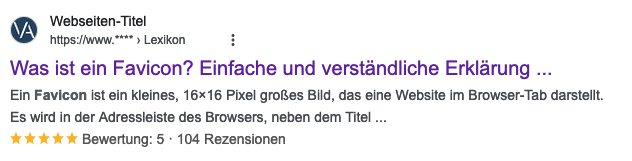
How can I test the favicon icon/logo in the browser tab?
Testing your favicon is important to ensure that it is displayed correctly on different platforms and browsers. Here are some steps and tips on how to effectively test your favicon:
1. Browser Test
- Different Browsers: Test your favicon in different browsers such as Google Chrome, Mozilla Firefox, Safari, and Microsoft Edge. Make sure it is displayed correctly in tabs, address bars, and bookmarks.
- Clear Cache: Don't forget to clear your browser's cache before checking the favicon, as browsers tend to cache favicons, which can make testing changes difficult.
2. Mobile Devices
- Smartphones and Tablets: Check the favicon on different mobile devices, especially if you have also implemented an Apple Touch Icon. Add the website to the home screen to see how the icon looks there.
3. Favicon Checker Tools
- RealFaviconGenerator: After creating your favicon with this tool, you can also use its Favicon Checker feature to see how your favicon looks on different platforms.
- Favicon.io: This tool shows how your favicon will look in different browsers.
4. Use Developer Tools
- Chrome DevTools: You can use Chrome DevTools (F12) to check if your favicon is loading correctly. Go to the „Network“ tab and filter by „Img“ to see if your favicon loads without errors.
5. Ask friends or colleagues for feedback
- Cross-Checking: Sometimes it is helpful to get a third opinion. Please ask friends or colleagues to open the website on their devices and provide feedback on the favicon.
Through these tests, you can ensure that your favicon is displayed correctly and that your website’s branding remains consistent across different platforms and browsers.
Why is a Favicon important?
The favicon, or website icon, plays an important role in user-friendliness, brand identity, and the professional appearance of a website. Here are some reasons why favicons are so important:
1. Brand Recognition
- Visual Identity: A favicon is a small but effective part of your brand’s visual identity. It helps users quickly recognize your website in a list of bookmarks or open tabs.
- Consistency: It contributes to brand consistency by representing the logo or an element of the brand design in a compressed form.
2. User Experience
- Navigation: In a browser with many open tabs, a favicon helps users quickly identify your site and navigate between different pages.
- Professional Appearance: A website with a favicon looks more professional and trustworthy. It shows that attention has been paid to the small aspects of the website’s presentation.
3. Technical Advantages
- SEO Benefits: Although a favicon does not directly influence SEO, a better user experience indirectly improves website performance. Websites that look professional and are easy to navigate can have lower bounce rates and better interactions, which can positively affect rankings.
- Compatibility and Functionality: Modern devices and browsers use favicons in various formats for special functions, such as the Apple Touch Icon on iOS devices for bookmarks on the home screen.
4. Trust and Credibility
- Building Trust: A well-thought-out and well-designed favicon can help gain visitors‘ trust by demonstrating the professionalism and care invested in the website.
5. Cross-Platform Identity
- Multiple Platforms: Favicons are not only used in browsers but also on mobile devices when a website is added to the home screen, as well as in app lists, which improves recognition across different platforms.
Overall, a well-designed favicon significantly contributes to the user experience and the professional appearance of your website and should be considered an integral part of your online presence.
FAQ – Questions & Answers about Favicon Icons, Logos, Graphics, and how to insert, customize, and change them:
Here are five of the most common questions and answers about favicons, which help to develop a better understanding of their importance, design, and technical aspects:
1. What is a favicon and why is it important?
Answer: A favicon is a small, iconic image that appears in a browser’s address bar, in bookmarks, tabs, and other interfaces. It is important for brand recognition, improves usability by facilitating navigation, and enhances the professional appearance of a website.
2. What size should a favicon be?
Answer: The traditional size for a Favicon is 16×16 pixels, but it is recommended to use larger sizes such as 32×32 or even 64×64 pixels to ensure compatibility with modern devices and high-definition displays. Some systems, like iOS, require more specific sizes, e.g., 180×180 pixels for the Apple Touch Icon.
3. How can I add a Favicon to my WordPress website?
Answer: In WordPress, you can add a Favicon using the Customizer tool. Go to „Appearance“ > „Customize“ > „Site Identity“ and upload your Favicon there. WordPress allows you to upload images directly and automatically convert them to the correct format.
4. Can Favicons affect my website's SEO?
Answer: Favicons do not directly affect SEO, but indirectly they can contribute to the user experience by improving recognition and navigation. A better user experience can lead to longer visit times and lower bounce rates, which sends positive signals to search engines.
5. How do I update my Favicon so that it changes in all browsers?
Answer: After you have created and uploaded a new Favicon, it may not appear immediately due to browser caching. To fix this, you should clear your browser’s cache. In some cases, it may also be helpful to use a new file name for the Favicon and update the HTML link tag accordingly to ensure that browsers load the latest version.
What is a favicon? Learn more here:
Conclusion & Summary on changing WordPress Favicon with website icon as logo or graphic
The Favicon, also known as a website icon, plays a central role in your website’s brand identity and user experience. It appears in browser tabs, bookmarks, and on mobile devices as an app icon. In WordPress, the Favicon can usually be easily inserted and changed via the Customizer under „Appearance“ and „Customize“ in „Site Identity“. However, some themes offer their own options or require special adjustments. It is important to choose the method that best suits your specific theme and, if necessary, use plugins or direct code adjustments to optimally present your Favicon.


 DE
DE