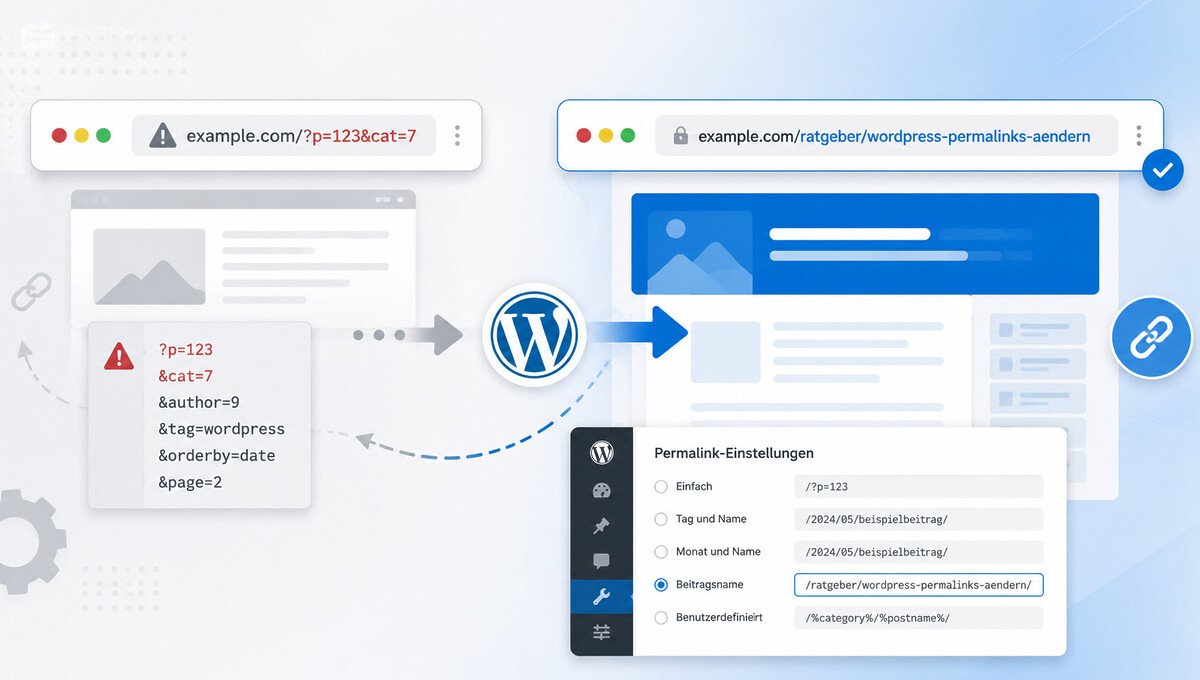
The structure of your URLs determines how search engines and visitors perceive your content. A clean, descriptive address increases trust, click-through rate, and long-term discoverability. We show you how to safely change the URL structure in WordPress, which variant has proven effective, and what you need to consider regarding redirects and troubleshooting.
Why you should deal with WordPress Permalinks
A permalink is the permanent URL under which a WordPress post, page, or archive can be accessed. This address appears in the browser, in search results, and in shared links on social media. In over 1,000 projects implemented since 2010, we check the permalink structure as one of the first SEO levers.
In its default state, WordPress assigns cryptic URLs such as ?p=123. While these are technically functional, they are incomprehensible to users and search engines.
A descriptive URL, on the other hand, directly conveys the content and is much easier to remember. Those who choose the right structure early on avoid later changes and the associated risks.
What a Permalink technically is
The term comes from English and means „permanent link.“ The address should remain the same permanently so that bookmarks, backlinks, and search engine rankings work stably.
WordPress internally generates these URLs via Rewrite Rules in the .htaccess and uses the database option permalink_structure. In the frontend, the Apache server translates each request into the appropriate WordPress query.
SEO and UX Relevance of the URL Structure
Search engines evaluate the URL as additional context to the page content. A slug like /wordpress-permalinks-aendern/ is significantly more meaningful for Google than ?p=42.
Users also benefit: descriptive addresses can be mentioned in conversation, printed in print media, and more easily recognized in the browser. Especially in social media snippets, the URL immediately catches the eye.
In addition, there is the backlink aspect: anyone who links a descriptive URL often sees the link text already in the permalink. This strengthens trust and click-through rate, especially in sober link lists or PDF documents.
Which Permalink Structure is Right for Your Website?
WordPress offers several standard structures in the backend as well as a free configuration option. Which variant fits depends on the type of your project. A clean WordPress SEO optimization therefore almost always begins with this fundamental decision.
For the vast majority of websites, the structure /%postname%/ is the best choice. It provides short, flexible URLs that contain only the slug of the post and can be more easily reorganized later if necessary.
Other structures can be useful, but they usually come with disadvantages that weigh heavily in everyday use.
Become more visible on Google & Social Media?
In a free strategy consultation for data-driven online marketing, we uncover your untapped potential, review any existing ad accounts if necessary, examine your SEO ranking and visibility, and determine which strategy is appropriate for your budget and which active measures will lead to more inquiries or sales.

✅ More visibility & perception through targeted placement
✅ More visitors > prospects > customers > revenue
✅ Reach target groups scalably with SEA
✅ Act and grow sustainably with SEO
🫵 Maximum success with our hybrid strategy
💪 More than 15 years of experience across industries in over 1,000+ projects demonstrable!







Overview of all permalink structures
| Structure | Example URL | Rating |
|---|---|---|
Simple (?p=ID) |
/?p=123 | Not recommended, no readability |
| Tag and name | /2026/05/19/sample-post/ | Quickly appears outdated with evergreen content |
| Month and name | /2026/05/sample-post/ | Same disadvantage as tag and name |
| Numeric | /archives/123 | Little SEO benefit, hard to remember |
| Post name | /sample-post/ | Recommendation for most websites |
| Custom | individual | Only for very specific setups |
Recommendation by Website Type
For classic corporate websites, blogs, portfolios, and online shops, /%postname%/ is the most robust choice. It is short, descriptive, and independent of the publication date.
For large magazine and news sites, /%category%/%postname%/ can provide additional context information. The downside: if you move a post to a different category, the URL changes and you need to set up a redirect.
For online shops based on WooCommerce, a separate logic applies: product and category URLs can be configured independently of the permalink setting via the WooCommerce settings. For example, if you want to replace the slug /produkt/ with a shorter path like /shop/, you can find the option under Settings → Permalinks in the „Optional“ section.
Changing WordPress Permalinks in the Settings
The change is made in the WordPress dashboard under Settings → Permalinks. There you can select one of the predefined structures or define your own via the „Custom“ field.
After making your selection, click „Save Changes.“ WordPress will then update the rewrite rules, rewrite the .htaccess file, and adjust the database option.
If you want to set up more complex custom permalink structures, for example with dynamic variables or region-dependent slugs, you should document the process thoroughly or have it implemented through our WordPress programming service.
Selecting Standard Structures
The most common choice is „Post name.“ This variant corresponds to /%postname%/ and is the de facto recommendation of most SEO experts.
Alternatives such as „Day and Name“ or „Month and Name“ are only useful in special cases, for example, for press websites with a strong publication date reference.
Custom structure via „Custom“
The „Custom“ field allows the free combination of placeholders such as %postname%,%category%,%year% or %post_id%. This allows, for example, hybrid structures such as /blog/%postname%/ to be realized.
Caution: Any adjustment of the structure subsequently requires a 301 redirect for all existing URLs. Otherwise, rankings and external links will be lost.
Edit permalink of individual posts
In addition to the global structure, the slug of individual posts can be customized. This allows you to deliberately shorten a URL, integrate an important keyword, or correct an outdated spelling.
In the Block Editor, you will find the option in the right sidebar under „URL“ or „Permalink“. In the classic editor, it appears directly below the title once the post has been saved.
Here, too, the following applies: If you edit an already published post, you should redirect the old slug to the new one via a 301 redirect.
Edit WordPress Permalink in the Block Editor
Open the post in the editor and click on „Post“ or „Page“ in the right sidebar. Under „Permalink“, the slug field appears, which you can overwrite as desired.
By clicking on „Update“, WordPress immediately applies the change. The new permalink is then live, the old path leads to nowhere without a redirect.
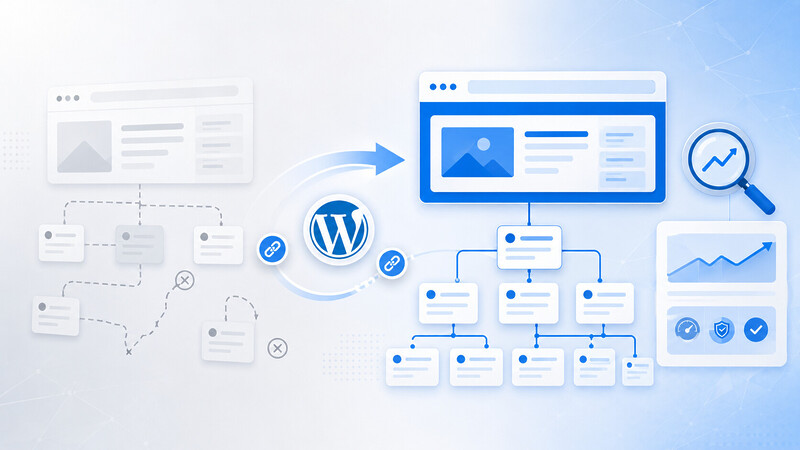
Special characters, umlauts and slug conventions
Slugs should consist exclusively of lowercase letters and hyphens. Underscores, special characters, and spaces lead to URL encoding and are neither aesthetically pleasing nor user-friendly.
Umlauts such as ä, ö, ü, and ß are usually automatically converted to ae, oe, ue, and ss in the URL. If you want to control this behavior, check the configuration of the theme or an SEO plugin.
Practical tip: Keep the slug deliberately short and keyword-relevant. Instead of /this-is-my-long-blog-post-about-permalinks-in-wordpress/,/wordpress-permalinks-change/ is much more meaningful, click-stronger, and easier to remember.
What technically happens when changing WordPress permalinks
Every time you click „Save Changes,“ more happens in the background than the simple dialog suggests. WordPress intervenes in two areas: the database and the .htaccess file.
In the database, the permalink_structure option is updated. Additionally, internal rewrite rules are newly generated and stored in the cache.
Subsequently, WordPress rewrites the .htaccess in the root directory, provided the file is writable. This is where most permalink problems arise in practice.
Role of the .htaccess file
The .htaccess contains the rewrite rules that Apache servers apply when a URL is called. Without these rules, WordPress cannot correctly redirect incoming requests to the appropriate page.
By default, the file is located in the root directory of your WordPress installation. If it does not exist or is not writable, 404 errors will appear on almost all subpages after a permalink change.
Rewrite Rules in the background
WordPress generates the rules dynamically and automatically replaces them with every structure change. In the standard case, the rules look like this:
# BEGIN WordPress
<IfModule mod_rewrite.c>
RewriteEngine On
RewriteRule .* - [E=HTTP_AUTHORIZATION:%{HTTP:Authorization}]
RewriteBase /
RewriteRule ^index\.php$ - [L]
RewriteCond %{REQUEST_FILENAME} !-f
RewriteCond %{REQUEST_FILENAME} !-d
RewriteRule . /index.php [L]
</IfModule>
# END WordPress
If you want to add your own rules, you should only do so outside the BEGIN WordPress / END WordPress markers. Otherwise, WordPress will overwrite the customizations the next time you save.
Setting up 301 redirects cleanly after permalink changes
As soon as you change the permalink structure of an existing website, all URLs of your published content also change. Without 301 redirects, all external links and bookmarks will lead to dead ends, and your search engine rankings will plummet.
A 301 redirect signals to Google that the old URL permanently points to a new one. Between 90 and 99 percent of the existing SEO value is transferred, provided no redirect chains are created.
For large migrations, we recommend structured support through our SEO Relaunch service. We check every redirect, avoid hops, and monitor crawling via Google Search Console.
Redirects via htaccess or plugin
For specific individual rules, a RewriteRule entry directly in the .htaccess is suitable. With many redirects, this quickly becomes confusing.
The free plugin „Redirection“ works more conveniently. It logs calls to old URLs, automatically suggests suitable targets, and supports wildcard rules. Make sure not to define duplicate redirects via .htaccess and plugin in parallel.
Update sitemap and inform Search Console
After the changeover, you should regenerate your XML sitemap and submit it to Google Search Console. This significantly speeds up the re-crawling of the new URLs.
It is also worth looking at known backlinks: where possible, external links should be directly updated to the new URL instead of just going through the 301.
Troubleshooting when WordPress permalink change doesn’t work
In practice, 404 errors or saving problems often occur after a permalink change. From the positive reviews of our customers on ProvenExpert, we know that the most common causes can be quickly identified and usually resolved with a few steps.
If you want to avoid problems of this kind from the outset, All-Inkl* is our clear recommendation for WordPress and WooCommerce hosting and will keep you calm in most cases.
Should the problem persist, you can find quick, telephone assistance via our WordPress Consulting and Support.
A current video about all-inkl since 2024 with test, comparison, experience and recommendation:
Fix 404 errors after permalink change
If all subpages suddenly return a 404 error after the change, the .htaccess is usually to blame. Open the root directory via FTP, back up the existing file and then delete it.
Then switch back to the WordPress backend and save the permalinks again. WordPress will then recreate the file, provided it has sufficient write permissions.
Check server configuration and plugin conflicts
If the .htaccess file cannot be written, write permissions are probably missing. CHMOD 644 is the clean standard. If the problem persists, check the Apache directive AllowOverride (should be set to All) and whether the mod_rewrite module is active.
SEO plugins, caching plugins, and security plugins can also insert their own rewrite rules that conflict with WordPress. Deactivate them one by one for testing purposes to find the culprit.
A frequently overlooked point is activated caching layers such as WP Rocket or an upstream CDN. Both may cache 404 responses or old URLs and must be manually cleared after every permalink change, otherwise visitors will continue to see the error despite correct server configuration.
Conclusion on updating WordPress Permalinks
Choosing the right permalink structure is one of the most important fundamental decisions for any WordPress installation. With /%postname%/ as the standard, clean 301 redirects for changes, and an updated sitemap, you lay a solid foundation for SEO and user-friendliness.
The correct order is particularly important: first define the structure cleanly, then change it, then redirect, then inform the Search Console. Those who follow these steps reliably avoid ranking losses and 404 errors.
If you would like professional support for a planned permalink change, a slug refactor, or a larger URL migration, our WordPress agency will assist you from planning to success monitoring.





 DE
DE