Setting up, defining, and later possibly changing the WordPress homepage is a problem for many WP users. In this article, we will show you briefly and concisely how easy it is.
Set, Define & Change WordPress Homepage
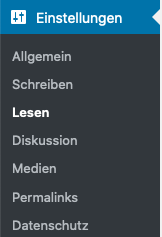
The setting for the website's start page can be found on the left via the gray admin bar (admin navigation) under Settings > Reading:
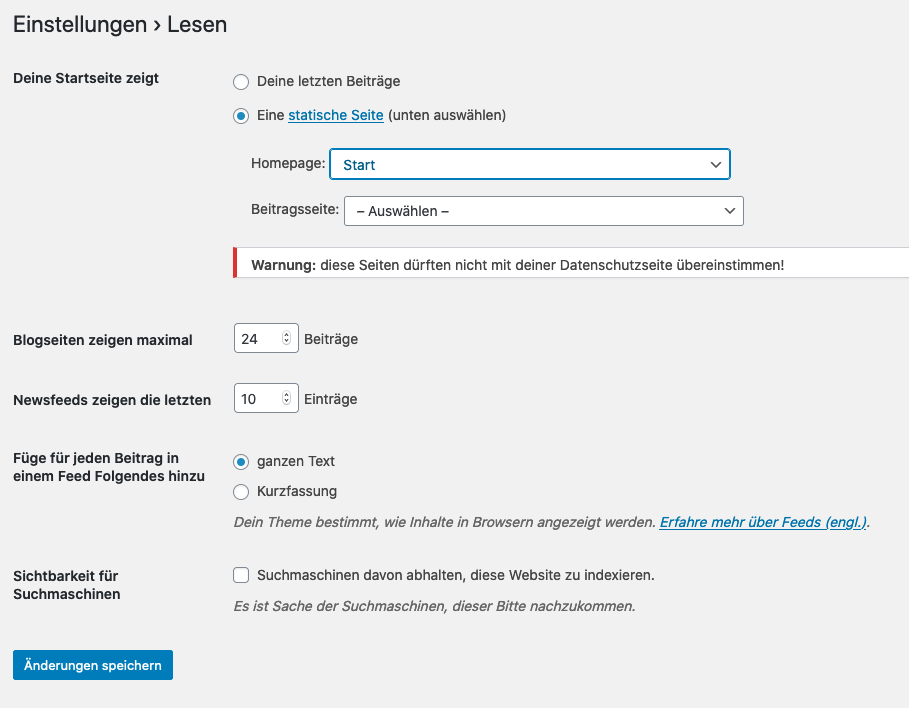
There are 2 settings to set and change the WordPress homepage:
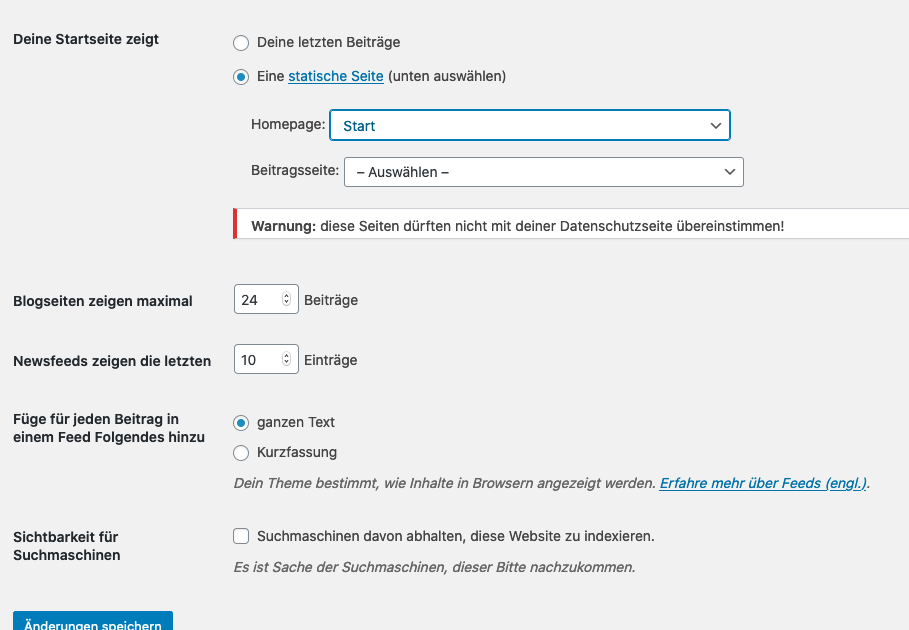
- Dynamic: Your latest posts
- Static: A static page (select below)
In variant 1, the latest posts are automatically displayed via the template / theme. This is rarely useful. (see note below)
In variant 2, a „Homepage:“ selection field can then be used. So, if the corresponding page has been created and published under „Pages“, it can be easily selected here.
And it's that simple!
Setting a dynamic WordPress homepage with current blog posts: On a static page, you can integrate a corresponding content element for current posts or similar via a so-called Page Builder (toolkit), or you can use this plugin Display Posts Shortcode in the normal text editor, or select a blog block in the Gutenberg editor.
Most important search terms for WordPress homepage settings:
wordpress set homepage
wordpress change homepage
wordpress set page as homepage
set homepage wordpress
set wordpress homepage
divi set homepage
wp set homepage
wordpress define homepage
wordpress set main page
wordpress set start page
wordpress set posts page
change homepage wordpress
wordpress set home page
wordpress set new homepage
set homepage in wordpress
set page as homepage wordpress
wordpress set up homepage
set homepage in wordpress
set wordpress as homepage




 DE
DE