A knowledge base, wiki, helpdesk, or Q&A portal can be very well implemented with a WordPress FAQ Plugin + Glossary function. But beware, there are countless old and free plugins that are more bad than good. An FAQ that is only on one page with so-called accordions / toggle boxes (expandable boxes) is conceivably unsuitable for more than 5 questions and answers. An FAQ ideally consists of:
- Overview page (with search / search function)
- Categories + Tags (optional)
- A clean subpage with its own link for each question and answer
This is the best and cleanest way for the user, internal support management, and Google SEO.
In this article, we show the currently best solution with which we have already implemented countless FAQs.

WordPress FAQ Plugin – Knowledge Base | Helpdesk | Wiki (how to do it right!)
FAQs, the presentation of questions and answers, are an essential part of websites and online shops. After all, your visitors probably want to have questions answered when making a contact/purchase decision. By including frequently asked questions (FAQs) on your website, you can provide the necessary information (while addressing objections) to avoid friction on the conversion path. While FAQ functions can be created without plugins, custom coding can be time-consuming, especially when you have more important elements to consider on your WordPress website or online shop. Regardless of whether you want to display these FAQs on a specific page or in multiple sections of your website, a high-quality FAQ plugin can save time and give the page a modern, appealing look.

Questions & Answers – Knowledge Base | Helpdesk | Support | Wiki – Fast and Easy WordPress FAQ Plugin
FAQ plugin that allows you to create, organize, and publish your FAQs (frequently asked questions) in no time via your WordPress admin panel. With a modern layout, the FAQs fit into any page & shop. Comes with many features and customization options!
With the WordPress Knowledge Base plugin, you can create a self-service helpdesk for customers in minutes. Create a resource with helpful articles and answer popular customer questions. Our customers use the Knowledge Base as customer service centers, extensive FAQs, product or service documentation, internal company documentation, Wiki, and much more.
Examples of the WordPress FAQ Plugin
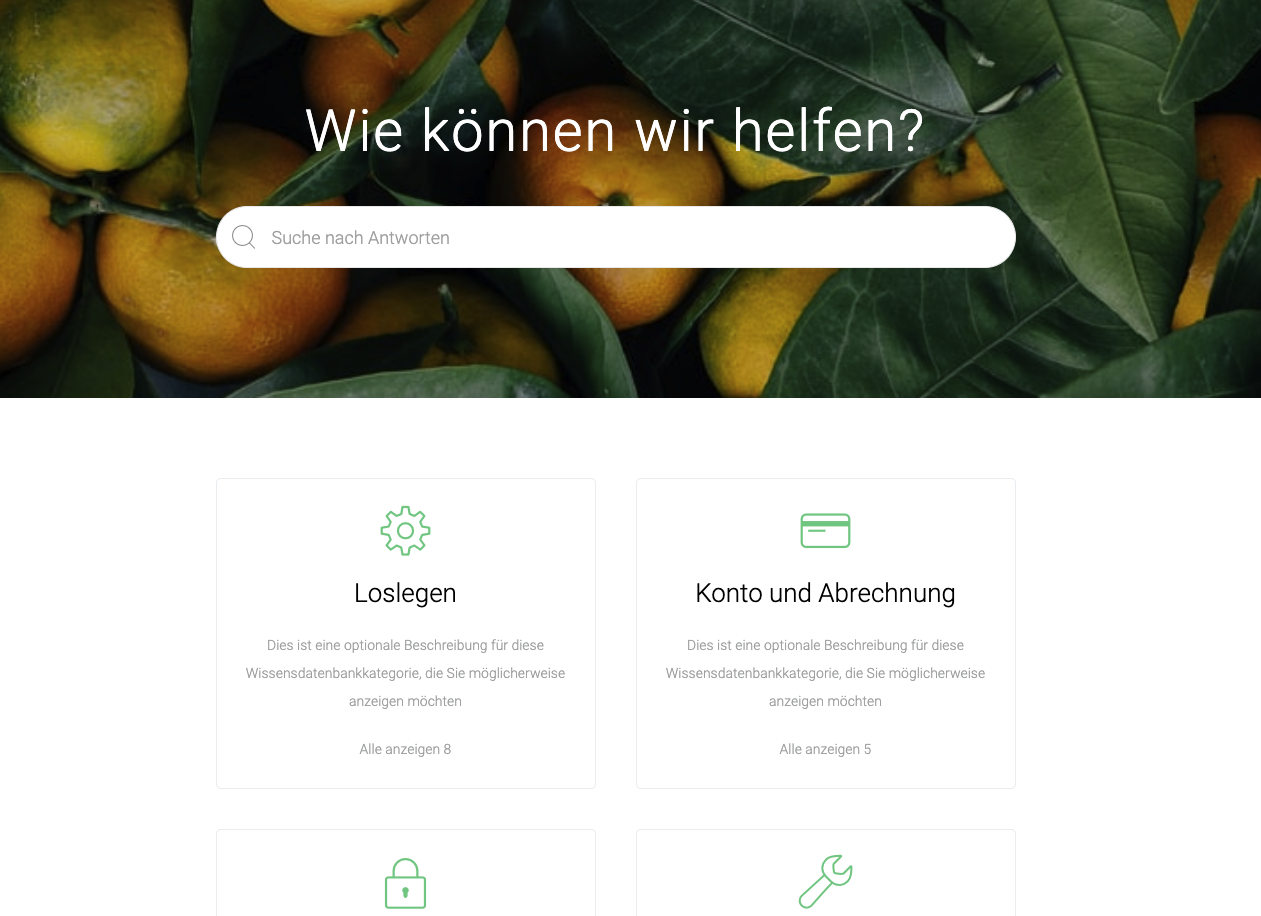
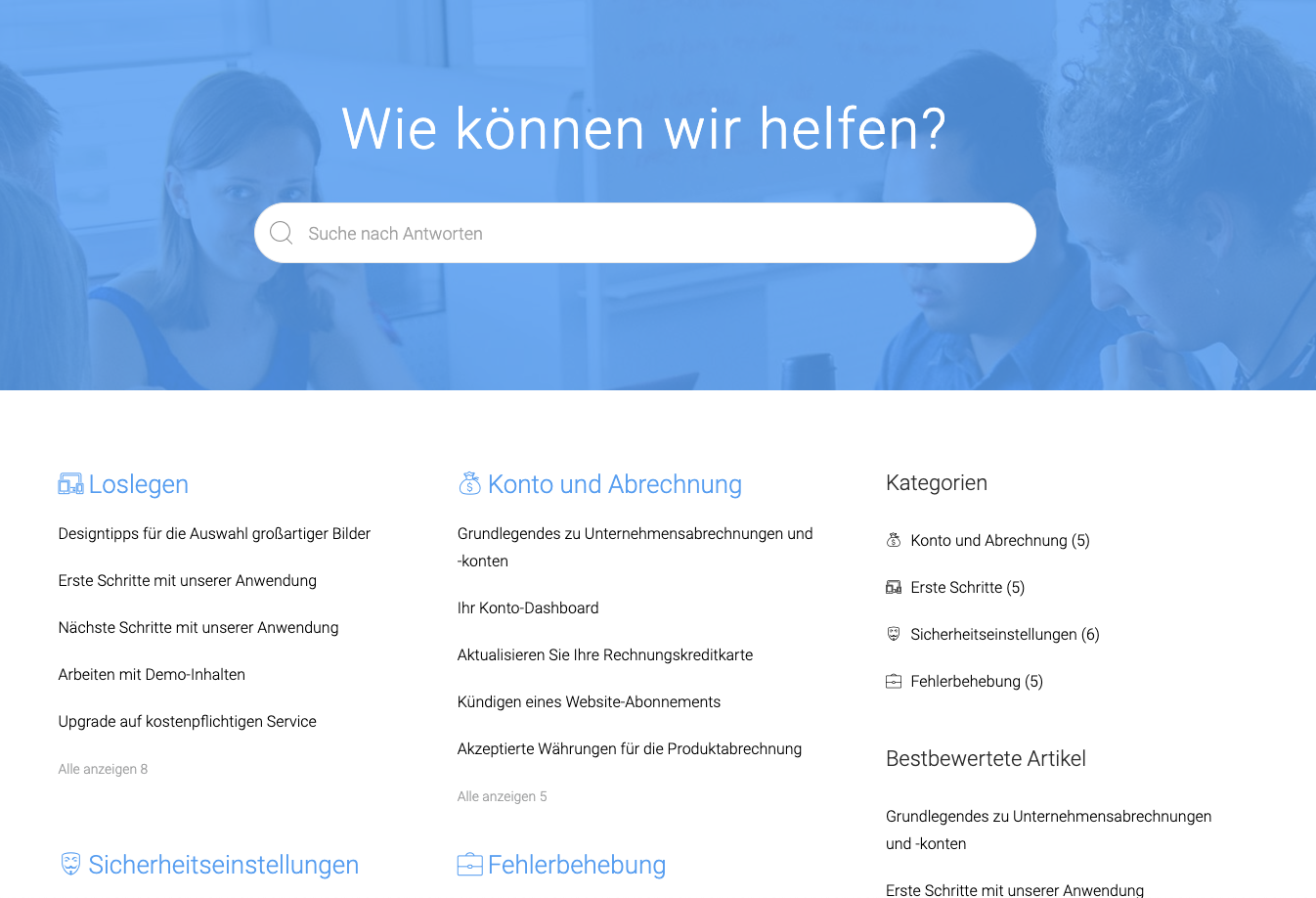
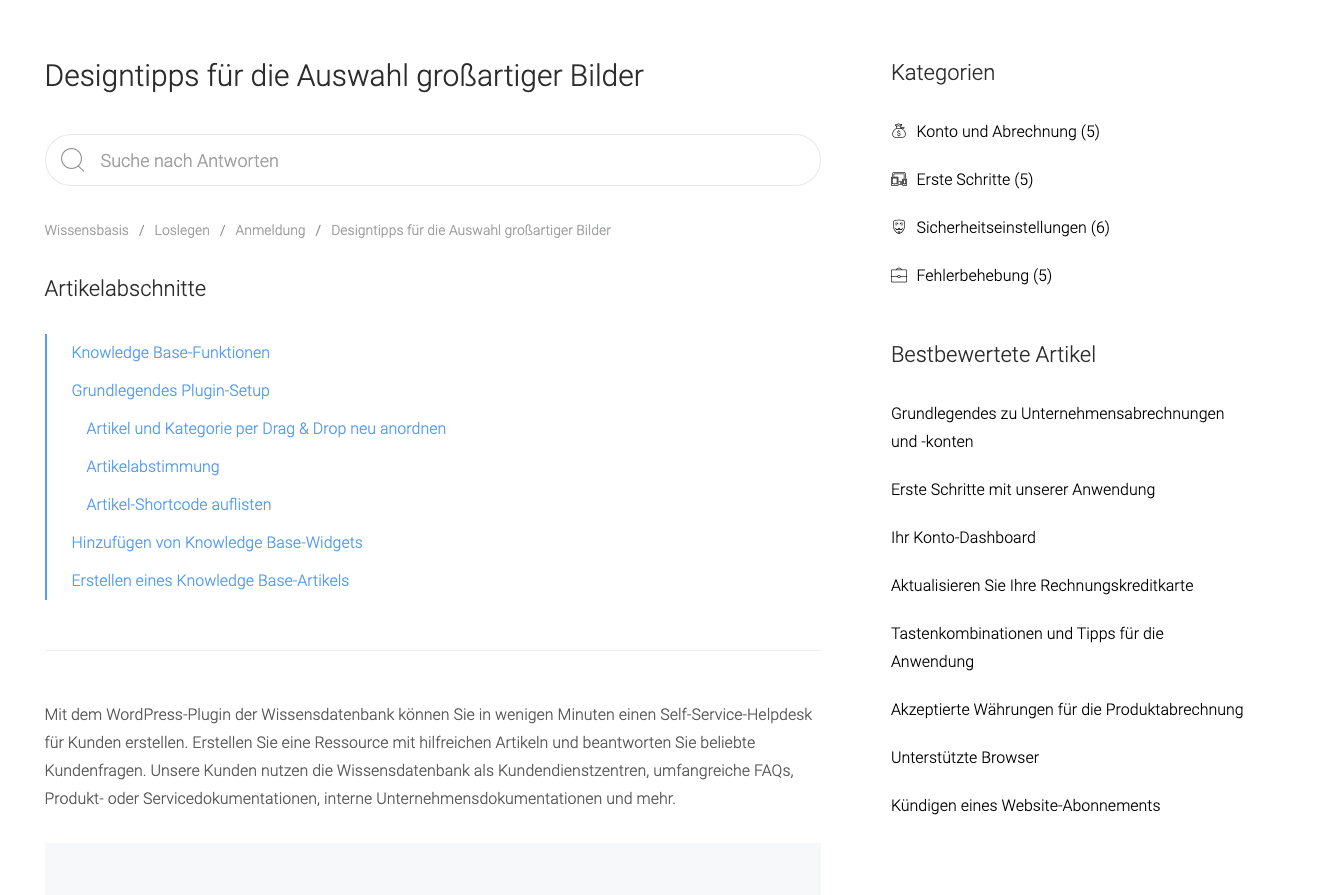
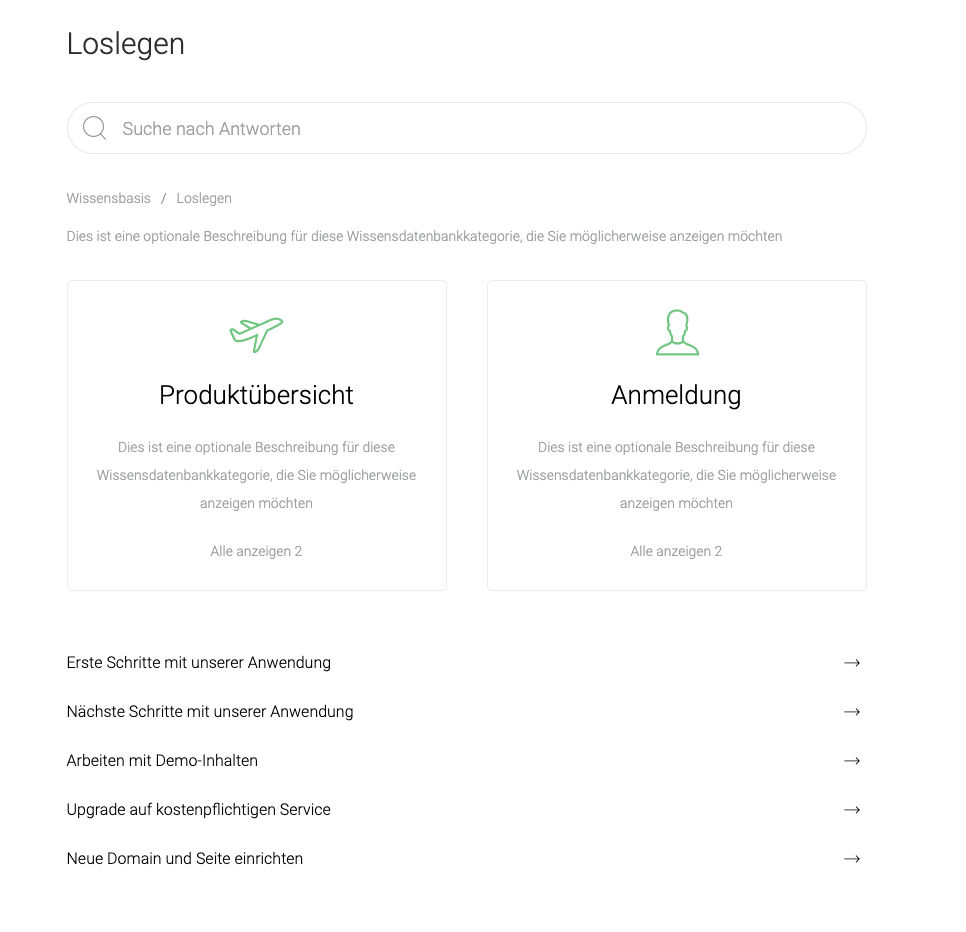
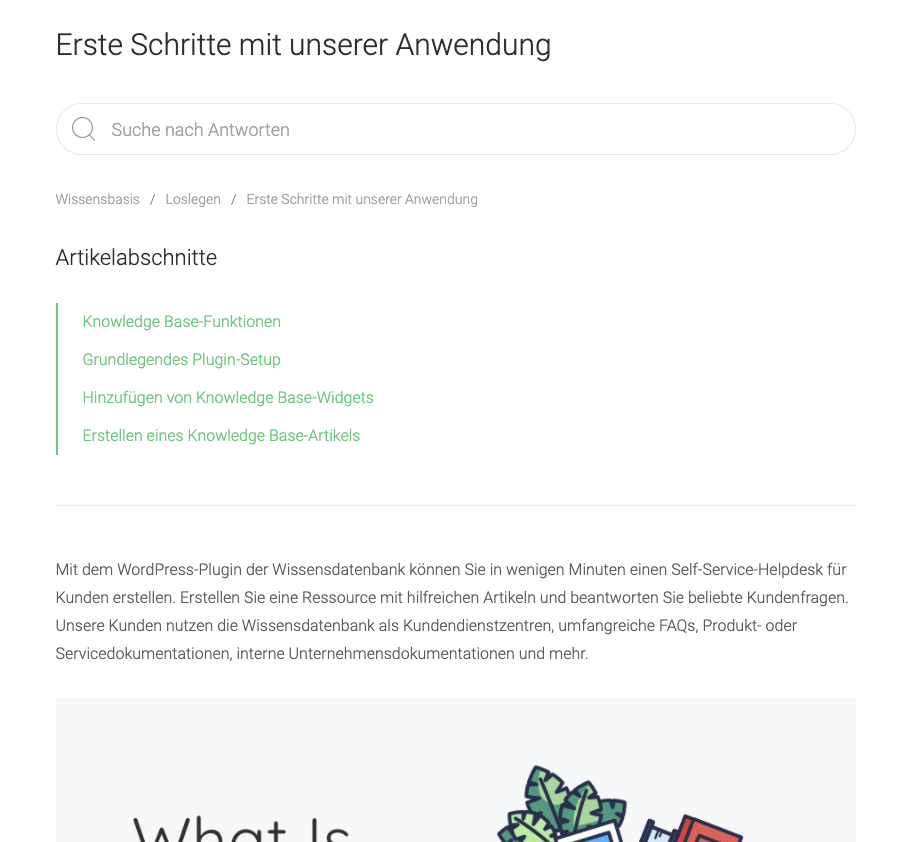
Features of the WordPress FAQ Plugin
- Drag & Drop Reordering of Knowledge Base Posts and Categories and Categories.
- Custom Link: Set custom Knowledge Base article and category slugs (permalink / link).
- Breadcrumbs Display breadcrumbs on category and single pages.
- Article File Attachments
- Gutenberg Block Ready
- Live Search
- Placeholder Set the placeholder for the search field.
- Hide button Option to hide the search submit button.
- Placement Choose where the search should be displayed (main page, category page, single page).
- Disable Live Search Option to disable live search results.
- Main Knowledge Base Page
- Columns Display categories in 2, 3 or 4 columns.
- Category Style Display knowledge base categories as boxes or lists.
- Sidebar Display the horizontal sidebar.
- Page Content Display additional content on the main page.
- Reorder Layout Drag & drop order search, knowledge base content, page content and sidebar on the page.
- Category Count Displays the article count in the category link.
- Show All Link Display the „Show All“ link for each knowledge base category.
- Show All Count Displays the count of knowledge base articles under the „Show All“ link.
- Category Icons Display knowledge base category icons and set a unique icon for each category. Choose from 200 icons.
- Category Font Size Set the font size for category titles.
- Single Page
- Meta Information Show / hide update date, category and tags of the article Meta information.
- Comments Enable comments on a page. This feature requires theme support!
- Ratings
- Public or Members Only Voting: Easily set who can publish a vote on your website from the plugin’s settings page.
- Disable the "Dislike" button
- Set Voting Icons Set icons for „Like“ and „Dislike“.
- Reset Votes Reset votes for a single Knowledge Base article or all articles.
- Widgets
- Articles Display a list of articles, ordered by date, title and filtered by tag or category.
- Categories Displays a list of knowledge base categories
- Article List Shortcode: Displays the list of articles, sorted by date, title, and filtered by tag or category. Easy-to-use shortcode generator.
- Set Category Link Color
- Set the link color for articles
- Responsive Design Fully responsive design and optimized for small screen devices such as iPhone, iPad.
- Documented All our products come with step-by-step documentation for installation and setup.
- Translation Ready All our products are translation ready with the Poedit tool with instructions in the included documentation (Better: Loco Translate)
- Set the link color with the color picker
- Regular Product Updates The Knowledge Base Plugin is kept up to date with the latest WordPress versions.
Become more visible on Google & Social Media?
In a free strategy consultation for data-driven online marketing, we uncover your untapped potential, review any existing ad accounts if necessary, examine your SEO ranking and visibility, and determine which strategy is appropriate for your budget and which active measures will lead to more inquiries or sales.

✅ More visibility & perception through targeted placement
✅ More visitors > prospects > customers > revenue
✅ Reach target groups scalably with SEA
✅ Act and grow sustainably with SEO
🫵 Maximum success with our hybrid strategy
💪 More than 15 years of experience across industries in over 1,000+ projects demonstrable!







FAQ Pages – Schema Markup Data
A Frequently Asked Questions (FAQ) page contains a list of questions and answers about a specific topic. Properly marked up FAQ pages can be displayed as a rich result in search and as an action for Google Assistant. This allows you to reach the right target audience even better with your website. Here is an example of a rich search result for an FAQ page:

Structured data is a standardized format that allows you to provide information about a page and classify its content. If you are not yet familiar with structured data, you can find more information on how it works here.
Rich snippets, i.e., rich search results from FAQ pages, can be displayed in all countries and all languages where Google Search is available. The function can be used on computers and mobile devices.
(Source: https://developers.google.com/search/docs/data-types/faqpage)
Questions and Answers in the Shop on the Product Page
A product or sales page is truly the perfect place for an FAQ section. Potential buyers may have questions before purchasing. If they find an answer immediately instead of contacting support and waiting for a response, you have an excellent chance to close the sale immediately.
And with these WordPress FAQ plugins, you have many options for your brand and business.
Whether you need a no-frills FAQ list, like you get with the FAQ plugin, or an elegant accordion-style FAQ list, like Fancy FAQ offers – or if you want to fully customize the look of your FAQ plugin like with Ultimate FAQ, rest assured that potential customers will benefit from an FAQ section on your pages.
When deciding which FAQ plugin to use, consider the ultimate goal of providing your users with the best possible user experience and eliminating friction in the conversion path on your website. Your FAQs should help visitors to the website and shop. This way, you can better position your service/product in front of them.
UPDATE: New Plugin! WP-Glossary – Encyclopedia / Lexicon / Knowledge Base / Wiki / Dictionary & flexible directory with automatic linking (Wiki-Auto-Link-Function)

The „WP Glossary“ plugin helps you create your own glossary with terms for an encyclopedia / lexicon / knowledge base / wiki / dictionary or a directory on your website. This WordPress FAQ plugin is based on a custom post type, giving you a full editor. Do you want to use an existing post type? Don’t worry, you’re still on the right page. With this plugin, you can select the existing post type via the plugin’s default type.
- The plugin is fully customizable
- Mobile-friendly (Responsive)
- Easy to set up and use
- Easy-to-use custom set of filter letters / alphabets beyond the standard English alphabets. This way, it helps create filter lists for other languages as well (e.g., Hebrew, Greek)
- Highly compatible with WordPress themes and plugins
- Improves search engine optimization by automatically linking every highlighted phrase or term to a dedicated term definition page
Latest video with an overview of the settings in the backend:
GLOSSARY INDEX PAGE
This module allows you to create and display your own glossary with beautiful animation effects.
- Add unlimited glossary terms to your website with a simple user interface
- Index terms by alphabets / categories with beautiful animation effect
- Instant search as you type
- Also supports custom/existing post types
- Allows you to use any existing post type over the plugin’s default type
- Allows you to change glossary term slug/seo keyword
- Allows you to select the layout for the glossary terms list page
- Allows you to enable/disable empty alphabets/categories from the listing filter
FEATURE: GLOSSARY LINKING
This module allows you to automatically link terms/phrases in your pages/posts. Every time glossary terms appear on your pages/posts, they will be automatically linked to their URLs. This improves Search Engine Optimization (SEO) by automatically linking each highlighted phrase or term to a special term definition page.
- Allows enabling/disabling Linkify
- Allows you to select specific post types for which you want to enable Linkify
- Allows enabling/disabling Linkify for Full Description, Short Description, Category/Term Description, Text Widget, and Comments
- Allows disabling Linkify on the homepage
- Allows adding synonyms for glossary terms
- Allows you to limit the maximum number of occurrences of each term to be linked
- Allows enabling/disabling case sensitivity for glossary terms
FEATURE: GLOSSARY TOOLTIP
This module allows you to display a tooltip window when the user hovers over the glossary to link terms/phrases in your pages/posts. This helps users quickly overview the highlighted terms.
- Allows enabling/disabling tooltips
- Offer multiple tooltip window themes to choose from
- Allows appending the term title to the content in the tooltip window
- Allows displaying a short or full description in the tooltip window
- Allows you to limit the maximum number of words in the tooltip window
- Provide multiple animation types
- Provide multiple tooltip positions to choose from
- Allows showing/hiding the tooltip bubble arrow
- Allows setting the minimum and maximum width of the tooltip window
- Allows you to set the animation speed (in milliseconds) for the tooltip
- Here you can set the delay (in milliseconds) until the tooltip starts animating
- Enables/disables tooltips on touch devices
GLOSSARY CUSTOM STYLES
This module allows you to easily create custom styling without requiring CSS knowledge. You can choose colors with the color picker without knowing color codes, and you can try different font sizes to see which one fits the website.
- Allows you to choose font colors for filter buttons, headings, and terms
- Allows you to choose hover/active font colors for filter buttons and terms
- Allows you to choose heading colors for terms
- Allows you to choose colors for background, content, heading, and links
Simple Shortcode:
A
B
C
- Cache
- Caching
- Canonical Tag
- Citation Flow (CF)
- Cloaking
- Content
- Content Management System (CMS)
- Conversion
- Conversion Rate (CVR)
- Cookies
- CopeCart
- Corporate Blog
- CPC (Cost per Click)
- CPL (Cost per Lead)
- CPO (Cost per Order)
- Crawl Budget
- Crawler
- Crossposting
- CTAs – Call to Actions
- Customer Journey
- Contribution Margin
- Click fraud
- Cost-to-Sales Ratio (CSR)
D
E
F
G
K
P
S
T
Use this shortcode anywhere on your page or post, and it will display glossary terms in the same style you expect from the plugin. Some attributes are available with the same shortcode, and you can find them in the next step. Not all of these attributes need to be added with the shortcode and should only be added as needed. If you do not use these attributes, the shortcode will use the plugin settings for this purpose.
Full Shortcode:
- title: This option is currently free with the plugin and is only for future reference/updates.
- Layout: Select the desired number of columns per row on the glossary index page. By default, three columns per row are displayed, but you can change them to one to five columns. This option allows you to choose one of the following five options:
- one_column
- two_column
- three_column
- four_column
- five_column
- alphabet_set: By default, the plugin uses the alphabet set from A to Z for the filter on the glossary index page. Suppose you want to:
- change the order of the alphabets
- display only a few alphabets
- display a different set of characters
- display character list for another language (e.g., Hebrew, Greek)
- display multiple rows instead of all alphabets in a single row, or all English alphabets in the first row and Hebrew in the next row
You can use this option for all of these. Use a comma (,) for multiple alphabets. For multiple rows, simply use a new line (ENTER via keyboard).
E.g.:
A,B,C,D,E,F
M,N,O,P,Q,R - hide_empty: If some of the alphabets from the filter list on the glossary index page do not have glossary terms/phrases. These alphabets will appear disabled in the list. If you select this option, these disabled alphabets will be completely removed from the list. With this option, you can choose one of the following two options:
- Yes
- No
- hide_all: The plugin displays ALL at the beginning of the filter list on the Glossary Index Page by default, which, when clicked, displays all glossary terms/phrases. For example, if you click on the alphabet A in the filter list, all glossary terms starting with A will be displayed. Now you want to see the entire list of terms again. Clicking on ALL will do this for you. If you no longer want to display it in the filter list, you can enable this option. With this option, you can choose one of the following two options:
- Yes
- No
- hide_numeric: This option works almost the same as the "Hide All" filter works, but for glossary terms that start with a number. The plugin displays 0-9 directly after All in the filter list on the glossary index page, and you can remove it by enabling this option. With this option, you can choose one of the following two options:
- Yes
- No
- post_type: The plugin uses its own custom post type for the glossary index page. If you want to display the default WordPress post type (page, post) or another custom post type, you can select this option.
- Template: The plugin offers two types of glossaries: Alphabet GlossaryandTaxonomy/Category Glossary. Sometimes you want to list all categories with their posts in glossary style and this option does that for you. By default, the template uses Alphabet to work as an Alphabet Glossary, and you can change it to Category if you need to display a Taxonomy/Category Glossary. With this option, you can choose one of the following two options:
- Alphabet
- Category
- Taxonomy: This option works better with template=“category“ from the previous option. This way, you can decide for which taxonomy you want to load the posts.
E.g.: You want to list all products with WooCommerce categories, you can set this as taxonomy=“product_cat“. - taxonomy_terms_to_include: By default, the previous option (Taxonomy) loads posts for all categories. With this option, you can include only specific categories for which the posts are loaded. To do this, you need to enter comma-separated category IDs for this option.
- taxonomy_terms_to_exclude: By default, the previous option (Taxonomy) loads posts for all categories. With this option, you can exclude specific categories to load posts from the remaining categories. To do this, you need to enter comma-separated category IDs for this option.
- uncategorized_term_name: It is not necessary that all posts are correctly categorized and only a few of them may still be without category assignment. If you use template=”category”, only posts that have at least one category assigned will be displayed. With this option, you can also display uncategorized posts under the category of the same name that you pass with this option.
This can promote the number of inquiries (leads), sales, and also the long-term customer relationship.

Fragen zum FAQ Plugin, WordPress allgemein oder Probleme?
E-Mail: fi@vastcob.com
Florian Ibe



 DE
DE